What should you check before choosing?
Decide whether your immediate priority is recovery, access away from the laptop, local archive space or frequent file transfers. If more than one matters, a single storage destination may not cover them all.
External HDD
Choose it when: You want a large local archive and can keep the drive apart from the laptop between backups.
Accept that: You must make and check the copies yourself, and the drive alone offers no off-site access after a loss affecting both devices.
Portable SSD
Choose it when: You often transfer large photo or video batches or carry a local working copy.
Accept that: Rated transfer speeds depend on the connected device and cable, and a portable SSD is still a local copy.
Cloud storage
Choose it when: Access from another device after laptop loss or failure is a priority.
Accept that: Access depends on the account, the service and its storage limit; check whether its backup or online-only features will also help clear laptop space.
Cloud and external drive
Choose it when: Irreplaceable files need both an off-device copy and a separate local copy.
Accept that: You have two copies to maintain and test, as well as any ongoing cloud-plan commitment.
| Concern |
What to check |
Who this matters to |
| Independent recovery |
Check what is copied, how to restore a file and where the separate copy is kept. |
If losing the laptop would also mean losing irreplaceable photos, I need a copy I can recover after failure, theft or malware. Around 33% of consumers would put independent recovery first. |
| Access from another device |
Check supported devices, storage limits and account-recovery options. |
When my laptop is unavailable, I want to reach my documents from another device without depending on that computer. Roughly 27% of consumers would make access elsewhere their primary concern. |
| Local archive capacity |
Allow for the current library and its growth; confirm compatibility with your backup setup. |
My photo collection needs somewhere to live beyond the laptop, but I do not need to open the whole archive on every device. About 20% of consumers would prioritise a large local archive. |
| Portable file transfers |
Check the drive interface and the laptop port and cable needed for its rated speed. |
If I repeatedly move large photo or video batches, a portable working copy matters more to me than archive space alone. Around 20% of consumers would put transfers and portability first. |
External drives for local copies
These Joybuy choices are external HDDs and portable SSDs for keeping local copies of personal files. Choose between archive capacity and portable transfers according to your needs; none of these drives provides a cloud copy on its own.
 No image available
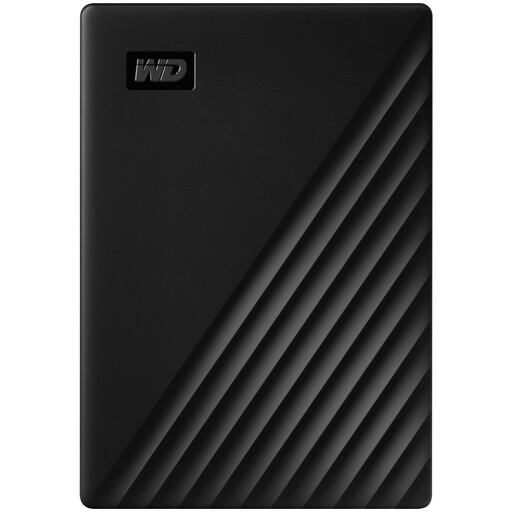
Western Digital My Passport 4TB Portable Hard Drive, Black
Consider this portable HDD for a large local photo or document archive. Its listed capacity is 4TB; keep a separate copy elsewhere if these files would be difficult to replace.
If you want scheduled backups or password protection, check the software and setup for this particular drive before relying on them. Confirm compatibility with your Mac setup if applicable.
View on Joybuy
 No image available
Western Digital My Passport Ultra for Mac 5TB, Silver
Consider this portable HDD for a large local archive in a Mac-based setup. Its listed capacity is 5TB; confirm that it works with your intended backup software and devices.
If you also use Windows, check the driver requirements. Confirm the applicable warranty terms before purchase.
View on Joybuy
 No image available
Samsung T7 Shield 1 TB Portable SSD, Blue
Consider this portable SSD if you frequently move large photo or video files and want a local copy you can carry. The listed capacity is 1 TB and the interface is USB 3.2 Gen 2.
Check your device and cable before relying on rated transfer speeds. As with any drive carried alongside the laptop, keep another copy of files you cannot replace.
View on Joybuy
 No image available
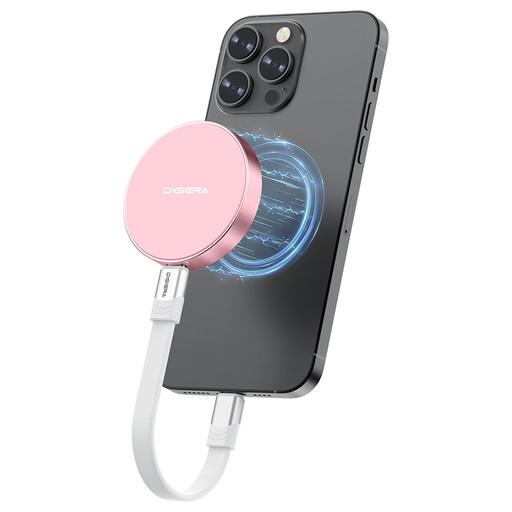
DigiEra LPS2000M-3 1TB Magnetic Portable SSD, Pink
Consider this portable SSD for local file transfers if its USB-C device compatibility suits your setup. The title lists 1TB capacity and USB 3.2 Gen 2x2; check your device and cable before relying on its advertised transfer speed.
Its described magnetic mounting concerns iPhone 15/16 models under stated case or ring conditions, not wireless charging. Check the file-system requirements before formatting: formatting erases existing data.
View on Joybuy
 No image available
Western Digital Elements Port. 4TB, Black
Consider this portable HDD as a 4TB local destination for photos and documents. Its title lists USB 3.0 connectivity; confirm that its connection and backup workflow suit your computer.
Mac use may require reformatting. Check before copying files to it, and keep another copy of anything you cannot replace.
View on Joybuy
Common questions
Will cloud backup free space on my laptop?
Not necessarily: Dropbox says its cloud-backup plan copies device folders but does not free computer storage. If clearing space is your goal, check whether the service offers online-only files and how it keeps a recoverable copy.
Should I leave my external backup drive plugged in?
Do not leave your only external backup permanently connected. The National Cyber Security Centre advises keeping backup media disconnected to reduce its exposure during a ransomware incident; make regular copies and test that you can restore them.
Can I get my cloud files from another device if my laptop is lost?
Yes, if the relevant files were successfully copied, the service supports access on that device and you can sign in. Microsoft says backed-up OneDrive folders are available across devices; check your chosen provider’s account-recovery process before depending on it.
What should I check before uploading private photos or documents?
Check file and folder permissions, account-security options and how you would regain access if locked out. The Information Commissioner’s Office advises choosing cloud-service security and availability that suit the files you intend to upload.
What happens when cloud storage fills up?
That depends on the provider and plan. Microsoft says exceeding its cloud-storage quota prevents new OneDrive uploads, edits and syncing while existing files become read-only; check your service’s quota and downgrade terms before making it your only accessible copy.


