Desktop glossary-tool users
If your glossary depends on a particular desktop application, spreadsheet process or course or workplace tool, check that it runs on the operating system you plan to buy before comparing laptop configurations.


Choose the laptop around the glossary applications, files and language-input methods you need, then assess its keyboard and display for sustained typing. A Windows laptop is a route for Windows-dependent tools; a MacBook suits a macOS-compatible workflow; and a Chromebook is an option for browser-based work if its file storage and any specialist tools meet your requirements.
If your glossary depends on a particular desktop application, spreadsheet process or course or workplace tool, check that it runs on the operating system you plan to buy before comparing laptop configurations.
If you regularly switch languages or enter accents or non-Latin characters, try the input method for your exact language pair. Microsoft Support, Apple Support and Google Chromebook Help document language and keyboard options, but your entry method still matters.
If you mainly create and share terms in browser-based documents, a Chromebook may suit your workflow. For Office files, check the Microsoft 365 and OneDrive setup described by Google Chromebook Help against the way you store and edit your glossary.
Settle the software and file workflow first, then test how you will enter both languages. Once those work, compare the space and portability you need for reading source text alongside glossary entries.
Choose when: Your glossary depends on Windows software or files used by a Windows-based course or workplace.
Check: Microsoft Support documents additional languages and keyboard layouts, but you still need to confirm your application, licence and exact input method.
Choose when: Your glossary tools work on macOS or in the browser and you want to use macOS input-source switching.
Check: Apple Support documents input sources and switching controls; confirm any specialist application and test character conversion where your languages require it.
Choose when: You build and share the glossary primarily through browser-based tools.
Check: Google Chromebook Help describes a Microsoft 365 Office-file workflow requiring OneDrive. Confirm your offline needs and any specialist software separately.
| Concern | What to check | Who this matters to |
|---|---|---|
| Applications and files | Confirm that your named glossary tools run on the chosen operating system and that you can open, edit and save your existing files. | If I rely on a particular course or workplace application, it needs to work before display features matter. Around 42% of consumers would put application and file compatibility first. |
| Bilingual input | Check both languages and scripts, then try switching input sources and entering any accents or converted characters you need. | When I add terms repeatedly in two languages, awkward character entry could interrupt the work. For around 33% of consumers, the input method would be the primary concern. |
| Portable typing workspace | Try the keyboard and side-by-side viewing; compare the screen and carrying weight of the exact configuration. | If I move between work locations, I need a laptop I can carry and use for extended glossary sessions. Portability and typing comfort would come first for around 25% of consumers. |
A UK English keyboard does not settle how you will enter another language. Non-Latin scripts may require a particular conversion or character-selection method.
Identify both languages and scripts, then try the relevant input source while you can still assess whether the laptop suits you.
Google Chromebook Help describes opening and editing Office files through Microsoft 365 with OneDrive, but that does not establish that a separate desktop-only glossary tool will run on ChromeOS.
Check the actual web tools, file-storage setup, offline tasks and specialist applications your glossary requires.
HP Store UK listings show different memory and storage configurations among its 14-inch laptops. A shared screen-size or family label does not identify the variant you will receive.
Check the exact model and listing for its operating system, memory, storage, display, keyboard layout and included accessories.
The laptop alone does not establish access to the applications, account or storage used by your glossary. Microsoft offers browser-based Microsoft 365 tools as well as separate plans.
Check what your school, employer or existing account provides and whether the available browser or desktop tools meet your needs.
The ThinkPad E14 Gen 6 line is a 14-inch Windows option to examine if you work on a glossary away from a fixed desk.
HP has 14-inch Windows configurations to compare for document and glossary work.
A MacBook is worth considering if your glossary tools work on macOS or in the browser and you want its multilingual input controls.
These Windows laptops are options to assess for Windows-based glossary work; the Chromebooks are options for a browser-first workflow. For each one, check your applications, file storage and two-language input method against the exact configuration.
 Image unavailable
Consider the dual-display format if you want to view source material beside glossary entries; check that your software and language input work as required.
14-inch model; Intel Core Ultra 7 255H, 16 GB LPDDR5X RAM and 1 TB SSD. Confirm the exact display resolution and keyboard layout for this variant.
 Image unavailable
Consider this Windows configuration if your glossary tools need Windows; confirm the particular applications and language-entry method before buying.
16 GB RAM, 1 TB SSD and Windows 11 Home. Check the keyboard layout for your two languages.
 Image unavailable
For a browser-first glossary, confirm that your tools and files work on ChromeOS; Google’s documented Microsoft 365 Office-file setup requires OneDrive.
14-inch WUXGA (1920 × 1200) display, Intel Core i3-1315U, 8 GB RAM and 256 GB SSD. Check the keyboard layout and your offline workflow.
 Image unavailable
This is another browser-first glossary option, with a different processor and storage variant from the CB514-5H above. Check the tools, input method and offline tasks you need.
14-inch WUXGA (1920 × 1200) display, Intel Core 5 120U, 8 GB RAM and 512 GB SSD. Confirm the keyboard layout and carrying weight for this configuration.
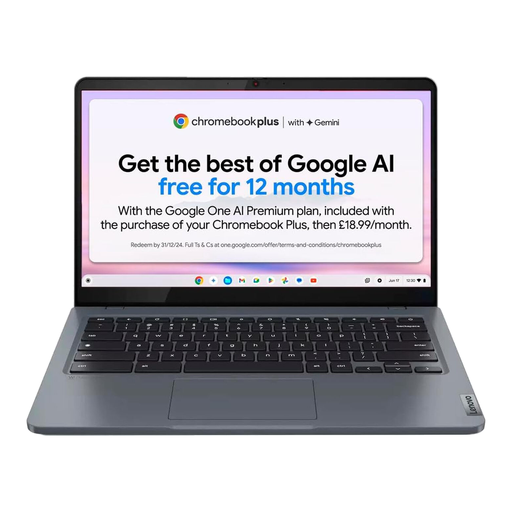 Image unavailable
Consider this Chromebook for browser-based glossary work after confirming your file, offline and two-language input requirements.
14-inch model with Intel Core i3 N305, 8 GB RAM and 256 GB eMMC storage. Check the keyboard layout and any specialist application you need.
Not necessarily: Microsoft Support, Apple Support and Google Chromebook Help each document ways to add languages or input methods. Check the method for your exact languages and scripts; printed key labels alone will not tell you how character entry and switching will feel.
A Chromebook can use the Microsoft 365 Office-file workflow described by Google Chromebook Help, which requires OneDrive. Microsoft also offers browser-based Word and Excel editing; check the features, storage and offline access your files require before relying on that route.
Try your actual glossary tools and a short file containing entries in both languages. Test language switching, accents or character conversion where relevant, opening and saving files, and viewing source text beside your glossary.
That depends on the applications and storage your glossary uses. Microsoft provides browser-based Microsoft 365 tools alongside separate plans; check any access supplied by your school, employer or existing account before deciding what else you need.