What matters when choosing
Start with the software and office tools you must use. Windows and macOS both offer ways to switch language inputs, but neither choice settles the physical keyboard or shared-desk setup for you.
Windows laptop
Choose it when: Your glossary application or organisation requires Windows, and its available input layouts suit your languages.
Check: Software layout settings do not change the keys or legends on the keyboard you buy.
MacBook Air
Choose it when: Your glossary and office applications work on macOS, and its input sources suit the way you type.
Check: Apple lists two Thunderbolt 4/USB-C ports for the current UK MacBook Air, so confirm how your desk accessories will connect.
| Concern |
Buying checks |
Who this matters to |
| Bilingual input and keyboard layout |
Check the exact physical keyboard layout. Try the required language inputs, accents or non-Latin characters and glossary shortcuts. |
If I enter terms in two writing systems throughout the day, I need switching and key positions that fit the way I type. Around 33% of consumers would put bilingual input and keyboard fit first. |
| Long-session desk setup |
Check for a compatible monitor connection and room for a raised screen, separate keyboard and mouse. The Health and Safety Executive recommends separating the keyboard and mouse for prolonged laptop use. |
When I spend long sessions comparing source text with glossary entries, I need a desk arrangement I can use comfortably. For around 27% of consumers, that setup would be the primary concern. |
| Portability |
Compare the exact configuration’s weight and screen size with the equipment you would need to carry between desks. |
If I move between desks, meetings and home, carrying convenience matters most to me, provided I can still connect where I work. Roughly 20% of consumers would prioritise portability. |
| Office workflow compatibility |
Confirm the required glossary application and file-sharing arrangements with your organisation, then match the laptop to its dock and monitor. |
I need to edit and share the glossary using my organisation’s approved tools, rather than work around an incompatible device. Around 20% of consumers would make workflow compatibility their main concern. |
Laptops to consider on Joybuy
These Windows laptops and MacBook Air offer different starting points for bilingual glossary work. Compare each exact variant with your required input method, glossary application and shared-desk equipment before choosing.
 Image unavailable
Acer Aspire Lite AL15-36P-C29Z 15.6-inch laptop
Consider this Windows laptop if you expect to do much of your glossary work on the built-in screen. Check that your required glossary application works with the listed Windows 11 Home in S Mode configuration.
- 15.6-inch Full HD display; Intel N150; 8GB DDR4 RAM; 128GB SSD.
- Confirm your second-language input method and shared-desk connections before buying.
View on Joybuy
 Image unavailable
ASUS Vivobook 14 X1407QA-LY003W Copilot+ PC, Snapdragon X
This Windows laptop is worth considering if you move between shared desks. Confirm its physical keyboard layout, required application compatibility and fit with your office dock.
- 16GB RAM; 512GB SSD; Quiet Blue variant.
View on Joybuy
 Image unavailable
HP OmniBook Ultra Flip 14-fh0006na 2-in-1 Copilot+ PC
Consider the 2-in-1 format if it suits how you review and enter glossary terms. Check the physical keyboard and whether its connections work with the shared-office display and charger.
- 16GB RAM; 1TB SSD; Windows 11 Home.
View on Joybuy
 Image unavailable
Microsoft Surface Laptop 7 15-inch Copilot+ PC, Snapdragon X Elite
The 15-inch screen may appeal if you compare documents on the laptop itself. Verify the keyboard layout and the connections needed at your shared desk.
- 16GB RAM; 256GB SSD; PixelSense touchscreen; Maya Color variant.
View on Joybuy
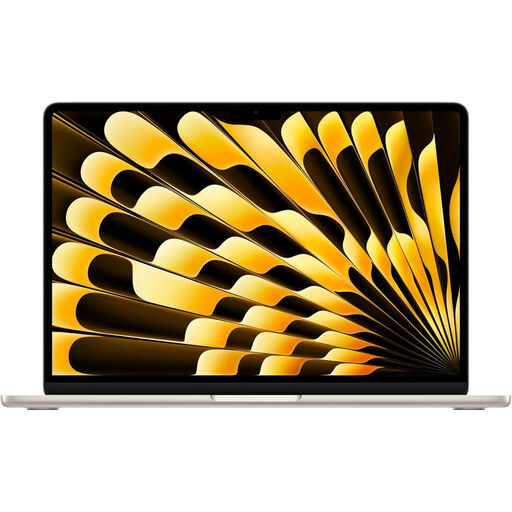 Image unavailable
Apple 15-inch MacBook Air (2026), M5, Starlight
Choose this macOS route only if your glossary software and required language inputs work for you. Check its physical keyboard and the connections at your shared desk.
- M5 chip with 10-core CPU and 10-core GPU; 16GB memory; 512GB SSD.
View on Joybuy
Frequently asked questions
Can I type in two languages on either Windows or macOS?
Yes, both systems provide language-input options. Microsoft Support explains how to manage Windows languages and keyboard layouts, while Apple Support explains macOS input sources; try the exact scripts, shortcuts and glossary application you need, as well as the physical keyboard.
Do I need an external monitor for glossary work?
Not necessarily for occasional work, but plan the desk setup if you will type for long periods or compare documents. The Health and Safety Executive advises a separate keyboard and mouse so a laptop screen can be raised; if you use a separate display, check its connection to the exact laptop.
Does a shared-office laptop require a workstation assessment?
For UK employees who use display screen equipment daily as a normal part of work for continuous periods of an hour or more, the Health and Safety Executive says the employer must carry out a workstation assessment. It concerns the workstation and work being done, not whether a particular laptop model is compliant on its own.
Can I assume a charger and desk connection are included?
No; check the selected product’s box contents and its charging and display connections. Dell’s cited UK XPS 13 listing states that a charger is not included, and a laptop’s available ports still need to match the monitor, cable and dock at your desk.


