Choose the operating system around the glossary, reference and writing applications you need, then check the keyboard layout and the space available for reading alongside your entries. Windows, macOS and ChromeOS each offer ways to switch input languages, but that does not establish whether your applications or preferred input method will work. A compact 13- or 14-inch laptop may fit the desk; check the exact display, ports and accessories if you plan to add a monitor.
Who is this for?
Bilingual glossary builders
If you regularly enter accents, special characters or a second script, check both the input method and the physical keyboard. Microsoft, Apple and Google document ways to use multiple input languages on their respective operating systems; the layout that feels practical depends on your language pair.
Small-desk researchers
If notes, books or a mouse must share the desk with your laptop, compare its footprint with the space you need to view source material and glossary entries. A separate display is an option only if the desk and the laptop’s connections accommodate it.
Software-dependent writers
If your terminology database, translation tool, office suite or institutional system dictates the workflow, confirm its operating-system and file compatibility before choosing a laptop. Language-input support alone will not establish that those tools run.
What matters when choosing?
Start with the applications and files you must use. That choice narrows the operating-system routes before you compare keyboards and screen arrangements for a small desk.
Compact Windows laptop
Consider it: When a required glossary or institutional application needs Windows.
Check: The exact keyboard variant and whether the chosen configuration suits your full writing workflow.
13-inch MacBook Air
Consider it: When your tools work on macOS and a smaller laptop footprint matters.
Check: Plug-ins, file workflows and the connections needed for wired accessories or a display.
Chromebook
Consider it: When your glossary work can be completed with ChromeOS-compatible web tools and files.
Check: Any desktop-only tools, offline tasks and required export formats before committing.
| Concern |
What to check |
Who this matters to |
| Bilingual input and keyboard fit |
Check the physical keyboard variant and how you will enter and switch between both languages or scripts. |
If I switch languages throughout a glossary entry, I need keys and an input method I can use without disrupting my writing. Around 42% of consumers put bilingual input first. |
| Reading space on a small desk |
Measure the available desk space and compare the exact screen and display connections with your intended layout. |
When source material and glossary entries need to be visible together, I want enough reading room without crowding my notes. For around 33% of consumers, desk and reading space come first. |
| Software and file compatibility |
Confirm each required application, plug-in, file format and offline task on the intended operating system. |
If my terminology tool or institution requires a particular workflow, I cannot choose by screen size alone. Software and file compatibility are the first concern for around 25% of consumers. |
Buying pitfalls
-
Assuming language support settles the keyboard choice
Microsoft, Apple and Google describe input-language switching in Windows, macOS and ChromeOS respectively. The physical keys and character-entry workflow can still differ from what your language pair needs.
Identify both languages or scripts, inspect the keyboard variant on the exact listing and try the intended input method where possible.
-
Buying to operating-system minimums
Microsoft lists 4GB of memory and 64GB of storage among the Windows 11 installation minimums. Those figures do not tell you how comfortably your research tabs, documents and glossary tools will run together.
List the applications and files you expect to use at once, then compare the memory and storage of the actual configurations.
-
Choosing a small screen without planning the text layout
A compact laptop leaves more room on the desk, but viewing source text beside glossary entries may feel tighter on its built-in display.
Measure the desk and decide whether you will work on the laptop screen alone or connect a monitor. For the latter, check display-output connections on the exact model.
A monitor, cable or hub also needs space and may add equipment to the setup.
-
Assuming the charger and connections are the same across models
Dell’s UK XPS 13 product page states that a charger is not included for the configuration shown and specifies a 27–65W charging range. That does not describe every compact laptop or every XPS 13 listing.
Check the selected listing’s box contents, charging requirements, plug arrangement and ports before ordering accessories.
Brands to consider for compact laptops
Apple
The 13-inch MacBook Air line is relevant when a small footprint and a macOS-compatible glossary workflow are priorities.
- Apple’s UK specifications list a 13.6-inch display and two Thunderbolt 4/USB-C ports for the 13-inch MacBook Air. Apple Support describes adding and switching macOS input sources.
- Check that your applications and plug-ins run on macOS, and whether your wired setup needs an adapter or hub. Confirm specifications for the exact configuration.
Lenovo
The ThinkPad X1 Carbon line offers a compact Windows route for readers considering a 14-inch display.
- Lenovo lists a 14-inch 2880 × 1800 OLED display, 32GB memory, 1TB SSD and an English (UK) backlit keyboard for model 21NS0171UK.
- Those specifications belong to that configuration, not every ThinkPad X1 Carbon. Check the keyboard, memory, storage and warranty on the listing you choose.
Dell
The XPS 13 line is relevant to readers considering a compact Windows laptop for writing and web research.
- Dell’s UK XPS 13 product page lists Windows 11 Home for the configuration shown.
- That page says a charger is not included and specifies 27–65W charging. Check the selected configuration’s box contents and charging requirements rather than extending those details to the whole line.
ASUS
Zenbook S 14 UX5406 configurations offer a 14-inch Windows option for readers comparing display and memory choices.
- ASUS lists 14-inch 16:10 OLED display variants and configurations with 16GB or 32GB memory.
- Display resolution, touch support, brightness, processor and storage vary across UX5406 configurations. Check the individual listing before relying on a product-family specification.
Joybuy product choices
These compact Windows, ChromeOS and macOS laptops offer different routes for glossary work on a small desk. Choose a route only after checking your required applications, languages and intended screen setup.
 No image available
HP OmniBook Ultra Flip 14-fh0006na 2-in-1, 16GB, 1TB SSD
Consider this Windows model if your glossary tools require Windows and you want a convertible laptop. Its listed configuration has Windows 11 Home, 16GB memory and a 1TB SSD. Check application compatibility and the physical keyboard layout for your two languages.
Joybuy
 No image available
ASUS Vivobook 14 X1407QA-LY003W, Snapdragon X, 16GB, 512GB SSD, Quiet Blue
Consider this 14-inch Windows laptop if your writing applications support its Snapdragon X configuration. It is listed with 16GB memory and a 512GB SSD. Confirm compatibility with each required application and check the physical keyboard layout.
Joybuy
 No image available
Acer Chromebook Plus 514 CB514-5H, 14-inch WUXGA, 8GB, 256GB SSD
Consider this Chromebook if your glossary applications and files work in ChromeOS. The listed variant has a 14-inch 1920 × 1200 display, Intel Core i3-1315U processor, 8GB memory and a 256GB SSD. Check any offline or desktop-only tasks and the physical keyboard layout.
Joybuy
 No image available
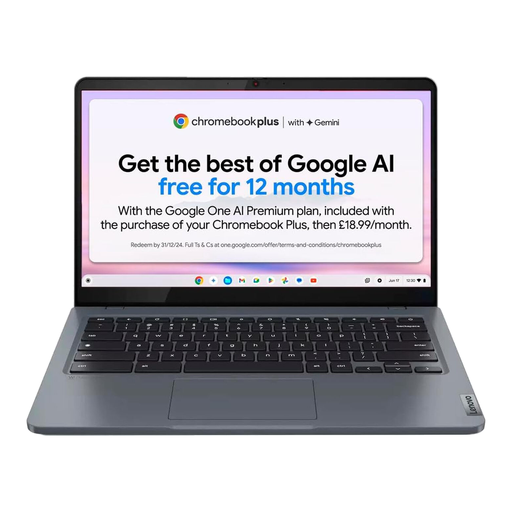
Lenovo IdeaPad Slim 3 Chromebook 14IAN8, 83BN001EUK, 8GB, 256GB eMMC, Grey
Consider this 14-inch Chromebook for a glossary workflow that works in ChromeOS. Its listed configuration has an Intel Core i3 N305 processor, 8GB memory and 256GB eMMC storage. Check the keyboard layout and display-output connections if you plan to add a monitor.
Joybuy
 No image available
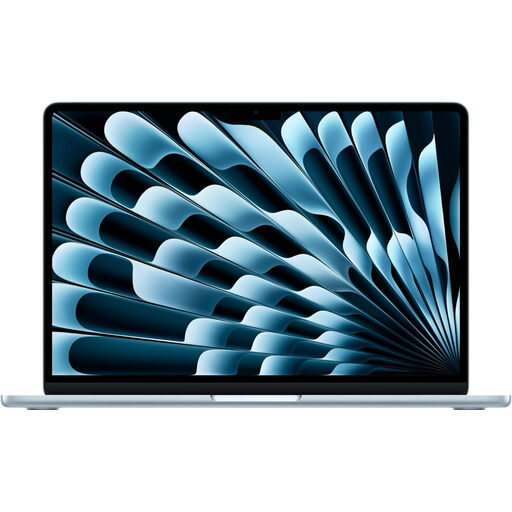
Apple MacBook Air 13-inch (2026), M5 10-core CPU and GPU, 16GB, 1TB SSD, Sky Blue
Consider this 13-inch MacBook Air if your glossary and reference applications work on macOS and desk space is tight. The listed variant has an M5 chip, 16GB memory and a 1TB SSD. Check its physical keyboard and exact connections, especially if you need an external display.
Joybuy
Frequently asked questions
Do I need a bilingual physical keyboard to build a glossary?
Not necessarily: Windows, macOS and ChromeOS offer software-based ways to add or switch input languages, as documented by Microsoft, Apple and Google. Check the physical keyboard variant and how you will enter the characters required by your particular language pair.
Is a 13-inch or 14-inch laptop more practical on a small desk?
Choose by measuring the desk and deciding how you will view source text alongside your glossary, rather than by screen diagonal alone. A smaller laptop may leave more space for notes, while a larger built-in display may ease side-by-side reading; compare exact dimensions and display connections if a monitor is part of the plan.
Should I consider an older Windows 10 laptop for this work?
Check its Windows 11 eligibility and the support status of the software you need before buying. Microsoft states that Windows 10 support ended on 14 October 2025; its Windows 11 minimums, including 4GB memory and 64GB storage, establish installation requirements rather than comfortable performance for glossary work.


