For PDFs, drawings and light 2D review, choose a laptop only after checking that its exact configuration supports the screens you intend to use. If you regularly navigate large BIM models or work in demanding CAD applications, compare mobile-workstation configurations with your software’s requirements instead of choosing by a general “CAD laptop” label. In either case, establish whether two screens means the built-in display plus one monitor, or two external monitors, before choosing ports or a dock.
Who is this for?
Desk-based drawing reviewers
If you compare PDFs, mark-ups, schedules and 2D drawings at a desk, start with the display arrangement you need. Check how the laptop connects to your monitor or monitors before paying for graphics capability intended for a different workload.
BIM and 3D model reviewers
If plan review includes Revit, AutoCAD or other CAD/BIM applications, match the configuration to the application version and project size. Autodesk distinguishes between entry-level and large, complex Revit 2026 workloads.
Site-to-office plan reviewers
If you carry the laptop to meetings or site visits and reconnect it to displays at a desk, consider both what you need to carry and how you will reconnect. Check the exact laptop’s ports and any proposed dock together.
What matters when choosing?
Define the screen layout first, then match portability and computing capacity to the plans and applications you actually use. A dock is a way to connect a suitable laptop at a desk, not a substitute for checking that laptop’s video output.
| Concern |
What to check |
Who this matters to |
| Two-screen connectivity |
Confirm the exact number of simultaneous displays and the supported resolutions and refresh rates. If using USB-C or a dock, check the laptop’s video protocol and the dock’s compatibility information. |
If I work at a desk, I need my planned screens to connect without discovering that a USB-C socket is only suitable for other functions. Around 40% of consumers put verified display connectivity first. |
| Portable 2D review |
Compare the laptop’s size and weight with the built-in screen and connections you need when returning to your desk. |
When I take drawings between locations, I want a laptop I can carry while still reviewing PDFs and 2D plans comfortably. Portable plan review is the primary need for around 30% of consumers. |
| CAD and BIM workload |
Check your application version and project size against the software publisher’s processor, memory, graphics and operating-system requirements. Check the exact graphics hardware and driver if certification matters. |
For regular model navigation or complex BIM work, I need a configuration that fits the application rather than one chosen for documents alone. Around 30% of consumers place CAD/BIM workload capacity first. |
Buying pitfalls
-
Assuming every USB-C port can drive a monitor
USB-C describes the connector, not all the functions it supports. Microsoft explains that DisplayPort/DockPort alternate mode enables external DisplayPort audio and video over USB-C.
Read the exact laptop specification for video output, then check the proposed monitor, cable and dock against the intended resolution, refresh rate and number of screens.
Choosing an unsuitable connection may mean changing a planned cable, adapter or dock.
-
Buying by a generic “CAD laptop” label
Opening drawings and reviewing large BIM models are different tasks. Autodesk’s Revit 2026 requirements distinguish entry-level use from large, complex models.
Identify the applications, versions and typical project sizes before comparing laptop configurations. Include rendering or simulation requirements if those are part of your work.
-
Assuming a workstation name guarantees certification
A product-family name does not establish that a particular graphics card and driver meet your application’s certification requirements. Autodesk describes its certified graphics list in terms of tested hardware.
If your employer or software workflow requires certification, check the exact graphics hardware and driver against the relevant certified-hardware listing.
-
Putting an old laptop in household rubbish
An unwanted laptop needs an appropriate electrical-waste route rather than disposal with household rubbish, according to GOV.UK.
When replacing a laptop, find an appropriate electrical-waste collection point for the old one.
Relevant brands to consider
These ranges offer starting points for comparing configurations; a brand name alone does not establish software compatibility or support for your screen layout.
Dell
Dell’s Precision mobile-workstation range is relevant when plan review extends into professional CAD or graphics work.
- Dell describes display and accessory options across its Precision range. Its SD25TB4 Thunderbolt dock lists dual 4K displays at 60 Hz.
- A range-level feature or dock display specification does not confirm that a particular laptop, dock and monitor combination will work together.
Lenovo
ThinkPad P-series models are worth examining if you need a portable workstation for professional applications.
- Lenovo lists Thunderbolt 4 and independent software vendor certifications for the ThinkPad P16s Gen 2.
- Check the generation, configuration, ports and relevant certification for the exact model you intend to buy.
HP
HP positions different ZBook mobile workstations for tasks ranging from design reviews and architectural layouts to more demanding 3D work.
- HP identifies certain ZBook options for 2D and simple 3D modelling and design reviews.
- Choose by the requirements of your applications and projects, rather than assuming every ZBook has the same graphics or memory configuration.
ASUS
The ProArt range is another option to assess for portable design presentations and model review.
- Compare individual ProArt configurations with the applications and display arrangement you plan to use.
- Do not assume software certification or a particular graphics, memory or external-display specification applies across the range.
Joybuy product choices
These laptops offer different starting points for reviewing plans, from built-in viewing space and portable document work to configurations with more memory and discrete graphics. For every model, check your intended screen layout and software requirements before choosing.
 No image available
ASUS Zenbook DUO UX8406CA-QL135W, dual 14-inch OLED touchscreens
Consider the dual built-in screens if you want two viewing surfaces without relying on a separate desk monitor.
- Intel Core Ultra 7 255H; 16 GB LPDDR5X memory; 1 TB SSD.
- Confirm the exact panel resolution for this variant and the supported layout if you also plan to connect external displays.
Joybuy
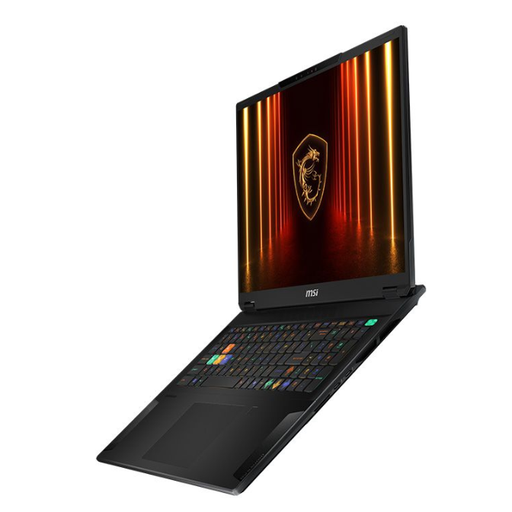 No image available
MSI Stealth 18 AI Studio A1VGG-001UK, 18-inch
Consider the large built-in screen if you review plans on the laptop itself; check your applications before choosing it for more demanding graphics work.
- Intel Core Ultra 9; 32 GB RAM; 2 TB SSD; NVIDIA GeForce RTX 4070.
- Confirm the simultaneous external-display arrangement and any graphics certification your work requires.
Joybuy
 No image available
Lenovo Legion Pro 7 16IAX10H 83F5000UUK, 16-inch
Its memory and graphics configuration may be relevant if your plan-review work calls for those components; compare it with the requirements of your exact applications.
- Intel Core Ultra 9; 64 GB RAM; 2 TB SSD; NVIDIA GeForce RTX 5090; Windows 11 Home.
- Check external-display support and the precise graphics hardware and driver if certification is required.
Joybuy
 No image available
Lenovo LOQ Essential 15ARP11, 15.6-inch FHD 144 Hz
Consider this configuration if its screen, memory and graphics match your review workload, then check how you would connect your planned monitors.
- AMD Ryzen 7 170; 16 GB RAM; 1 TB SSD; NVIDIA GeForce RTX 5050.
- Confirm simultaneous display support and whether the USB-C connection provides video output if your setup needs it.
Joybuy
 No image available
ASUS Vivobook 15 X1504VA, 15.6-inch
Consider it for document and lighter plan-review tasks if its configuration meets your software requirements and your intended screen layout is supported.
- Intel Core 5 120U; 24 GB RAM; 1 TB SSD.
- Check simultaneous use of the built-in display and your proposed monitor, including whether USB-C video output is needed.
Joybuy
Frequently asked questions
Can any USB-C laptop run two external monitors?
No: a USB-C connector alone does not establish video output or support for two external monitors. Microsoft identifies DisplayPort/DockPort alternate mode as a way to carry external display video over USB-C; check the exact laptop’s supported display count and modes, along with any proposed dock.
Do I need a workstation just to review building plans?
Not necessarily: a laptop that supports your screen layout may suit PDF and light 2D drawing review. If the work regularly involves large BIM models or demanding 3D applications, use the relevant software requirements to assess whether a mobile-workstation configuration is appropriate.
What should I check before connecting two monitors through a dock?
Check the laptop’s video protocol and supported display count against the dock, both monitors and the resolutions and refresh rates you intend to use. If the dock will also charge the laptop, check power compatibility separately: Dell lists dual 4K at 60 Hz for its SD25TB4 but specifies different power delivery for Dell and non-Dell systems.
What should I do with an old laptop in the UK?
Take an unwanted laptop to an appropriate electrical-waste collection point rather than putting it in household rubbish. GOV.UK identifies collection points as the route for electrical products and batteries that are no longer wanted.


