Start with the part of your laptop setup that gets in the way: for prolonged document work, consider a separate display or a raised laptop with a separate keyboard and mouse, as the Health and Safety Executive advises. For calls, add a headset, microphone or webcam when the built-in devices do not meet your needs. A dock or hub can bring connections together, but its display and charging functions must match your particular laptop.
Who is this setup for?
Home and hybrid workers on regular calls
A repeatable desk arrangement matters when meetings, shared screens and documents are part of the working day. In YouGov’s 2025 survey, 14% of workers in Britain said they worked from home all the time and 35% some of the time; the useful accessory still depends on the individual setup.
Students working across classes and documents
Video classes, writing and reference material can put different demands on a laptop. Decide whether the difficulty is viewing space, camera placement, audio or available connections before adding a device. Zoom notes that most laptops already have an integrated webcam.
Laptop users with few ports or a shared workspace
Connecting a display and call peripherals through limited ports calls for a check of the exact laptop model and its supported connections. In a shared space, private listening may instead make a headset the more relevant first purchase.
What should you check first?
Identify the task that is awkward on your current laptop, then check the connections and software needed for the accessory that addresses it.
| Priority | What to check | Your needs |
|---|
| Screen position |
For prolonged laptop use, the Health and Safety Executive advises a separate keyboard and mouse when raising the laptop screen; a separate display is another option. Check that the resulting screen and input positions work together. |
I spend long sessions typing and want to position the screen without keeping my hands on a raised laptop keyboard. |
| More display space |
Match the laptop’s video-capable port to the monitor, cable or adapter. Check supported external-display count and display modes for the exact computer; Apple Support says Mac display limits depend on the model. |
Documents, research or shared content are difficult to view on my laptop screen alone. |
| Hub or dock connections |
List the display, USB and networking connections you will use. Confirm the host port’s data and video functions, then compare power delivered to the laptop with its charging requirement; a USB-C plug alone does not establish those functions. |
I need to connect several desk devices, or I need a smaller hub for a few missing ports when moving between workspaces. |
| Camera placement |
Test the built-in camera’s framing and the camera selected in your meeting app. For an external camera, check its connection, operating-system access and position before relying on it for calls. |
The laptop camera’s angle or placement gets in the way of regular meetings. |
| Call audio |
Match a headset or microphone connection to the laptop. Select the intended microphone and speaker in the meeting app and run a test call; Microsoft Support describes these controls in Teams. |
I want private listening on calls, or I need a separate microphone for a fixed desk setup. |
Common buying mistakes
-
Assuming every USB-C port can drive a display
A connector can fit while the required video, data or charging function is unavailable. Microsoft Support and Apple Support both point to hardware- and model-specific connection limits.
Look up the exact laptop model’s ports and external-display support, then compare them with the hub, dock or monitor configuration.
-
Raising the laptop but typing on its attached keyboard
Screen height and keyboard position remain tied together if the raised laptop is also the typing surface. The Health and Safety Executive advises separate keyboard and mouse use when elevating a laptop screen for prolonged work.
Plan for those separate input devices with a stand, or consider a separately positioned display.
-
Reading dock wattage as laptop charging power
The stated figure may include power used by the accessory or vary by connected system. Anker says its 555 hub’s pass-through figure is up to 100W minus 15W for operation; Dell lists 100W for Dell systems and 96W for non-Dell systems on its WD25 dock.
Compare the stated power delivered to your laptop under the applicable conditions with its charging requirement.
-
Replacing call hardware before checking settings
A meeting app may have selected a different device, or operating-system permissions may prevent microphone access. Microsoft Support provides device selection and test-call controls for Teams.
Select the intended camera, microphone and speaker in your meeting app, check permissions and make a test call.
Relevant brand ranges
These brand examples illustrate different accessory routes; check specifications for the particular model rather than assuming a feature applies across a range.
Dell
Dell’s UK monitor and dock ranges are relevant to a fixed desk with an external display and connected peripherals.
- Dell UK lists HDMI, DisplayPort and Ethernet connections on the P2725HE monitor, and system-dependent supplied-power figures for the WD25 dock.
- Check the chosen monitor or dock against the laptop’s display outputs and charging requirement; those model specifications do not establish compatibility with every laptop.
Anker
Anker’s hub range is relevant when a laptop needs additional peripheral, display or networking connections.
- Anker UK lists hubs with options including USB-A, USB-C, HDMI, Ethernet and card readers.
- For its 555 hub, Anker specifies up to 100W pass-through charging minus 15W for operation. Check the exact hub and laptop before relying on its display or charging functions.
Logitech
Logitech’s webcam range is relevant when the laptop camera’s placement or available features are the issue.
- Logitech UK lists 1080p webcams with privacy shutters, including the BRIO 100 and C920s HD Pro.
- Confirm the selected camera works with the laptop and can be selected and permitted in the meeting software you use.
Jabra
Jabra’s range includes headsets and other devices intended for calls and conferencing.
- Jabra describes the Evolve 20 as a USB headset with noise cancellation for calls.
- Check the chosen device’s connection and meeting-platform settings, particularly on an employer-managed laptop.
Headset options on Joybuy
These headsets address the call-audio part of a laptop workspace. Choose by the laptop’s available connections and how you will use the microphone; they do not replace checks for screen space or dock compatibility.
 No image available
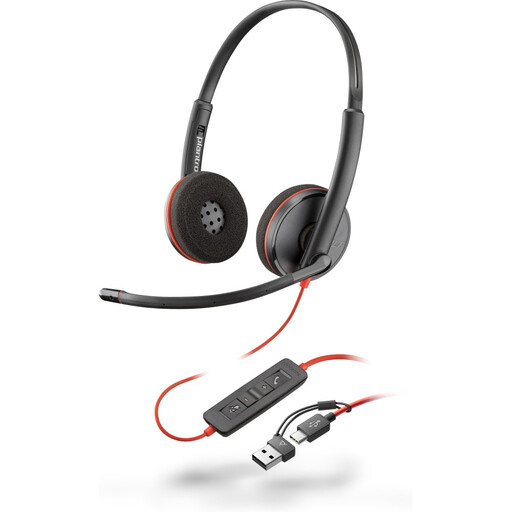
Poly Blackwire 3220 Stereo USB-C headset with USB-C/A adapter
A wired headset option for listening and speaking on laptop calls. The product name specifies stereo, USB-C and a USB-C/A adapter; check which USB port is available on your laptop, then select and test the headset in your meeting app.
View on Joybuy
 No image available
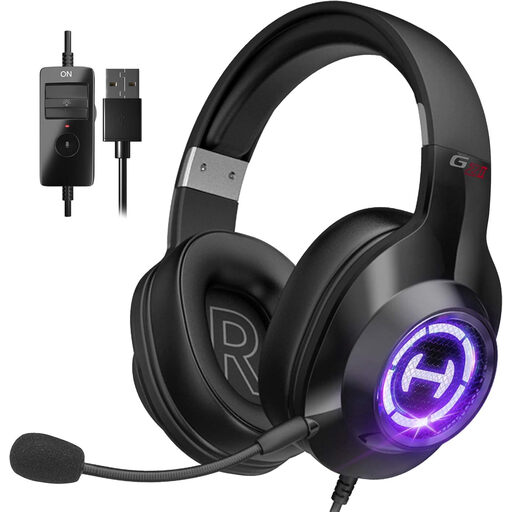
Edifier G2II wired USB gaming headset, black
This gaming-oriented headset is another wired option to consider for laptop calls. Its product name lists a microphone, 50mm drivers and PC and Mac compatibility; confirm that its USB connection and microphone work with your laptop and meeting app.
View on Joybuy
 No image available
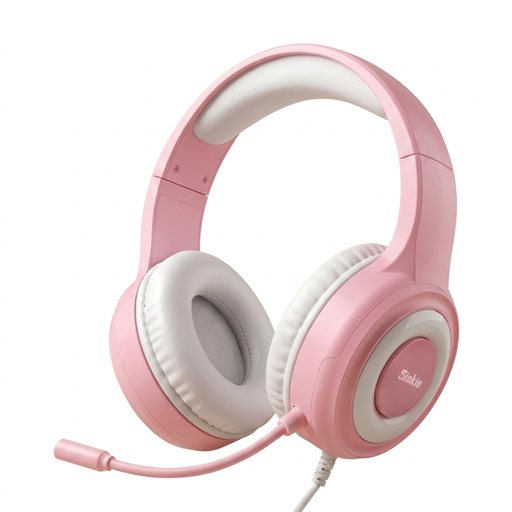
Siukie CH25 wired gaming headset with 3.5mm connection
Consider this gaming-oriented headset only after checking how its audio and microphone plugs connect to your laptop. Its product name lists USB and 3.5mm connections; do not assume the USB plug carries call audio. Check the laptop’s audio-jack arrangement and test the microphone in your meeting app.
View on Joybuy
Questions about laptop accessories
Do I need an external webcam for laptop video calls?
Not automatically: Zoom says most laptops have an integrated webcam. Test its framing and the camera selected in your meeting app first. Consider an external camera if placement or a feature you need remains a limitation, then check its connection and permissions.
Will any USB-C hub or dock add an external monitor?
No. A USB-C connector does not by itself establish video support. Check your laptop’s video-capable port and external-display limits, then match them to the hub or dock’s stated display configuration; Apple Support notes that supported display counts vary by Mac model.
How can I check whether a dock will charge my laptop?
Compare the laptop’s charging requirement with the power the dock delivers to the connected computer, including any stated conditions or deduction for the accessory itself. For example, Anker specifies up to 100W pass-through minus 15W for operation on its 555 hub, while Dell lists 100W for Dell systems and 96W for non-Dell systems on the WD25.
What should I test after connecting a headset, microphone or webcam?
Select the intended speaker, microphone and camera in your meeting app and make a test call; Microsoft Support provides these controls in Teams. If a device is unavailable, check the relevant operating-system permissions before treating it as a hardware fault.


