Bright-window catalogue designers
If you arrange text and images near strong daylight, check both stated brightness and the exact panel finish. A brightness figure does not, by itself, tell you how distracting reflections will be.


For exhibition-catalogue layouts beside a bright window, choose by the exact display’s finish and brightness claim, not its brightness number alone: reflections can still affect what you see. Then check colour-gamut information and the configuration you will buy. If you use current Adobe InDesign on Windows, Adobe recommends 16 GB RAM and an SSD; you should also confirm software compatibility and balance a larger built-in workspace against portability.
If you arrange text and images near strong daylight, check both stated brightness and the exact panel finish. A brightness figure does not, by itself, tell you how distracting reflections will be.
If the catalogue contains artwork or photography, compare the stated colour gamut and panel specification. Keep a separate proofing step for final print decisions rather than treating a laptop display specification as a finished print proof.
If you move between a studio, gallery and venue, weigh built-in screen space against what you need to carry. Check the chosen laptop’s connections if you plan to use an external display at either location.
Start with the screen in your window-side position, then confirm that the laptop can run your catalogue workflow. Finally, decide how much built-in workspace you want to carry between locations.
| Concern | What to check | Who this matters to |
|---|---|---|
| Daylight legibility | Compare the exact panel’s brightness wording and whether its finish is specified as anti-glare or anti-reflective. View it near a comparable window if possible. | When I work beside a bright window, I need to judge small type and images without reflections getting in the way; around 42% of consumers put daylight legibility first. |
| Layout and software fit | Confirm your design, PDF, font and print tools work on the chosen operating system. For current Windows InDesign, compare memory and storage with Adobe’s 16 GB RAM and SSD recommendations. | My catalogue files and production tools need to work together without choosing the wrong platform or configuration. Roughly 33% of consumers make workflow fit their primary concern. |
| Portable workspace | Compare built-in screen size with carrying needs, and check the ports, cables and supported arrangement for your external display. | If I work at several locations, I want enough room for page layouts without making the laptop awkward to move. About 25% of consumers put that workspace balance first. |
ASUS describes the Zenbook 15 OLED’s 550-nit figure as peak brightness, while Lenovo specifies a 500-nit panel for the cited ThinkPad X1 Carbon configuration. Those figures should not be used alone to decide which screen will be easier to use beside your window.
Check brightness terminology and panel finish for the exact configuration; assess the screen in similar lighting where possible.
Display options within a family can differ. Dell’s XPS 9315 specifications, for example, distinguish panel finishes across its display options, so a family name does not identify the screen you will receive.
Keep the full model and panel configuration to hand when comparing listings and ordering.
Microsoft lists 4 GB RAM for Windows 11, but Adobe recommends 16 GB for current Windows InDesign. Meeting the operating-system requirement does not establish that a configuration meets your catalogue application’s recommendation.
Check the requirements for the applications you actually use and the size of your working files.
A suitable laptop configuration is only part of the workflow. Adobe says Creative Cloud desktop apps require an internet connection at least once every 99 days for membership validation.
Confirm your required applications and their access conditions before relying on the laptop at a venue.
Use these product-line specifications as comparison points, then check the exact configuration you intend to buy.
MacBook Air offers a macOS route with 13.6-inch and 15.3-inch display options.
The cited UK ThinkPad X1 Carbon Gen 13 Aura Edition configuration is a Windows option with a documented anti-glare panel.
Zenbook 15 OLED UM3504 is a Windows reference point for buyers comparing a larger, wide-gamut display.
XPS display options illustrate why the exact panel matters more than the laptop family name.
These laptops offer different built-in screen sizes and configurations for catalogue preparation. Check each exact display and your software requirements before deciding how it will work beside a bright window.
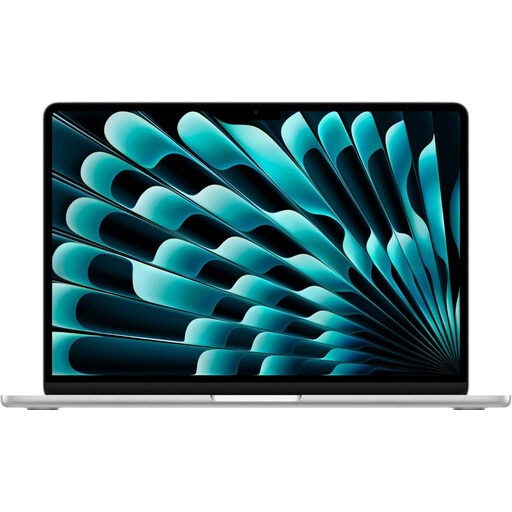 No image available
Consider this macOS model if you want more built-in room for catalogue pages and your required software works on macOS.
The listed configuration has 16 GB memory and a 1 TB SSD. Apple specifies a 15.3-inch, 500-nit P3 display for the cited MacBook Air range; assess reflections at your working position.
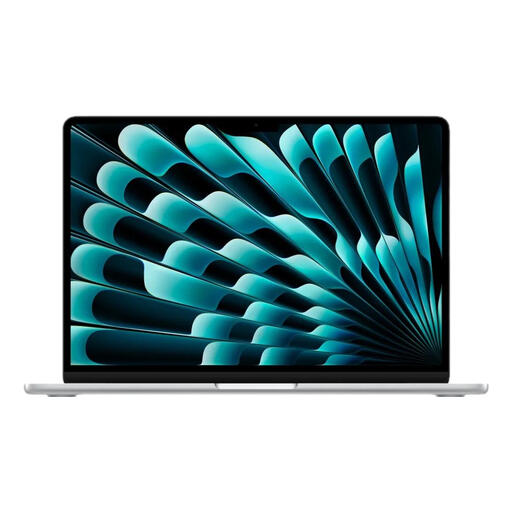 No image available
Consider the smaller built-in workspace if you move between exhibition locations and can use your catalogue tools on macOS.
The listed configuration has 16 GB memory and a 1 TB SSD. Apple specifies a 13.6-inch, 500-nit P3 display for the cited MacBook Air range. Check reflections and confirm the exact CPU configuration before ordering.
 No image available
Consider this larger-screen laptop if your catalogue workflow needs Windows; confirm how its exact panel looks beside your window.
The title specifies a 15.6-inch Full HD 144 Hz display, 16 GB RAM, a 1 TB SSD and GeForce RTX 5050 graphics. Its stated memory meets Adobe’s recommendation for current Windows InDesign.
 No image available
Consider this compact option if carrying the laptop matters; check that your catalogue applications support its Snapdragon X platform.
The title specifies a Snapdragon X processor, 16 GB RAM and a 512 GB SSD. Assess the exact screen’s brightness, finish and colour coverage against your window-side and print-layout needs.
 No image available
Consider this Windows convertible if a larger touchscreen suits the way you arrange catalogue pages; check its screen in comparable lighting before choosing it for window-side work.
The title specifies a 16-inch touchscreen, 16 GB RAM, a 512 GB SSD and Windows 11 Home. Confirm the exact panel’s brightness, finish and colour coverage for your workflow.
It depends on the software: Adobe lists 16 GB RAM as recommended, rather than its 8 GB minimum, for current Windows InDesign. Check the requirements of any other design applications you use.
A 500-nit specification alone cannot establish that. Check the finish of the exact panel and, if possible, view it near a window with similar light and reflections.
Plan for periodic access if you use an Adobe Creative Cloud membership: Adobe says its desktop apps need an internet connection at least once every 99 days to validate membership. Confirm your current plan and the other tools in your workflow before working away from the studio.
Do not put an electrical product bearing the crossed-out wheelie-bin symbol in household rubbish. GOV.UK advises taking it to an appropriate collection point for recycling.