Choose a laptop that works with your catalogue platform and can connect to the screen and input devices you need at the standing desk. A Windows laptop is the route to consider if required tools or work-account policies depend on Windows; a MacBook Air is an option once macOS, browser and peripheral compatibility are confirmed. For prolonged laptop use, the Health and Safety Executive advises a separate keyboard and mouse so the screen can be raised.
Who is this setup for?
Regular standing-desk catalogue editor
If you update product records for long periods, plan where the screen, keyboard and mouse will sit rather than relying on the laptop alone. The Health and Safety Executive advises separate input devices for prolonged laptop use.
Windows-dependent business user
If your catalogue tools, work login or connected equipment require Windows, confirm those requirements before choosing a laptop for its screen or portability.
Mobile catalogue manager
If you work away from the standing desk as well, consider the built-in screen you will use while travelling and how the laptop will reconnect to your desk display and input devices.
What should you check before buying?
Confirm the catalogue workflow first, then plan the standing-desk connections. Built-in screen size matters most when you also work away from the desk.
| Concern |
What to check |
Who this matters to |
| Standing-desk setup |
Check display connections and allow space for a separate keyboard and mouse. |
If I edit records for long stretches, I need to position the screen without fixing the keyboard at the same height. Around 36% of consumers put this workstation need first. |
| Software compatibility |
Confirm the required operating system, browser, extensions and work-account tools. |
My catalogue work may depend on a particular login, application or connected device, so I need those to work before considering other features. For around 29% of consumers, compatibility is the primary concern. |
| Multi-window workspace |
Compare the built-in display with the external-display support needed for your desk. |
When I work away from my monitor, I want room to view product fields alongside images or reference pages. Visible workspace comes first for around 21% of consumers. |
| Moving between locations |
Check the laptop's size and how it reconnects to your monitor and peripherals. |
If I carry the laptop between work locations, I need it to travel conveniently and reconnect at the desk. Around 14% of consumers prioritise that mobility. |
Common setup mistakes
-
Assuming the standing desk fixes the laptop setup
Raising a laptop also raises its built-in keyboard. For prolonged use, the Health and Safety Executive advises a separate keyboard and mouse so the screen can be elevated.
Plan the screen position, input devices, cables and power arrangement before choosing the laptop.
-
Assuming any laptop will run the catalogue workflow
A suitable screen and processor do not establish whether required browser extensions, work accounts or peripherals will function.
Check the catalogue platform's supported systems and browsers, along with any essential printer, scanner or login tools.
-
Choosing by built-in screen size alone
At the desk, the required display connection and charging arrangement may matter more than the laptop's own screen size.
Match the exact laptop configuration to the monitor and any dock before selecting accessories.
Depending on those connections, you may also need an adapter or compatible dock.
Relevant brands to consider
Apple
MacBook Air is a macOS route if your catalogue platform and required peripherals support it.
- Apple's M5 MacBook Air specifications list Thunderbolt 4 connectivity and support for up to two external displays.
- Confirm browser extensions, work login and connected devices before choosing macOS for this workflow.
ASUS
The ExpertBook B5 B5405 is a Windows business-laptop example for a desk with connected equipment.
- ASUS lists Thunderbolt 4, HDMI, USB-A and RJ45 connections for the B5405.
- Check the ports, keyboard layout and other details of the exact configuration you intend to buy.
HP
HP lists EliteBook 640 14 G11 configurations for buyers considering a Windows business laptop.
- HP's listed configurations include Windows 11 Pro, 16 GB RAM and a 512 GB SSD.
- Check the exact model's display and connections before planning a monitor or dock setup.
Lenovo
ThinkPad T14 is another Windows business-laptop line to compare against your workplace requirements.
- Lenovo's listed T14 Gen 5 (Intel) 21ML003QUK configuration has a 14-inch 1920 × 1200 anti-glare display, 32 GB RAM and a 1 TB SSD.
- Those specifications belong to that configuration; check the details of any other T14 variant separately.
Joybuy laptop choices
These laptops offer different built-in screen sizes and Windows or macOS routes for catalogue work. Check your required software and the connections for your standing-desk setup before choosing among them.
 No image available
ASUS Vivobook 14 X1407QA-LY003W, Snapdragon X, 16GB, 512GB SSD, Quiet Blue
Consider this 14-inch laptop if you want a compact machine to use both away from and at the standing desk.
The named configuration has a Snapdragon X processor, 16GB memory and a 512GB SSD.
Before buying, confirm that your required applications and peripherals work with this Windows-on-Snapdragon configuration, and check the connections needed for your monitor.
View on Joybuy
 No image available
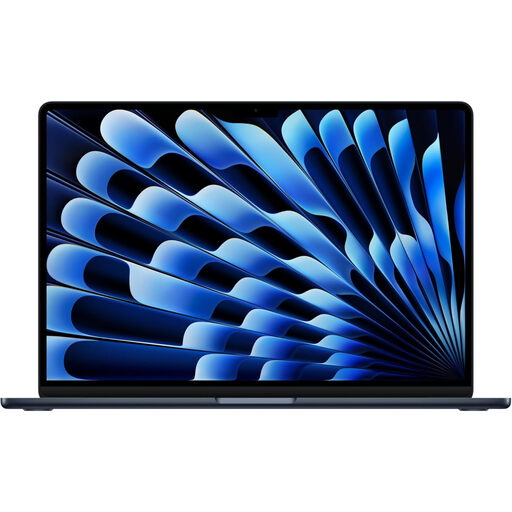
Apple 13-inch MacBook Air (2026) M5, 10-core CPU and GPU, 24GB, 1TB SSD, Midnight
This 13-inch MacBook Air is a macOS choice to consider if you work away from the desk and reconnect to a separate display.
The named variant has an M5 chip, 24GB unified memory and a 1TB SSD. Apple's M5 MacBook Air specifications list support for up to two external displays.
Confirm that your catalogue platform, browser extensions, work login and peripherals support macOS, and check the intended monitor and dock connections.
View on Joybuy
 No image available
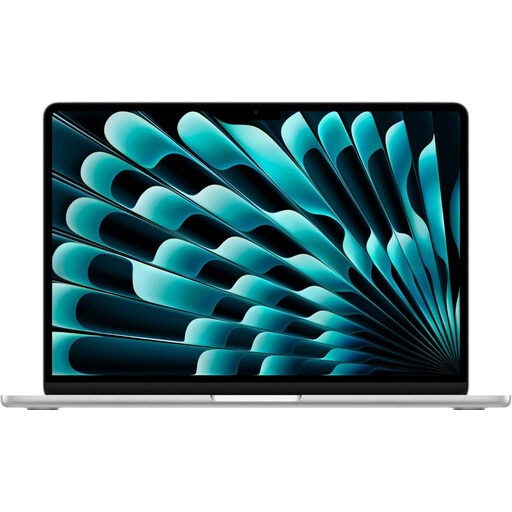
Apple 15-inch MacBook Air (2026) M5, 10-core CPU and GPU, 16GB, 1TB SSD, Silver
Consider the 15-inch version if you want a larger built-in screen for catalogue work away from your standing-desk monitor.
The named variant has an M5 chip, 16GB unified memory and a 1TB SSD. Apple's M5 MacBook Air specifications list support for up to two external displays.
Confirm macOS support for your workflow and check how your exact monitor and dock arrangement will connect and charge the laptop.
View on Joybuy
 No image available
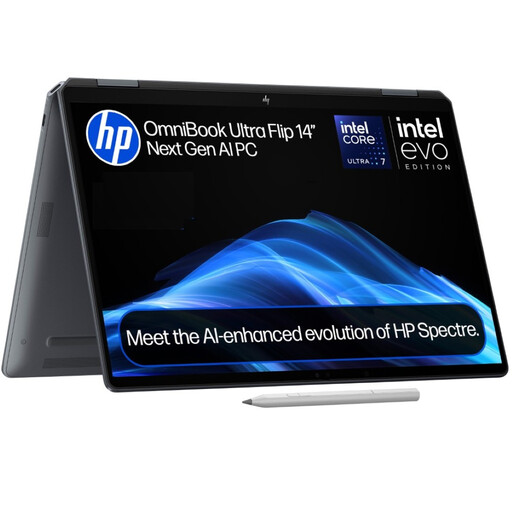
HP OmniBook Ultra Flip 14-fh0006na 2-in-1, 16GB, 1TB SSD, Windows 11 Home
This 2-in-1 is a Windows option if you also want a convertible laptop for work away from the standing desk.
The named configuration has 16GB memory, a 1TB SSD and Windows 11 Home.
Check that your catalogue tools and work account support this configuration. Confirm the exact monitor, dock and peripheral connections before planning the desk setup.
View on Joybuy
 No image available
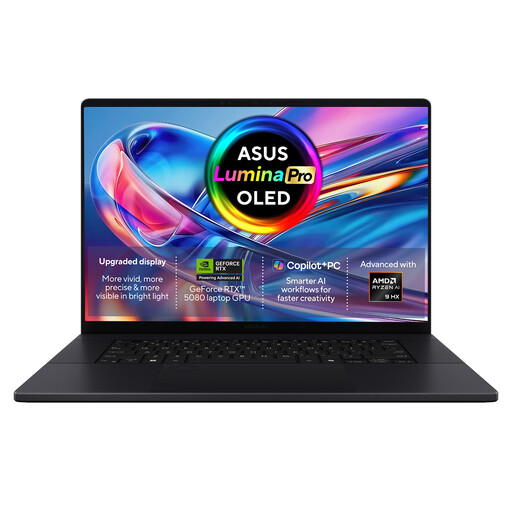
ASUS ProArt P16 H7606WW-SE006W, Ryzen AI 9 HX 370, RTX 5080 16GB, 64GB, 2TB SSD, Black
Consider this Windows laptop if you specifically want a 16-inch built-in screen and the named configuration's memory and storage for work away from the desk.
It has a 4K OLED touchscreen, AMD Ryzen AI 9 HX 370, NVIDIA GeForce RTX 5080 16GB, 64GB RAM, a 2TB SSD and Windows 11 Home.
Check whether its size suits how often you carry it, and confirm your catalogue software and standing-desk connections. Its creator-focused components are not, by themselves, a requirement for catalogue editing.
View on Joybuy
Frequently asked questions
Do I need a separate keyboard and mouse at a standing desk?
For prolonged laptop use, the Health and Safety Executive advises a separate keyboard and mouse so you can raise the screen independently. A larger built-in screen does not remove the need to consider where the input devices sit.
Can I use a MacBook Air to manage an online catalogue?
Yes, if your catalogue platform, required browser, extensions, work login and peripherals support macOS. Apple lists support for up to two external displays on the M5 MacBook Air, but you should check the connections for your particular monitor and dock.
What should I check before connecting a desk monitor?
Match the exact laptop's display output to the monitor input and check any dock's display and charging requirements. If you will use the setup for prolonged work, plan separate input devices so the screen can be positioned independently, as the Health and Safety Executive advises.


