Start with the software you must run: Microsoft describes Power BI Desktop as a Windows application, so local use calls for a compatible Windows setup. For chart review at a standing desk, check the exact screen configuration and how you will position a display, keyboard and mouse; a laptop purchase alone does not settle the workstation arrangement.
Who this setup suits
Standing dashboard reviewers
If you compare charts and tables while alternating between sitting and standing, screen position, reflections and the rest of the workstation deserve attention. The Health and Safety Executive advises considering posture when working with display screen equipment.
Power BI Desktop users
If you create or inspect reports in Power BI Desktop rather than only viewing them in a browser, operating-system compatibility is an early decision: Microsoft describes Desktop as a Windows application.
Analysts who dock at a desk
If you carry a laptop between locations but review detailed charts at a standing desk, check how the chosen laptop will connect to your intended display and input devices.
What matters when choosing
Settle any required local software before comparing screens. Then judge the exact laptop configuration alongside the display and input-device arrangement you intend to use at the desk.
| Concern |
What to check |
Who this matters to |
| Chart legibility |
Check the selected panel’s resolution, finish and brightness against the charts you read. Confirm that its screen area works for your labels and side-by-side views. |
If I compare dense dashboards on the laptop itself, I need to read labels without losing track of adjacent charts. Around 29% of consumers put built-in screen legibility first. |
| Standing-desk setup |
Check whether the screen, keyboard and mouse can be positioned separately, and whether the required connections and cables suit your desk. |
When I raise the screen, I still need comfortable access to the keyboard and mouse. For around 36% of consumers, workstation arrangement is the primary concern. |
| Software compatibility |
List required local applications and workplace tools; check the operating system, processor compatibility and installed memory of the chosen configuration. |
If my work requires a particular desktop analytics tool, I cannot choose a laptop by its screen alone. Around 21% of consumers place software fit first. |
| Portability |
Compare the chosen model’s size and carrying weight with the built-in screen area you need away from an external monitor. |
I move between work locations and need a laptop I am willing to carry, even if I use a larger display at the desk. Portability comes first for around 14% of consumers. |
Buying pitfalls
-
Treating the laptop as the whole standing-desk setup
Raising a laptop screen also raises its built-in keyboard and trackpad. Health and Safety Executive guidance considers the wider workstation, including equipment, positioning and working conditions.
Before ordering, decide where the screen and input devices will sit and whether you need a stand, monitor, separate keyboard or mouse.
-
Choosing macOS before checking required applications
Microsoft describes Power BI Desktop as a Windows application. A macOS laptop does not meet a requirement to run that application locally.
List the desktop applications, add-ins and workplace tools your workflow requires, then check compatibility with the exact laptop configuration.
-
Assuming every configuration has the same screen
Lenovo, Dell and HP list different display and memory configurations within their laptop lines; a line name alone does not identify the panel you will receive.
Check the exact model and selected panel’s resolution, finish and brightness, along with installed memory, before ordering.
Relevant brands to consider
Lenovo
ThinkPad T-series configurations are worth considering for a portable Windows chart-review setup.
- Lenovo lists a ThinkPad T14 Gen 5 configuration with 16 GB DDR5 memory and a 14-inch, 1920 × 1200 IPS anti-glare display.
- Confirm the display and memory of the particular T14 Gen 5 configuration you select.
Dell
Latitude configurations offer a route for buyers comparing detailed 14-inch display options.
- Dell lists a Latitude 9450 display option with 2560 × 1600 resolution, an anti-reflective finish, 500-nit brightness and 100% sRGB coverage.
- Those panel specifications describe an option, not every Latitude 9450 configuration.
HP
ProBook and EliteBook lines provide Windows laptop configurations to compare for desk-and-travel work.
- HP lists a ProBook 440 G11 configuration with Windows 11 Pro, 16 GB RAM and a 14-inch WUXGA display; its EliteBook X line lists other display and memory options.
- Check the exact HP model and selected screen rather than applying line-level options to every unit.
Apple
MacBook Air is a consideration when the required chart-review workflow is compatible with macOS.
- Apple lists support for up to two external displays in its MacBook Air specifications, subject to the model’s stated conditions.
- Microsoft describes Power BI Desktop as a Windows application, so check how any required Power BI work would be completed before choosing macOS.
Joybuy products for chart review
These laptops cover different built-in screen sizes and Windows or macOS workflows. Compare each one with your required software and the display arrangement you plan to use at the standing desk.
 No image available
ASUS Zenbook DUO UX8406CA-QL135W dual OLED touch laptop
Consider its dual-screen format if you want to arrange charts and tables on the laptop itself; check that the screen layout suits your desk.
The product name specifies 14-inch displays, an Intel Core Ultra 7 255H, 16 GB LPDDR5X RAM and a 1 TB SSD. Confirm the exact panel resolution before deciding whether it offers the chart space you need.
View on Joybuy
 No image available
ASUS Vivobook 14 X1407QA-LY003W, Snapdragon X
This 14-inch option suits a buyer assessing a compact laptop for chart review, provided their required applications work with its Snapdragon-based configuration.
The product name specifies 16 GB RAM and a 512 GB SSD. Check specialist software compatibility and the connections needed for your desk display.
View on Joybuy
 No image available
Lenovo LOQ Essential 15ARP11, Ryzen 7 170 and RTX 5050
Consider the 15.6-inch built-in screen if you expect to review charts without a desk monitor; check whether its FHD display gives your charts enough vertical space.
The product name specifies 144 Hz FHD, 16 GB RAM, a 1 TB SSD and GeForce RTX 5050 graphics. Check the carrying weight if you regularly move between locations.
View on Joybuy
 No image available
HP OmniBook X Flip 16-as0004na touchscreen
Its 16-inch format may appeal if you review charts on the built-in display at the desk. Check the panel finish and brightness for your lighting conditions.
The product name specifies a 2-in-1 design, Intel Core Ultra 5 226V, 16 GB RAM, a 512 GB SSD and Windows 11 Home. Confirm its weight and connections for your intended desk setup.
View on Joybuy
 No image available
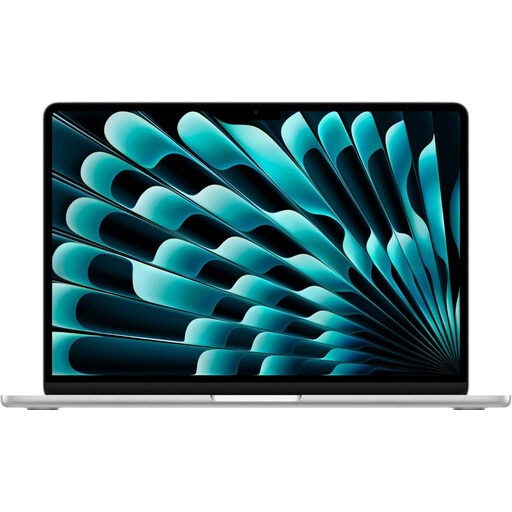
Apple 15-inch MacBook Air (2026), M5, 16 GB/1 TB, Silver
Consider this larger built-in screen if your chart-review applications and workplace requirements are compatible with macOS. It is not a choice for running Power BI Desktop locally, which Microsoft describes as a Windows application.
The product name specifies an M5 chip with a 10-core CPU and 10-core GPU, 16 GB memory and a 1 TB SSD. Check the exact panel and external-display arrangement against your desk plans.
View on Joybuy
Frequently asked questions
Is a laptop stand enough for reviewing charts while standing?
A stand alone may not give you a workable screen and keyboard position. The Health and Safety Executive advises considering the whole display-screen workstation, so check whether you also need a separate keyboard, mouse or monitor.
Can I choose a MacBook Air if I use Power BI?
Choose a MacBook Air only if your required Power BI tasks can be completed through a macOS-compatible workflow permitted by your organisation. Microsoft describes Power BI Desktop as a Windows application, so a requirement to run Desktop locally points to a compatible Windows setup.
Should I choose a 14-inch or a larger laptop screen?
Choose by where you will actually read your charts: a 14-inch laptop may suit regular carrying, while a larger built-in screen offers more physical display area when you work without a monitor. Check the selected panel’s resolution and your desk’s external-display arrangement rather than relying on diagonal size alone.
What should I check before connecting a standing-desk monitor?
Confirm the exact laptop’s display-output connections and the monitor arrangement they support, then check that your cables and input devices let you position the screen and keyboard separately. The connections and supported arrangements can vary by model and configuration.


