Who is this for?

Complex-simulation users

If you run larger or repeated LTspice simulations, turnaround time may matter more than meeting the minimum needed to launch the software. Analog Devices LTspice support guidance points to single-thread CPU performance, 16–32 GB RAM and SSD storage for maximum performance with complex schematics.

Schematic and PCB workflow users

If simulation sits alongside KiCad schematic and PCB work, the display deserves attention as well as the processor. KiCad recommends a resolution of 1920 × 1080 or higher; check the graphics and software requirements for the version you intend to use.

Shared-desk office users

If you change desks or spend long sessions reviewing circuits, consider the screen, monitor connection and peripheral arrangement together. UK Health and Safety Executive guidance includes hot-desking when its display-screen-equipment rules apply.

What matters when choosing?

Business laptop

Consider it when: LTspice or circuit-design work is your main technical workload, without demanding 3D or other heavy engineering applications alongside it.

Trade-off: The installed memory, processor and display still need checking on the exact configuration; a business-laptop label does not establish its suitability for a complex project.

Mobile workstation

Consider it when: Circuit simulation shares the laptop with demanding modelling, visualisation or several engineering applications, or a named application requires a validated configuration.

Trade-off: Workstation branding or range-level certification does not establish that a particular configuration is certified for your simulator.

Concern What to check Who this matters to
Simulation responsiveness For complex LTspice work, check the exact CPU model, installed RAM and SSD capacity. Analog Devices LTspice support suggests 16–32 GB RAM for maximum performance, not as a universal minimum. If repeated simulations hold up my work, I want enough computing headroom for the projects I run. Around 45% of consumers put simulation responsiveness first.
Design workspace and compatibility Confirm the simulator’s supported operating system and processor architecture. For KiCad, check graphics support and its recommended display resolution of 1920 × 1080 or higher. When I work between schematics, layouts and results, I need a readable workspace on a laptop that runs my chosen software. Roughly 33% of consumers make that their primary concern.
Shared-desk setup Check the display finish and the exact monitor and peripheral connections needed at your desks. Arrange a workstation assessment through your employer where UK display-screen-equipment rules apply. If I move between desks, I need a setup I can connect and use comfortably for sustained sessions. About 22% of consumers prioritise that shared-desk practicality.

Buying pitfalls

  • Buying a professional GPU before defining the workload

    Analog Devices LTspice performance guidance focuses on the CPU, memory and SSD. KiCad’s graphics requirement is not, by itself, a requirement for a professional discrete GPU.

    Name the simulator and any accompanying 3D or visualisation applications before deciding whether a workstation GPU serves a specific requirement.

  • Confusing a laptop range’s memory ceiling with installed RAM

    A range may offer several memory configurations. Its highest advertised capacity does not tell you how much RAM the particular laptop includes.

    Check the chosen model’s installed RAM and upgrade arrangements. If you plan complex LTspice work, compare that configuration with Analog Devices’ 16–32 GB maximum-performance guidance.

    Where memory is soldered or no upgrade slot is available, increasing capacity later may be impractical.

  • Treating the built-in screen as the whole workstation

    KiCad recommends 1920 × 1080 or higher for its interface. For qualifying daily display-screen work, UK Health and Safety Executive guidance also covers the workstation arrangement, including hot-desking.

    Check the laptop’s display and connections against the monitors and peripherals at your shared desks, and use your employer’s workstation-assessment process where applicable.

  • Assuming every simulator runs on the same platform

    KiCad supports multiple 64-bit platforms, whereas NI’s Multisim installation guidance is for Windows. One simulator’s compatibility does not establish another’s.

    Confirm the exact software version, operating system, processor architecture and licence requirements before choosing the laptop platform.

Relevant brands to consider

Dell

Dell’s Precision mobile-workstation range is relevant when circuit work accompanies demanding technical applications or a configured desk workstation.

  • Dell describes ISV-certified Precision configurations and lists anti-glare display options within the range.
  • Range-level features do not establish certification for your simulator or availability on a particular model. Check its configuration and named software requirements.

Lenovo

Lenovo’s ThinkPad P-series offers a mobile-workstation route for buyers considering professional-application configurations.

  • Lenovo describes the P series as ISV-certified for major applications.
  • That range-level statement does not establish certification for LTspice, KiCad or Multisim. Check the selected model and application.

HP

HP positions different ZBook tiers for workloads ranging from lighter design tasks to demanding modelling and multiple workflows.

  • The range offers a way to consider a workstation configuration when circuit simulation is only part of a heavier technical workload.
  • HP’s range positioning is not a circuit-simulation performance result. Check the specifications of the exact ZBook configuration.

Joybuy laptops to consider

These laptops offer different screen sizes and stated memory and storage configurations for circuit work at shared desks. Check each one against your simulator, version and desk connections before deciding; the list does not establish simulation performance.

ASUS Vivobook 14 X1407QA-LY003W laptop in Quiet Blue

ASUS Vivobook 14 X1407QA-LY003W Copilot+ PC, Quiet Blue

Consider this 14-inch model if you want a compact laptop to move between shared desks, after checking that your simulator supports its Snapdragon X platform.

The named configuration has 16GB RAM and a 512GB SSD. Confirm its display, monitor connections and whether that memory capacity suits your projects.

View on Joybuy
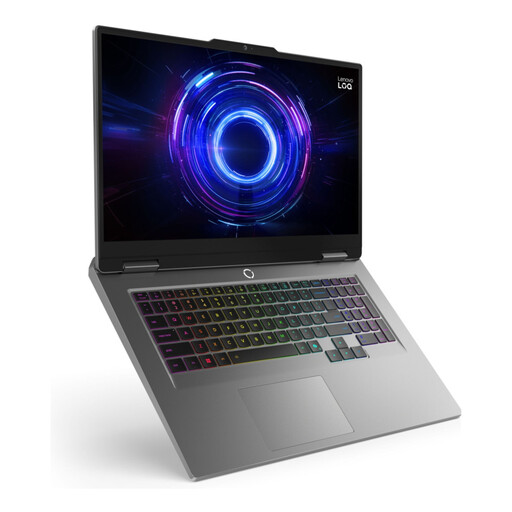
LOQ 17IRX10 laptop

LOQ 17IRX10 i7-13650H, 24GB, 1TB, W11H

Consider this configuration if your circuit work is mainly desk-based and you prefer its stated 17.3-inch screen; its reported weight of approximately 2.9 kg matters if you change desks often.

The model name identifies an i7-13650H processor, 24GB memory and 1TB storage. Check the exact simulator’s compatibility and the screen and graphics requirements for your design workflow.

View on Joybuy
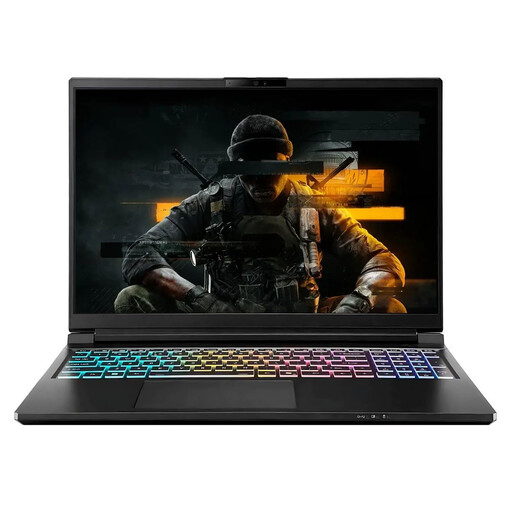
Stormforce Exobook 16 QHD+ laptop

Stormforce Exobook 16 QHD+, Ultra 9, 32GB, 4TB, 5080

Consider the stated 16-inch QHD+ screen and 32GB memory if you need space for detailed design work and larger projects; check whether its approximately 2.25 kg weight suits your desk routine.

The model name also states 4TB storage. Confirm the operating system and your simulator’s compatibility, and verify the exact graphics configuration rather than assuming a specific GPU from the model wording.

View on Joybuy
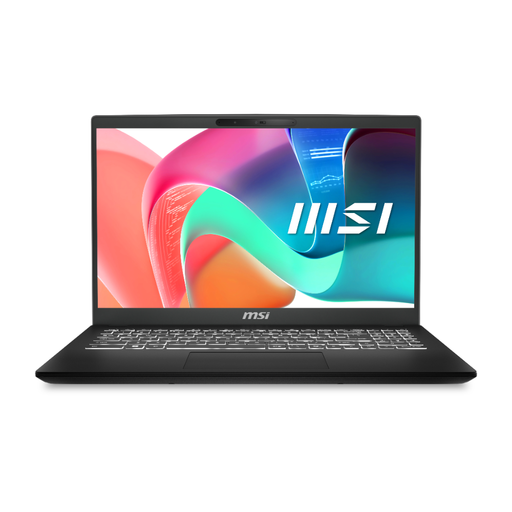
MSI Modern C2RMG-282UK laptop

MSI Modern C2RMG-282UK, 9S7-15H431-282

Consider this 15-inch Full HD model for a shared-desk setup if its screen size and connections fit the monitors and peripherals you use.

The named configuration specifies Intel Core 5, 16GB DDR IV RAM and a 512GB SSD. Check the exact processor model, operating system and simulator compatibility before choosing it for demanding projects.

View on Joybuy

HP OmniBook Ultra Flip 14-fh0006na two-in-one laptop

HP OmniBook Ultra Flip 14-fh0006na, 2-in-1 Copilot+

Consider this 14-inch two-in-one if moving between desks is a priority; check whether its screen and external-monitor arrangements suit detailed schematic work.

The named configuration includes 16GB RAM, a 1TB SSD and Windows 11 Home. Confirm the required software version and processor compatibility before purchase.

View on Joybuy

Frequently asked questions

Do I need a mobile workstation for LTspice?

Not necessarily: Analog Devices LTspice support says a computer able to run Windows 10 64-bit and install LTspice should be able to run it. For maximum performance with complex schematics, its separate guidance points to single-thread CPU performance, 16–32 GB RAM and SSD storage. Consider a workstation when other demanding applications or a required validated configuration justify it.

Does circuit simulation require a dedicated GPU?

A dedicated GPU is not an automatic requirement for ordinary SPICE work. KiCad calls for OpenGL 2.1-capable graphics with hardware shaders; check the exact laptop configuration against your software, and consider professional graphics if another application in your workflow requires them.

Should I choose a Windows, Linux, macOS or ARM laptop?

Choose after confirming the simulator and version you need. KiCad supports multiple 64-bit platforms, while NI’s Multisim installation guidance is specifically for Windows; if Multisim is essential, check its current operating-system, processor and licence requirements before buying.

What else matters when using a laptop at a shared UK desk?

The workstation arrangement matters as well as the laptop. The UK Health and Safety Executive says display-screen-equipment rules apply to workers who use it daily for continuous periods of an hour or more, including relevant hot-desking arrangements; employers must assess workstations and reduce risks. Check how the screen, keyboard, mouse and desk will work together, and follow your employer’s assessment process where applicable.