Window-side schematic readers
If you spend long sessions reading diagrams, plots and component labels in daylight, check the brightness and surface treatment of the exact panel rather than relying on a laptop family name.


Start with the exact screen configuration: look for a stated brightness and glare-reducing treatment, then choose memory and storage for the circuit work you expect to do. A documented anti-glare IPS configuration and documented low-reflection OLED configurations offer different routes, but neither guarantees readability beside every window. For demanding LTspice work, an Analog Devices EngineerZone response recommends 16–32 GB RAM and SSD storage.
If you spend long sessions reading diagrams, plots and component labels in daylight, check the brightness and surface treatment of the exact panel rather than relying on a laptop family name.
If you run larger or repeated LTspice simulations alongside other engineering applications, memory and SSD capacity deserve closer attention. An Analog Devices EngineerZone response recommends 16–32 GB RAM and SSD storage for demanding LTspice work.
If you move between a desk and lab bench, balance screen readability against the connections your equipment needs. Confirm that your applications and drivers work with the Windows architecture of the laptop you choose.
Choose the panel specification first for a bright-window desk, then decide how much simulation headroom and connectivity your own work requires.
| Concern | What to check | Who this matters to |
|---|---|---|
| Screen readability | Check the exact panel’s stated brightness in nits and whether it has anti-glare or low-reflection treatment. KiCad recommends a resolution of 1,920 × 1,080 or higher. | When I read small schematic labels beside daylight, I want to know how the actual screen handles brightness and reflections before I order. Around 42% of consumers would put screen readability first. |
| Simulation headroom | Match RAM and SSD capacity to your expected projects; check whether memory can be upgraded. An Analog Devices EngineerZone response recommends 16–32 GB RAM and an SSD for demanding LTspice work. | If my simulations and concurrent applications are likely to grow, I would rather plan for enough memory now than depend on an upgrade that may not be possible. Simulation headroom comes first for roughly 33% of consumers. |
| Desk and lab integration | Confirm the ports needed for your equipment and the compatibility of every required application, driver and plug-in with the chosen Windows architecture. | Moving between a lab bench and desk means I need my instruments, display and software to work with the same laptop. About 25% of consumers would make that integration their primary concern. |
Panel details vary by configuration: Lenovo documents a 400-nit anti-glare ThinkPad T14 Gen 5 AMD configuration, while ASUS lists different OLED panel options for the Zenbook 14 OLED UX3402.
Before ordering, check the exact model code and its stated brightness, surface treatment, resolution, keyboard layout and operating system.
KiCad offers Windows x86-64 and Arm64 downloads, and Analog Devices offers Windows x64 and Arm64 LTspice downloads. That does not establish compatibility for your other engineering tools or instrument drivers.
List every required application, driver, licence utility and plug-in, then check its supported architecture before choosing a Windows x64 or Arm64 laptop.
Larger LTspice projects and concurrent applications can change your memory and storage needs. An Analog Devices EngineerZone response recommends 16–32 GB RAM and an SSD for demanding work.
Consider your largest expected project and check whether the exact configuration permits a later memory upgrade.
A reference point for a 14-inch business laptop with a specified anti-glare panel and memory-upgrade route.
A reference point if you want a compact, higher-resolution OLED configuration and can confirm its panel treatment.
A reference point for comparing business-laptop memory options and the connections needed at a desk or lab bench.
These configurations offer different screen sizes and stated memory capacities for circuit work. For a bright-window desk, confirm the exact panel properties and compatibility with your complete software stack before choosing.
 No image available
Consider this configuration if 16 GB RAM meets your expected workload; confirm its exact panel brightness and glare treatment for your window-side position.
The named variant has a 15.6-inch, 144 Hz FHD display and a 1 TB SSD.
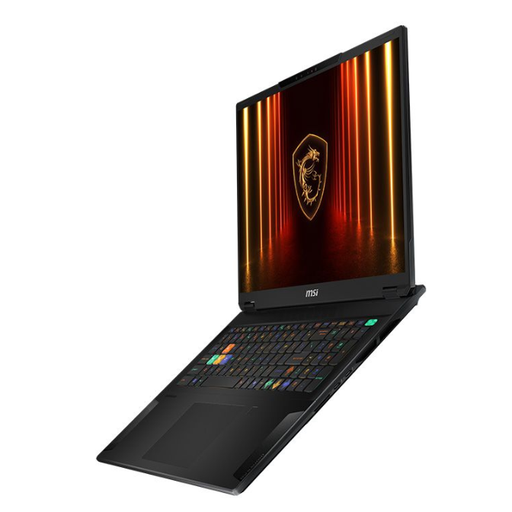 No image available
Consider the larger screen and stated memory if your circuit work involves sizeable diagrams or frequent multitasking; check panel brightness and glare treatment before placing it by a bright window.
The named 18-inch configuration has an Intel Core Ultra 9 processor, 32 GB RAM and a 2 TB SSD.
It can be a starting point, but the size of your projects and the number of applications you run together matter. An Analog Devices EngineerZone response recommends 16–32 GB RAM and SSD storage for demanding LTspice work; if you expect larger projects, check both the installed memory and whether the exact laptop can be upgraded.
Both applications have Windows Arm64 downloads: KiCad lists an Arm64 installer, and Analog Devices lists an Arm64 LTspice download. Check each additional simulator, instrument driver, licence utility and plug-in you need before choosing Arm64 hardware.
Check the exact panel’s stated brightness and whether it has anti-glare or low-reflection treatment; resolution alone does not tell you how it will handle reflections. KiCad recommends 1,920 × 1,080 or higher resolution, but no single brightness specification guarantees readability at every window position.
The UK Consumer Rights Act 2015 addresses what should happen when consumer goods are faulty. Keep your order confirmation and the advertised specification so you can identify the agreed configuration when raising a fault or a discrepancy with the seller.