Choose a Windows laptop if your school relies on Windows-specific software, add-ins or peripherals. A MacBook Air can suit an established macOS workflow once school files and software have been checked; a Windows 2-in-1 makes more sense when touch or tablet-style annotation is a regular part of lesson preparation. For desk work, check the screen, keyboard and monitor connections of the exact configuration rather than choosing by its product family alone.
Who this is for
PowerPoint-first classroom planners
If you regularly revise school slide decks, check access to your Microsoft 365 account and the fonts, templates and add-ins used in existing files. Microsoft Support says AutoSave works when a Microsoft 365 file is saved to OneDrive or SharePoint.
Home-office multitaskers
If slide preparation happens alongside browser-based school systems and calls, plan the desk setup as well as the laptop. Check the exact model's monitor support and connections against the equipment you use.
Touch-and-annotate lesson creators
If you regularly mark up slides or sketch lesson material, a touchscreen convertible may fit that workflow. Confirm pen compatibility and what comes with the particular model before making annotation the reason to choose it.
What to check before buying
Start with the school files and software you must use, then work out what your desk monitor and accessories require. Treat portability and touch as separate priorities: a Windows laptop can also be a 2-in-1, so these are not competing operating-system choices.
| Concern |
What to check |
Who this matters to |
| School-workflow compatibility |
Confirm your school account, required PowerPoint files and any operating-system-specific software or add-ins. For AutoSave, check the Microsoft 365 subscription and OneDrive or SharePoint file location. |
If familiar school files need to open and save without last-minute workarounds, compatibility comes before form factor. Around 36% of consumers put that workflow need first. |
| Desk work and monitor setup |
Match the exact laptop's display support and ports to your monitor and USB accessories; check whether you need a dock and whether a charger is included. |
When slides, reference pages and communication tools share my desk, I need a setup that connects to the equipment I use. Around 29% of consumers make desk multitasking and monitor use their main priority. |
| Portability |
Compare the stated weight, screen size and connections of the configurations you are considering. |
Moving between home, school and other rooms makes carrying size matter, provided the screen and keyboard still suit the work. For around 21% of consumers, portability is the primary concern. |
| Touch and annotation |
Check whether the exact 2-in-1 supports the pen you intend to use and whether that pen is included. |
If marking up teaching material is a regular task, I need touch input that fits how I prepare lessons. Around 14% of consumers put annotation first. |
Common buying mistakes
-
Assuming every school PowerPoint workflow behaves the same on Windows and macOS
PowerPoint access alone does not establish that a school's particular software, templates, fonts and add-ins will work as needed on another operating system.
Before buying, check the school account and required files, applications and peripherals with the school or on a compatible machine.
Resolving a file or add-in problem can take time when a lesson deck is due.
-
Assuming AutoSave is enabled for every slide deck
Microsoft Support says AutoSave in Microsoft 365 requires a file saved to OneDrive or SharePoint; the laptop's specifications alone do not enable it.
Open a test presentation from the intended account and cloud location, then confirm that AutoSave is active before relying on it.
-
Choosing a thin laptop without checking the complete desk connection
Apple's UK MacBook Air specification lists Thunderbolt 4/USB-C ports, while Dell's cited UK XPS 13 listing says a charger is not included. Neither detail should be assumed to apply to other models.
Check monitor inputs, USB accessories, suitable adapters and the contents of the exact laptop package.
Your setup may also need a compatible dock, display adapter or power supply.
-
Choosing a convertible for keyboard-only slide editing
Touch and tablet modes address annotation or sketching needs, but they are not necessary simply to type and rearrange slides.
If you rarely use touch, compare the convertible with conventional laptops for screen, keyboard, memory and connections instead.
Relevant brands to consider
These product lines illustrate different ways to approach the task; check the configuration and school workflow rather than treating a brand name as a compatibility guarantee.
Lenovo
The ThinkPad X1 Carbon is a 14-inch Windows business-laptop option for people considering a portable machine for school and desk work.
- Lenovo UK lists one ThinkPad X1 Carbon Gen 13 Aura Edition configuration with 16GB memory, a 512GB SSD and a 14-inch 1920 × 1200 anti-glare touchscreen.
- Those specifications describe that configuration, not every ThinkPad X1 Carbon. Check the keyboard, connections and support terms of the model you select.
Apple
MacBook Air is a macOS option when the school's applications and files already fit a Mac workflow.
- Apple's UK MacBook Air specification lists 16GB starting unified memory and support for up to two external displays.
- Its Thunderbolt 4/USB-C connections may call for an adapter with existing desk equipment. Confirm school-specific software, fonts and add-ins before switching operating systems.
HP
The OmniBook X Flip range offers Windows convertibles for people who use touch or tablet-style review while preparing lessons.
- HP Store UK lists 14-inch convertible examples with 16GB RAM, a 512GB SSD and a 2K touchscreen, alongside larger variants.
- Choose the exact screen size and check pen support for the model. A touchscreen alone does not establish that pen-based annotation will suit your workflow.
Dell
XPS 13 is a compact Windows option to examine if carrying size matters alongside home-office use.
- Dell UK describes the cited XPS 13 as a thin, light model and lists a Windows 11 Home configuration.
- Dell's cited listing says a charger is not included. Check the precise package contents and monitor connections of the configuration you are considering.
Joybuy laptop choices
These choices cover conventional Windows laptops and Windows 2-in-1 models for classroom-slide work. Check the exact configuration against your school software and desk equipment; touch matters most if you regularly annotate.
 No image available
ASUS Vivobook 14 X1407QA-LY003W, Snapdragon X, 16GB RAM, 512GB SSD
A conventional Windows-laptop choice to consider for slide editing at a desk. This Quiet Blue configuration lists a Snapdragon X processor, 16GB RAM and a 512GB SSD.
If your school uses particular applications, add-ins, templates or peripherals, confirm they work with this Snapdragon X configuration before buying.
Joybuy
 No image available
HP OmniBook Ultra Flip 14-fh0006na 2-in-1, 16GB RAM, 1TB SSD
Consider this Windows 2-in-1 if changing between laptop and tablet-style work is part of preparing slides. The named configuration has 16GB RAM, a 1TB SSD and Windows 11 Home.
If you intend to annotate with a pen, confirm compatibility and what is included. Also check the exact graphics configuration if it matters to other work you do.
Joybuy
 No image available
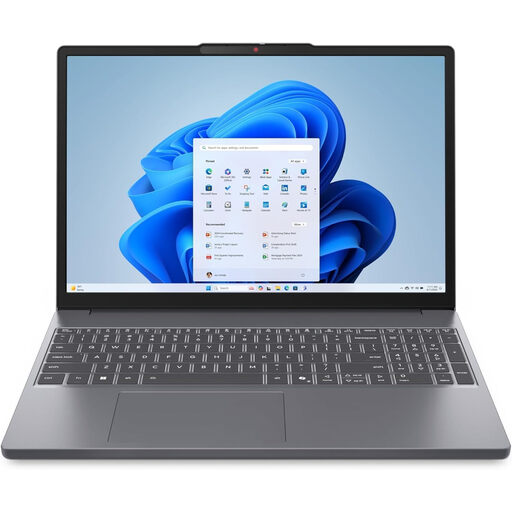
Lenovo IdeaPad Slim 3 83K7009MUK, 15.3-inch WUXGA, 24GB RAM
The 15.3-inch screen makes this a conventional Windows option to compare for desk-based slide revisions. Its title specifies an AMD Ryzen 5 7535HS processor, 24GB DDR5 RAM, a 512GB PCIe SSD and Windows 11 Home.
Before planning a monitor setup, confirm its video-output connections against your display or dock.
Joybuy
 No image available
HP OmniBook X Flip 16-as0004na, 16-inch touchscreen 2-in-1
This larger touchscreen 2-in-1 is worth considering if you want room for slide editing as well as tablet-style review. The named configuration lists an Intel Core Ultra 5 226V processor, 16GB RAM, a 512GB SSD and Windows 11 Home.
Check pen compatibility and inclusion before planning handwritten markup. Confirm monitor connections and weight if you will also use a desk display or carry it regularly.
Joybuy
 No image available
Lenovo Legion Pro 7 16IAX10H 83F5000UUK, 64GB RAM, 2TB SSD
This 16-inch Windows laptop can be considered if you also need its listed configuration for work beyond classroom slides; slide editing alone does not establish a need for every component. The title specifies an Intel Core Ultra 9 processor, 64GB RAM, a 2TB SSD and NVIDIA GeForce RTX 5090 graphics.
Check external-monitor connections and weight against your desk setup and carrying needs.
Joybuy
Frequently asked questions
Do I need Windows to edit classroom PowerPoint slides?
No, but Windows is the more direct choice when your school requires Windows-specific applications or peripherals. Microsoft 365 includes PowerPoint across devices; before choosing macOS, confirm that your school's files, fonts, templates and add-ins work as required.
How can I check that PowerPoint AutoSave will work?
Use the intended Microsoft 365 account and open a test presentation saved to OneDrive or SharePoint. Microsoft Support says AutoSave works for files saved in those locations; confirm that it is active in the app before relying on it for lesson changes.
Can I keep editing a slide deck if my internet connection drops?
You can continue editing a presentation that is available to you offline, but check its account and file location before you need it. Microsoft Support says pending changes to a PowerPoint file can sync when the connection returns.
What should I do if a new laptop is faulty?
Contact the seller and keep your order details and a record of the fault. Citizens Advice explains that goods which are broken, unusable or not as described can give rise to legal rights; the appropriate remedy depends on the circumstances, rather than simply on a retailer's change-of-mind policy.


