Club admins using two external monitors
For maintaining the website at a fixed desk while keeping browser editing, member records and communications on independent external displays. Check that the exact laptop can run both monitors simultaneously.


Decide whether the club needs the laptop screen plus one monitor, or two independent external monitors: for the latter, check the exact laptop’s simultaneous-display support rather than relying on the presence of a USB-C port. At a fixed desk, check display connections and dock compatibility together; if volunteers carry the laptop between locations, weigh that desk setup against portability and compatibility with the club’s existing tools.
For maintaining the website at a fixed desk while keeping browser editing, member records and communications on independent external displays. Check that the exact laptop can run both monitors simultaneously.
For work that moves between locations, with the laptop’s own display providing one screen and an external monitor adding space when a desk is available.
For volunteers whose website tools, shared files and communications work on macOS, and who also want the option of two external displays at a desk.
Define the two-screen arrangement before choosing ports, monitors or a dock. Then consider how easily volunteers can use and reconnect the setup during routine website work.
| Concern | What to check | Who this matters to |
|---|---|---|
| Two external monitors | Check the exact model’s simultaneous-display limit, the outputs used and the supported resolution and refresh rate for both monitors. | When editing the site at a fixed desk, I need two independent external displays rather than two sockets that cannot work together. Around 42% of consumers put confirmed dual-external-display support first. |
| Everyday multitasking | For a laptop screen plus one monitor, check the connection and whether the displays can be extended and arranged as intended. | I want to edit a page on one screen while checking its preview or club messages on the other, without a complicated desk setup. This straightforward arrangement comes first for around 33% of consumers. |
| Portability and handover | Check carrying weight, the repeatability of the desk connection and compatibility with the club’s website and administration tools. | If different volunteers take the laptop home or use it at the venue, I need a setup they can reconnect and use with the club’s tools. Roughly 25% of consumers make portability and handover their primary concern. |
USB-C describes the connector, not the laptop’s simultaneous-display capability. A dock cannot create an additional independent display output if the laptop does not support it.
Check the display limit and required connections in the exact laptop’s technical documentation before selecting monitors, cables or a dock.
Dell specifies dual 4K displays at 60 Hz for its WD25TB4 dock, but that dock specification does not establish what every connected laptop can drive or how it will charge.
Check the laptop and dock together against the intended monitor inputs, cables and charging requirements.
Website editing also involves arranging a browser, preview and club communications across the available screens. Processor branding alone does not describe how that workspace will function.
Plan where those windows will sit. On Windows, Microsoft’s display settings and Snap features can help arrange connected screens and windows.
A replaced device may still hold club files, account access or member information.
Back up what the club needs, sign out of accounts and securely erase the device using its operating-system or manufacturer procedure before arranging reuse or electrical-equipment recycling.
The ThinkPad E16 Gen 3 Intel is a Windows business-laptop option for a club that wants a 16-inch built-in workspace and documented external-display support.
MacBook Air is a portable macOS option when the club’s website and administration tools work on that operating system.
Dell Pro laptops and Dell Pro Thunderbolt docks offer a Windows business-laptop route for a regular shared desk.
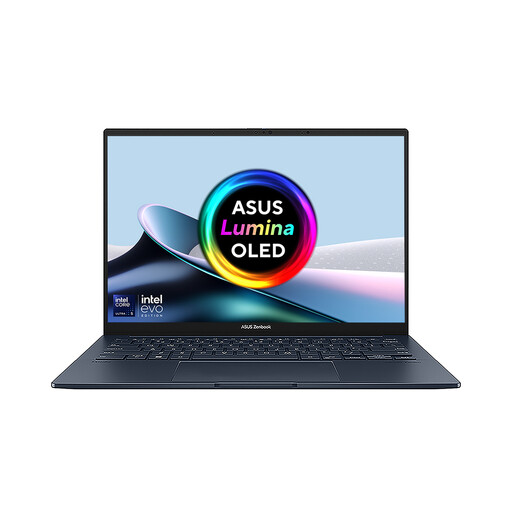
This ASUS Zenbook DUO offers two built-in screens for club website work without a separate monitor. If the club instead plans to use two external monitors, confirm support for that arrangement on the exact configuration before buying.
 No image available
The dual built-in screens suit website editing alongside a preview or club communications when a separate monitor is inconvenient.
Intel Core Ultra 7 255H; 16 GB LPDDR5X RAM; 1 TB SSD.
If screen resolution is important to the workspace, confirm it for this configuration. Check compatibility with the club’s required software and confirm external-display support separately if external monitors are planned.
Either arrangement is possible, but they are different buying requirements. For two external monitors, confirm simultaneous support in the exact laptop’s documentation; for the laptop screen plus one monitor, check the laptop output, monitor input and cable.
Use Windows Settings under System > Display to identify and arrange connected displays. Microsoft also provides options for remembering window locations when monitors are reconnected, which may help at a shared desk.
No. A dock’s stated video modes do not establish compatibility with every laptop. Check the laptop’s display-output capability, the dock’s compatibility information, monitor inputs, cables and charging requirements as one setup.
Remove club and member data before sending the laptop for reuse or electrical-equipment recycling. UK government guidance on waste electrical and electronic equipment addresses recovery and recycling; use an appropriate handover route and securely erase the device first.