Standing-desk code reviewers
If you read diffs and comments for long sessions, screen and input-device positions matter. The Health and Safety Executive advises a separate keyboard and mouse when a laptop screen is raised for prolonged use.


Choose a laptop that works with your required operating system, review tools and workplace controls before comparing screen size or portability. For prolonged code review at a standing desk, plan the workstation as well as the laptop: the Health and Safety Executive advises using a separate keyboard and mouse when raising a laptop screen, or using a separate display.
If you read diffs and comments for long sessions, screen and input-device positions matter. The Health and Safety Executive advises a separate keyboard and mouse when a laptop screen is raised for prolonged use.
If you move between desks but depend on Windows or employer-managed tools, check those requirements before choosing a portable machine. Lenovo lists a ThinkPad X1 Carbon Gen 13 configuration weighing less than 1 kg.
If your repositories, review tools and workplace controls work on macOS, a compact laptop can also serve a desk with external displays. Apple lists support for up to two external displays on its stated MacBook Air configurations.
Confirm workflow compatibility first, then decide how you will position the screen and input devices. Screen size, carrying weight and display connections matter differently if you regularly move between desks.
| Concern | What to check | Who this matters to |
|---|---|---|
| Screen and input position | Plan how to raise the screen while using a separate keyboard and mouse for prolonged sessions, as the Health and Safety Executive advises. | If I review long diffs at one standing desk, I want the screen positioned without making typing awkward. Around 28% of consumers put this setup first. |
| Workflow compatibility | Confirm the operating system and processor work with required review tools, security software and employer controls. | If my team requires particular development or managed-device tools, I cannot choose by hardware alone. Roughly 22% of consumers prioritise workflow compatibility. |
| Portability | Compare the exact configuration’s weight and size, including what you would carry for your desk setup. | Moving between workspaces makes the laptop and its accompanying equipment part of my daily load. Around 22% of consumers make portability their primary concern. |
| Readable workspace | Check screen dimensions, the exact external-display limit and the connections required by your monitor or dock. | When code, comments and documentation compete for space, I want to know whether my desk display arrangement will work. About 17% of consumers put workspace expansion first. |
| Configuration and accessories | Check the exact memory, storage, display, charger inclusion and service terms rather than relying on a laptop-family name. | If two listings share a family name, I need to know which configuration and accessories I would actually receive. Around 11% of consumers prioritise those details. |
Raising the screen also raises the built-in keyboard and trackpad. The Health and Safety Executive advises separate input devices when elevating a laptop screen for prolonged use.
Plan where the screen, keyboard and mouse will sit before choosing the laptop.
A riser or separate display and external input devices add equipment to the setup.
Memory, storage, display and charger inclusion can vary between configurations. ASUS describes some Vivobook 14 (X1407) specifications as 'up to' values, while Dell lists some Pro 14 Plus configurations without an AC adapter.
Check the exact model and listing for installed specifications, supplied accessories and service terms.
External-display support depends on the laptop and configuration. Apple specifies display limits for supported MacBook Air configurations, while Microsoft documents dual 4K monitor support for Surface Laptop 6 for Business through USB4/Thunderbolt 4.
Check the exact laptop’s display limit and port standard against your monitor or dock.
The arrangement may also require a compatible cable, dock or power supply.
A manufacturer’s battery figure is tied to its stated test conditions; your mix of applications, displays and peripherals may differ.
Check the test conditions, charging compatibility and whether a charger comes with the exact configuration.
MacBook Air is a compact macOS route when required work tools are compatible. Apple lists a 13.6-inch display for the 13-inch model, two Thunderbolt 4 ports and support for up to two external displays on its stated configurations.
ThinkPad X1 Carbon Gen 13 is a Windows business-laptop route for moving between desks. One Lenovo UK configuration lists Windows 11 Pro, 16GB memory, a 512GB SSD and a 14-inch anti-glare 1920 × 1200 display; Lenovo states that it weighs less than 1 kg.
Vivobook 14 (X1407) is a 14-inch Windows range with variant-dependent specifications. ASUS lists a 16:10 FHD IPS display and configurations with up to 32GB memory and up to 1TB SSD storage.
Dell Pro 14 Plus is a 14-inch Windows business-laptop route. Dell UK lists configurations with Windows 11 Pro, 16GB or 32GB memory options and 512GB SSD options.
These laptops cover compact macOS and Windows options alongside models with larger built-in screens. Choose among them by checking your work-tool compatibility and intended standing-desk display arrangement.
 Image unavailable
Consider its larger built-in screen if you want room to read code before arranging a separate desk display.
The listed configuration has a 15.6-inch 144Hz FHD display and GeForce RTX 5050 graphics. Confirm compatibility with your work tools and the external-display arrangement you intend to use.
 Image unavailable
This 14-inch option suits a compact Windows setup only if your required applications and employer controls work with its Snapdragon configuration.
Check the exact external-display limits against your monitor or dock before choosing it for a standing desk.
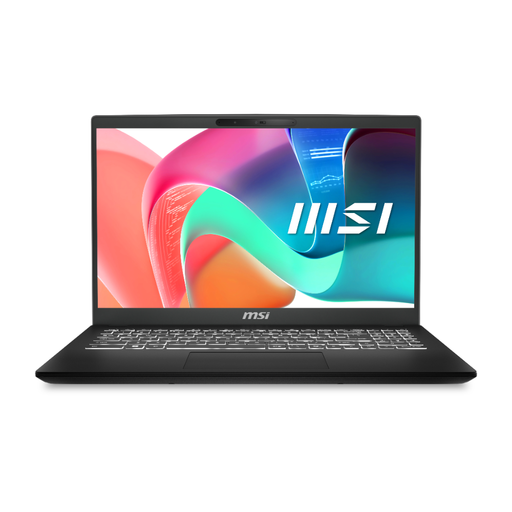 Image unavailable
The 15-inch format is worth considering if you want a larger built-in screen for reviewing code.
The title specifies an FHD display. Confirm the operating-system version and external-display support needed for your tools and desk setup.
 Image unavailable
Its 15.6-inch Full HD screen may suit reading code on the laptop itself, subject to the space your review workflow needs.
Check whether the listed Windows 11 Home configuration is in S Mode and whether your required development tools will run before ordering. Confirm external-display support for your intended monitor.
 Image unavailable
This compact macOS option is relevant if your review tools, repository access and workplace controls are compatible with macOS.
Apple describes external-display support for stated MacBook Air configurations; confirm the limits and connections for this exact machine and your intended desk setup.
Focus on the workstation arrangement rather than a particular model. For prolonged laptop use, the Health and Safety Executive advises a separate keyboard and mouse so the screen can be raised, or a separate display.
A larger built-in screen keeps the setup together when you move between desks; a raised external monitor is an option when you usually review code at one standing desk. Check the laptop’s exact display-output limit and connections before choosing a monitor or dock.
Yes—plan opportunities to move or change posture rather than remaining at the screen continuously. The Health and Safety Executive advises short breaks often instead of longer breaks less often.
Contact the seller about a remedy and keep the listing and order details that identify the promised configuration. GOV.UK distinguishes goods that are faulty or not as described from an ordinary change-of-mind return.