Bright-window coordinators
You work on schedules, volunteer lists and booking documents beside a bright window, making screen brightness and reflections important parts of the choice.


For regular event planning beside a bright window, check the exact screen’s standard brightness and reflection treatment before paying for processor upgrades. Then choose a laptop that runs your essential software and connects to the equipment you use: a portable model may suit travel between venues, while a convertible is worth considering if you will use touch when reviewing plans together.
You work on schedules, volunteer lists and booking documents beside a bright window, making screen brightness and reflections important parts of the choice.
You carry your laptop between home, community venues and meetings, and need to weigh portability against screen and connection requirements.
You share plans with volunteers, join video calls or connect a venue display, so your choice depends on the equipment and software used by the group.
Start with the screen you will use beside the window, then check carrying needs, meeting equipment and software compatibility. The priorities below describe consumers choosing a laptop for this community-event planning scenario.
| Concern | What to check | Who this matters to |
|---|---|---|
| Bright-window readability | Check standard brightness in nits and the exact panel finish. Do not compare an HDR peak figure with another screen’s normal brightness. | If I work beside the window, I need to read schedules without repeatedly moving to escape reflections; around 36% of consumers would put screen readability first. |
| Portability and power | Compare the listed weight, charging connections and the conditions behind any manufacturer battery claim. | When I move between venues, I need a laptop I can carry and keep powered through planning sessions; roughly 29% of consumers would make portability and power their primary concern. |
| Calls and equipment | Check the webcam and the exact ports or adapters needed for your venue display and accessories. | I need to join planning calls and show documents on shared equipment without a connection problem; about 21% of consumers would prioritise collaboration and connections. |
| Software compatibility | Confirm that essential apps, printer tools and peripherals work with the chosen operating system and processor. | If our booking or printing tools cannot run, the other features will not rescue my workflow; approximately 14% of consumers would put compatibility first. |
ASUS UK lists Zenbook 14 OLED UX3402 configurations with 400-nit standard brightness and separate 550- or 600-nit HDR peak figures. Using the larger figure as the ordinary working brightness can distort a bright-window comparison.
Compare standard brightness and panel finish for the exact configuration you intend to order.
Microsoft Support notes that some peripherals, including printers, may not install through a manufacturer installer that lacks ARM support. This matters if event planning depends on a particular printer or specialist application.
List the apps and peripherals you must use, then confirm support with their publishers or manufacturers before choosing an ARM-based laptop.
An incompatible tool may mean finding another workflow or spending time resolving the connection before the event.
Apple UK lists two Thunderbolt 4 ports for the MacBook Air configuration considered here. A venue display or existing accessory using another connector needs a compatible way to connect.
Check the venue display input and each accessory against the laptop’s ports before ordering.
You may need a compatible dock or adapter for equipment using HDMI or USB-A.
Dell UK describes the XPS 13 9345 considered here as no longer available, and the referenced HP and Lenovo listings marked their exact configurations out of stock. Their specifications can still help frame a comparison, but they are not a substitute for checking the product being sold.
Confirm the current model number, panel configuration, availability and seller terms on the actual product page before ordering.
A Windows option to examine when a documented low-reflection display is the starting requirement.
A macOS option for organisers whose planning tools and accessories work with that system.
A convertible Windows option to examine if touch input and sharing plans in person matter.
A useful reference when comparing screen finish and standard brightness against HDR peak figures.
A portability-led Windows reference when carrying the laptop between venues is a major concern.
These laptops cover different ways of planning and sharing a community event, including Windows, macOS and ChromeOS. For any model you expect to use beside a bright window, check the exact panel’s standard brightness and finish as well as your required software and connections.
 No image available
Consider the touchscreen and 2-in-1 format if you want to review plans with others in a meeting. For work beside the window, check this configuration’s standard brightness and screen finish; confirm whether a pen is included if you intend to annotate plans.
 No image available
The 15.6-inch format may suit organisers who work with schedules and spreadsheets. Check the exact panel’s standard brightness for regular window-side work, and confirm that its connections fit the display and accessories used at meetings.
 No image available
This is a macOS choice if the organising team’s applications and peripherals are compatible. Apple UK lists a 13.6-inch, 500-nit display and two Thunderbolt 4 ports for the M5 MacBook Air; check the screen finish and any adapters needed for venue equipment.
 No image available
Consider this Chromebook if your event-planning work runs in a browser or compatible ChromeOS apps. Confirm support for any required desktop software and peripherals, and check standard screen brightness before relying on it beside the window.
 No image available
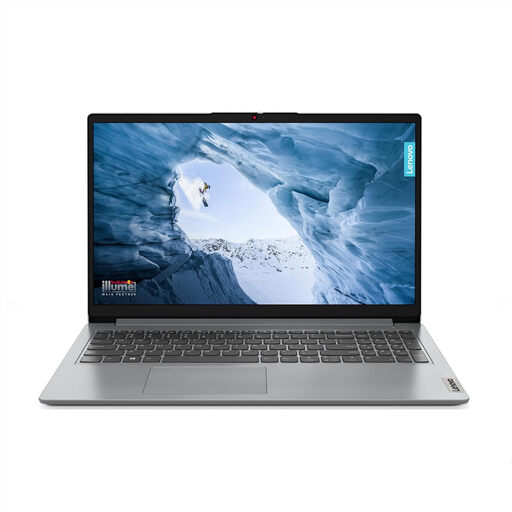
This is a Windows option for document-based planning, but check whether 128GB of storage meets your needs. The listed Windows 11 Home in S Mode also makes application compatibility worth confirming; check standard screen brightness for regular bright-window use.
Compare standard brightness and screen finish for the exact laptop rather than choosing by a single peak figure. Dell UK lists 500-nit anti-glare or anti-reflective XPS 13 9345 options, while ASUS UK lists Zenbook 14 OLED UX3402 variants with 400-nit standard brightness and separate HDR peak figures; those specifications provide useful comparison points, but reflections and where you sit still matter.
Not necessarily: a glossy screen may still work for you if you can move the laptop or control the light. For regular work in a fixed position beside the window, check its ordinary brightness and reflections rather than assuming that OLED alone tells you how readable it will be.
It can be a suitable choice if your essential apps and peripherals work on that configuration. Microsoft Support notes that some peripherals, including printers, may not install through a manufacturer installer without ARM support, so confirm specialist software and device compatibility before ordering.
For a UK distance purchase, GOV.UK says you can tell the seller you want to cancel within 14 days of receiving the item, then have a further 14 days to return it. That change-of-mind cancellation is distinct from remedies for a faulty or misdescribed laptop; check which situation applies before contacting the seller.