What should you choose first?
Choose equipment for the task and desk you use; if an applicable DSE assessment identifies a particular workstation need, use it to guide the purchase.
Stand with separate input devices
Choose when: You work for sustained periods on the laptop screen and have room to position a raised laptop, keyboard and mouse independently.
Trade-off: It changes screen and input positioning but does not add display space or ports.
External monitor
Choose when: Your work calls for a separate display and the laptop supports the connection you intend to use.
Trade-off: The screen needs desk space and a suitable position; a monitor does not replace separate input devices when the laptop is raised.
Hub or dock
Choose when: You repeatedly connect a monitor and other desk devices to the same laptop.
Trade-off: Its display and charging functions depend on both the accessory and the exact laptop; a USB-C connector alone settles neither question.
| Priority | What to check | Your needs |
|---|
| Screen and input position |
Can the screen be raised while a separate keyboard and mouse remain at suitable working positions? Will all three fit the desk? HSE recommends separate input devices when elevating a laptop screen for prolonged use. |
I spend long stretches working on my laptop and need to position its screen without raising the keyboard I type on. |
| External display |
Check the laptop model’s supported display count and connection method, then match its ports, cable and adapter to the intended monitor. Check the monitor’s ports and positioning adjustments too. |
More screen space would help me work with documents or applications side by side, and I have room to place another display. |
| Desk connections |
List the display, USB, network and charging connections you will use. Check the laptop’s video-capable port, the hub or dock’s display behaviour and any required charger; Anker’s published specifications show these capabilities can differ by model and laptop support. |
I move my laptop between desks and would rather reconnect the devices I actually use through fewer connections. |
| Individual workstation needs |
Consider the whole desk and how it is used, not just one accessory. Where a DSE assessment applies, check its findings for the home and office setups. |
My desks or working pattern differ, so I want equipment that addresses the issue at each workstation rather than a generic bundle. |
| Remote meetings |
Check whether you need a separate headset or webcam, its connection type and whether a suitable port remains available. |
I take calls at this desk and may need meeting equipment, but it will not change where my laptop screen or keyboard sits. |
Relevant brands and device guidance
These references help with different parts of the decision; a brand’s range or support guidance is not a substitute for checking the exact product and laptop.
Logitech
Logitech’s UK range includes keyboard-and-mouse combinations, relevant when a raised laptop needs separate input devices. Its presence here does not indicate that a particular combination will fit every desk or device.
- Consider the keyboard and mouse together when planning their position beside a riser or monitor.
- Check the chosen set’s layout, connection method and desk footprint.
Anker
Anker’s hub specifications illustrate why display output must be checked model by model.
- Anker specifies different single-monitor output for its 565 hub with DP 1.4 and DP 1.2 laptops.
- Anker states that its Nano dual-display hub mirrors content across external monitors on macOS, while its stated Windows behaviour differs; do not transfer either claim to another hub.
Apple
Apple’s Mac guidance is a starting point for checking a MacBook before selecting an external display or dock.
- Apple identifies the Mac’s ports as a factor in how many displays can connect and how they connect.
- Check the exact Mac model and intended cables or adapters rather than relying on the presence of USB-C.
Microsoft Surface
Microsoft’s Surface guidance is relevant when planning an external display connection for a Surface device.
- Microsoft identifies both the Surface model and the cable or video adapter as factors in display compatibility.
- Surface guidance does not establish the capabilities of every Windows laptop or third-party dock.
Joybuy options for laptop workspaces
These options cover external displays, hubs and docking connections, plus a headset for calls. Choose among them according to the desk task and your laptop’s connections; for sustained laptop work, also consider the separate keyboard-and-mouse arrangement described above.
 No image available
Targus USB-C Universal Dual HDMI 4K Docking Station, 100W PD pass-through
Consider this for a desk where you want to connect displays and other devices through a dock. Its name specifies dual HDMI 4K connections and 100W Power Delivery pass-through. Before choosing it, check your laptop’s video and display support, charging requirements and whether the required power adapter is included.
View on Joybuy
 No image available
AOC Q32V4 31.5-inch 2K IPS monitor
This is a separate screen to consider if your home desk has room for a 31.5-inch monitor. The product name specifies a 2K IPS display and built-in speakers. Check your laptop’s supported output and the connection you will use, as well as whether the stand or a compatible mount provides the positioning you need.
View on Joybuy
 No image available
ASUS ZenScreen MB166C 15.6-inch Full HD portable USB-C monitor
A portable second screen may suit a laptop that moves between home and office. This model’s name specifies a 15.6-inch Full HD IPS display with a USB Type-C connection and anti-glare surface. Confirm that your laptop’s port provides the required video and power, and check how you will position the screen at each desk.
View on Joybuy
 No image available
Baseus Metal Gleam Series II 10-in-1 USB-C hub, Cosmic Black
Consider this hub if your desk needs several connection types from one laptop. The product name lists two HDMI outputs, USB data connections, RJ45, SD/TF and a USB-C PD input. Check that your laptop supports the required video connection and intended display arrangement, and confirm any charger you need.
View on Joybuy
 No image available
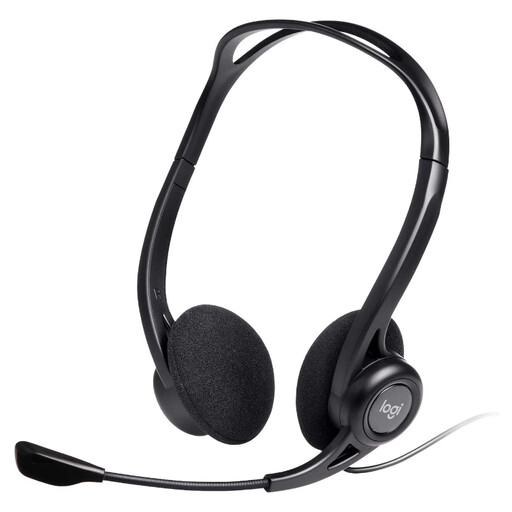
Logitech 960 wired USB headset, black
A separate headset is an option when your remote meetings call for one, rather than a way to change screen or keyboard position. This model’s name specifies an inline remote and noise-cancelling microphone. Check that your laptop or dock has a suitable USB-A connection, or whether you need an adapter.
View on Joybuy
Frequently asked questions
Does every home or hybrid worker need extra laptop equipment?
No particular monitor, stand or dock is automatically needed. HSE guidance says to consider the individual home-working setup; where a DSE assessment applies, use its findings to decide what equipment or changes are appropriate.
When should a DSE assessment affect what I buy?
Use an applicable assessment to guide equipment choices when it identifies a workstation need. HSE says employers must assess workers who use DSE daily as part of normal work for continuous periods of an hour or more where the regulations apply, and that changes to a workstation or how it is used call for assessment. For hybrid work, consider both home and office setups.
Can I use a laptop stand with its built-in keyboard?
For prolonged laptop use with the screen elevated, HSE advises a separate keyboard and mouse. Plan space for both input devices when choosing a riser, rather than treating the stand as the whole setup.
Will any USB-C hub run two different external displays?
No; check the exact laptop, operating system, video-capable port, hub and cables for the display arrangement you want. Apple says Mac display support varies with the device and connections, while Anker states that its Nano dual-display hub mirrors content across external monitors on macOS but supports different content on Windows. That Anker behaviour is specific to the stated hub.
What matters if a dock must connect a display and charge my laptop?
Confirm the laptop’s video output and charging requirements, then check which dock ports provide video, data and Power Delivery. Also check the required charger and box contents: a USB-C port on its own does not establish that it performs every function.


