Dual-monitor route planners
You want a map on one desk monitor and route details, elevation or GPX files on another. Check support for two external displays on the exact laptop-and-dock combination; a USB-C port alone does not settle that question.


Choose the screen arrangement before the laptop: two built-in screens, the laptop screen plus a monitor, and two external monitors place different demands on the setup. For external displays, check the exact laptop, dock, cables and monitors at the resolution and refresh rate you intend to use. If you plan routes in Ride with GPS, its guidance also makes browser WebGL2 support an important check; detailed maps alone do not establish a need for a dedicated graphics card.
You want a map on one desk monitor and route details, elevation or GPX files on another. Check support for two external displays on the exact laptop-and-dock combination; a USB-C port alone does not settle that question.
You inspect surfaces, elevation and alternative roads or paths before a ride. Ride with GPS says WebGL2 is needed for different map types and some Web Route Planner features, making browser compatibility worth checking before choosing a laptop for its graphics specification.
You build routes at a larger desk setup but want to revisit them away from home. Balance the screens and connections you use at the desk against the laptop you are willing to carry.
Start by deciding whether your second screen will be built into the laptop or connected externally. If you want two external monitors, check their combined requirements against the exact laptop and any dock, rather than the dock specification alone.
| Concern | What to check | Who this matters to |
|---|---|---|
| Two-screen connections | Confirm the number of supported external displays and their simultaneous resolution and refresh rate with your chosen dock and cables. | I want the map and route details visible separately at my desk, without discovering that my two monitors cannot run together. Around 33% of consumers put verified display output first. |
| Map rendering | Check your route planner in a current browser with WebGL2 and the relevant graphics settings. | When I inspect map layers and adjust a route, I need them to display properly. Reliable map rendering is the primary concern for roughly 27% of consumers. |
| Portability | Consider laptop size and carrying weight alongside where the dock and monitors will stay. | If I edit routes away from my desk, I want a laptop I will carry without taking the whole monitor setup. About 20% of consumers prioritise that flexibility. |
| Workflow fit | Check your preferred operating system, browser, monitor adapters and route-sharing workflow. | I want my existing devices and planning tools to work together without changing my routine. For around 20% of consumers, that fit comes first. |
A dock’s advertised display capability does not establish what a particular laptop can drive through it.
Note both monitors’ intended resolution and refresh rate, then check the exact laptop-and-dock combination in the manufacturers’ display guidance.
Your connection chain may also require a compatible dock, adapters or cables.
Ride with GPS identifies WebGL2 as necessary for different map types and some web-planner features; that requirement does not, by itself, establish a need for a dedicated graphics card.
Check the browser and graphics settings used by your route planner before treating graphics hardware as the deciding specification.
Duplication shows the same content on both screens, so it does not give maps and route notes separate workspace.
On Windows, select an extended desktop in Display settings and arrange the screens to match their positions on your desk.
Display-output arrangements can depend on the exact machine and dock. Microsoft lists Surface Laptop limits by model, and Lenovo publishes ThinkPad docking configurations separately.
Keep the full model and configuration details to hand when checking monitor compatibility.
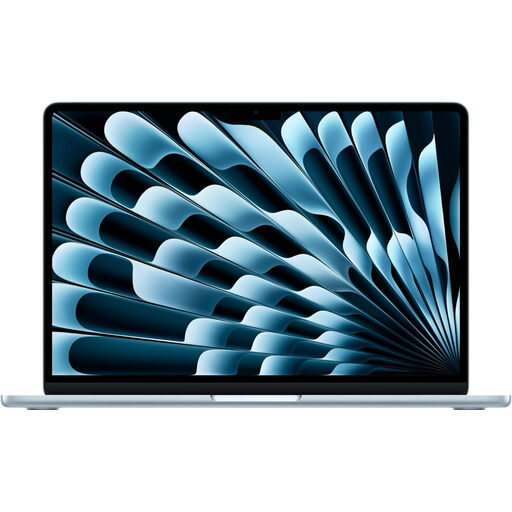
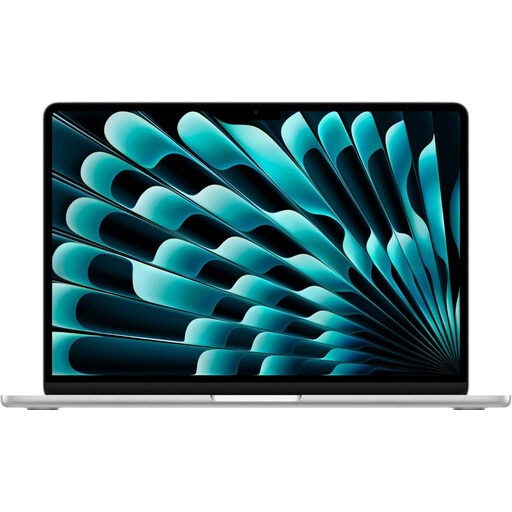
A reference point if you prefer macOS and are considering a MacBook Air M5 for external monitors.
A reference point for Windows users checking a specific Surface Laptop edition.
A reference point if a portable ThinkPad and a model-specific docked setup suit your plans.
A reference point for a Windows desk setup using a Dell Pro laptop and a compatible dock.
These laptops represent two ways to arrange a route-planning workspace: the ASUS has two built-in screens, while the MacBook Air M5 models are options for a desk setup with external displays. Check the connection requirements of your intended arrangement before choosing between them.
 No image available
Consider the two built-in screens if you want a map and route details visible without taking external monitors along.
The listed configuration has 16 GB LPDDR5X memory and a 1 TB SSD. If you also plan to connect monitors, confirm the exact external-display limits; check the panel resolution before choosing on that basis.
 No image available
Consider this 13-inch model if you prefer macOS and will use external monitors for your larger desk workspace.
Apple’s UK MacBook Air M5 specification supports up to two external displays while the built-in display remains active. Confirm that your intended monitors, adapters or dock can run together at the resolution and refresh rate you need.
 No image available
Consider the 15-inch built-in display if you want more laptop-screen space when working away from your desk monitors.
Apple’s UK MacBook Air M5 specification supports up to two external displays while the built-in display remains active. Check the adapters or dock and the simultaneous display settings for your own monitors.
No: the connector shape alone does not establish dual-monitor support. Check the exact laptop’s external-display limits and, if you need a dock, the manufacturer’s supported laptop-and-dock configurations for your intended resolution and refresh rate.
Select an extended desktop rather than duplicated displays. In Settings, open System then Display, identify the screens and arrange them to match their physical positions; Microsoft Support also provides detection controls if a connected screen does not appear.
For Ride with GPS, browser WebGL2 support is one thing to check: its Help Center says WebGL2 is necessary for different map types and some Web Route Planner features. Check your browser’s compatibility and graphics-acceleration settings before assuming the laptop itself is faulty.
Faulty goods may qualify for remedies under the UK Consumer Rights Act 2015, independently of a retailer’s change-of-mind policy. The Act’s explanatory notes describe a minimum 30-day period for the short-term right to reject; the remedy available depends on the circumstances, so keep your order details and raise the fault with the seller promptly.