Start with the part of your home laptop setup that interrupts work: consider a monitor for document space, a dock for repeated connections, or call equipment when sound or camera position is the problem. Before choosing a dock or multiple displays, check your exact laptop model’s video and charging capabilities, the operating system and the cables you will need. A stand with separate input devices addresses laptop position without adding screen space or ports.
Who is this setup for?
Document-heavy hybrid workers
If you regularly compare documents, spreadsheets and browser windows at home, an external display may address a lack of working space. Check how many displays your laptop model supports before planning a multi-screen desk.
People who reconnect their desk each workday
If you repeatedly attach a display, power and other peripherals, a dock may reduce cable handling. Its display functions and charging output still have to suit the laptop and host port.
Frequent callers in shared homes
Household noise, a low laptop camera angle or poor lighting can each call for a different change. Identify whether colleagues struggle to hear you, you struggle to hear them, or the image is the main concern.
What should you check before buying?
Choose the addition that addresses your main interruption, then check its connections against the exact laptop model. Screen space, one-cable setup, calls and a compact desk arrangement call for different equipment.
| Concern | What to check | Who this matters to |
|---|
| Screen space |
Check the laptop’s supported display count and video output, then match the monitor input and cable. |
If I work across documents and applications, I want room to see more of them without constantly switching windows; around 31% of consumers put screen space first. |
| Desk connections |
Check the host port’s capabilities and the dock’s display support; compare charging output with the laptop’s requirement. |
Reconnecting power and peripherals each time I work at home makes setup the inconvenience I want to remove. Roughly 31% of consumers prioritise connections and charging. |
| Call clarity |
Decide whether sound or image is the problem; check headset connection or webcam mounting and lighting as appropriate. |
In a shared home, I need people on calls to hear me despite nearby activity, or I need a more useful camera position. About 23% of consumers make call clarity their primary concern. |
| Compact setup |
Check stand fit and stability, separate keyboard and mouse connections, and whether the resulting position is comfortable. |
When I move between work locations, I want to improve laptop screen position without setting up a large desk. Around 15% of consumers put a compact arrangement first. |
Common buying mistakes
-
Assuming every USB-C port offers the same dock functions
A matching connector does not establish which display, data or charging functions the laptop can use. Microsoft Support notes that USB-C hardware and software combinations can encounter compatibility problems.
Check the exact laptop port and the dock’s host requirements, including the cable used between them.
-
Buying for two extended monitors before checking the laptop
Microsoft Support notes that a Windows display adapter may not support more than one external monitor. Apple Support says Mac display limits depend on the model and the resolution and refresh rate in use.
Confirm the intended display arrangement in your laptop’s specifications before selecting monitors, a dock or an adapter; a splitter that duplicates a signal is not a substitute for two independent desktops.
-
Relying on a dock’s headline charging wattage
Power delivery can differ by host system. Dell lists 100W for Dell systems and 96W for non-Dell systems on its WD25 dock, while Apple advises checking the minimum recommended wattage for the Mac model.
Compare the output documented for your laptop with its charging requirement, and check whether the necessary power adapter is included.
-
Replacing the webcam when the call problem is sound
Camera resolution will not address nearby voices or a poorly placed microphone; a headset will not correct a low camera angle or dim lighting.
Identify the problem during calls before choosing equipment: assess a headset for sound, or camera placement, lighting and a webcam for the image.
Brands to consider by product type
Dell
Relevant when comparing documented dock connections, display modes and power delivery.
- Dell lists separate WD25 power-delivery figures for Dell and non-Dell systems: 100W and 96W respectively.
- Those WD25 figures do not establish what every laptop port or model can use; check host compatibility.
Logitech
Relevant when comparing named webcams and headsets for recurring calls.
- Logitech describes light correction and auto-framing on its Brio 500 webcam, and dual-microphone noise reduction on its Zone Wired headset.
- These are Logitech’s claims for those models, not a measure of call performance across its range or in every room.
Apple
Relevant to MacBook users checking external-display support and charging through a display or dock.
- Apple Support provides model-dependent guidance on display count, ports and charging wattage.
- Check the exact Mac model and intended resolution and refresh rate; Mac guidance does not establish compatibility for a Windows laptop.
Joybuy products for the desk
These monitors, docks and webcam address screen space, desk connections or camera placement. Choose by the problem you need to solve, and check laptop connections before buying.
 No image available
Samsung S40GD LS22D400GAUXXU 22-inch Full HD monitor
Consider this external screen when the laptop display leaves too little room for document work.
22-inch Full HD model. Check your laptop’s video output and whether you need a separate display cable.
View on Joybuy
 No image available
Targus USB-C™ Universal Dual HDMI 4K docking station, 100W PD pass-through
Consider a dock when reconnecting displays and desk peripherals is your main inconvenience.
The name specifies dual HDMI 4K and 100W power-delivery pass-through, not a guarantee of two extended displays or 100W delivered to your laptop. Check the laptop’s display and USB-C capabilities, charging requirements and required power adapter.
View on Joybuy
 No image available
KOORUI E2412F 24-inch FHD monitor
This is another external-screen option for a laptop desk used for documents and applications.
24-inch FHD model. Match your laptop’s video output to the monitor connection and check which cable you will need.
View on Joybuy
 No image available
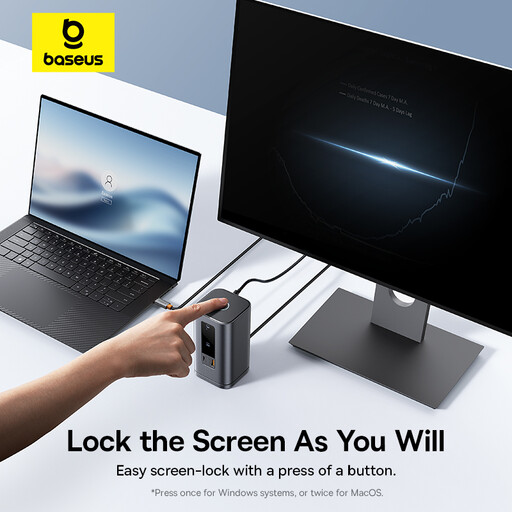
Baseus Wisdom Series 11-in-1 (WIN) Workstation, Space Gray
Consider this workstation dock if connecting several desk devices is the problem you want to address.
11-in-1 model. Check the laptop’s port and supported display count before planning a multi-display arrangement; confirm the charging output to your laptop and any adapter needed.
View on Joybuy
 No image available
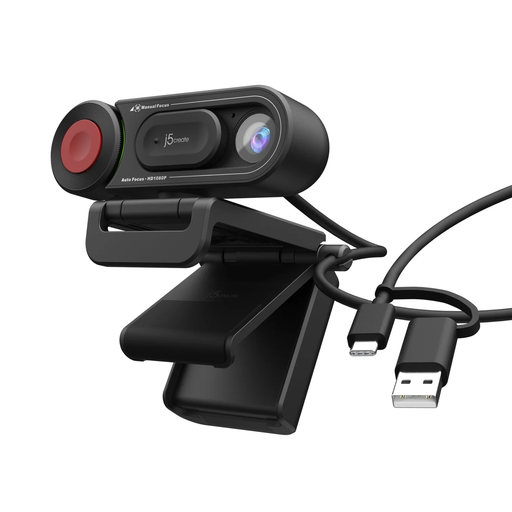
j5create JVU250 HD webcam with auto/manual focus switch, Black
A separate webcam is worth considering when the laptop camera’s position or focus control is the call problem.
HD model with an auto/manual focus switch. Check that your laptop has a suitable connection or whether you need an adapter.
View on Joybuy
Frequently asked questions
Will any USB-C dock run two extended monitors from my laptop?
No: the dock’s outputs alone do not establish that your laptop supports two extended displays. Microsoft Support notes that a Windows display adapter may have a display-count limit, while Apple Support says Mac support depends on the model and each display’s resolution and refresh rate. Check the exact laptop specifications and intended connection.
Will a dock marked 100W charge my laptop adequately?
Not automatically; compare the power delivered to your laptop with its recommended charging wattage. Apple Support advises using at least the minimum wattage recommended for the Mac model, and Dell lists different WD25 delivery figures for Dell and non-Dell systems.
Should I use a headset or meeting-app noise suppression in a shared home?
Consider a headset when nearby activity regularly disrupts calls, and treat software noise suppression as an additional option. Zoom says its personalised audio isolation aims to suppress background noise but has device and version requirements; check those requirements and whether a wired or wireless headset suits how you work.
Will a new webcam fix poor video calls on its own?
Not if the main problem is sound or room lighting. Assess camera angle, framing and lighting separately from microphone placement; changing the camera only addresses the parts of a call that depend on the image.


