What to prioritise
Start with the problem you notice most—screen space, repeated connections, laptop positioning or calls—then check the laptop and desk constraints tied to that choice.
| Concern |
What to check when buying |
Who this matters to |
| Screen workspace and positioning |
Compare resolution and usable scaling, stand adjustment and inputs with your laptop’s video output. |
If I work across documents or several windows, I want a more useful screen area that I can position on my desk. Consumers whose primary need is screen workspace make up around 27%. |
| Reconnection, charging and displays |
Check the laptop’s exact model and port, operating system, display limit, charging needs and intended monitor resolution. |
If I reconnect several devices throughout the day, I want a setup that works with my laptop’s power, video and display limits. Consumers who prioritise reliable reconnection make up around 27%. |
| Laptop-screen height and separate input |
Check the stand’s fit, adjustment and stability, and how a separate keyboard and mouse connect. |
If I want to raise my laptop screen but keep typing comfortably, I need a stand and separate input devices that work together at my desk. Consumers who prioritise screen positioning and separate input make up around 26%. |
| Meeting video and audio |
Identify whether video or audio is the issue; check camera mounting and software needs, or headset connection and platform variant. |
If meetings are difficult because of camera position or call audio, I want to address that specific problem rather than add unrelated equipment. Consumers who put meeting communication first make up around 20%. |
Joybuy product choices
These Joybuy product choices relate to laptop desk work, including screens, laptop-screen positioning, USB-C connection expansion and meeting audio.
 No image available
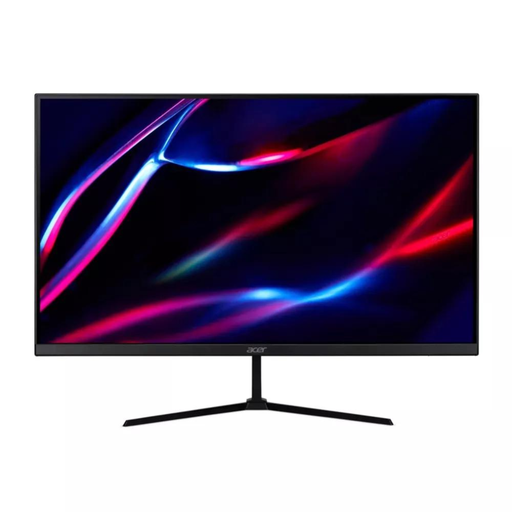
27-inch QHD IPS Monitor, 180Hz, HDR400
For a desk setup that needs a separate screen, check that your laptop’s video output matches the monitor’s listed inputs.
The product name specifies a 27-inch QHD IPS display, 180Hz, 1ms/0.5ms (GTG, Min.), 350 nits, HDR400 and FreeSync Premium.
Listed connections include 2x HDMI, DP and audio out; the product name also lists one H.cable and one DP.cable.
View on Joybuy
 No image available
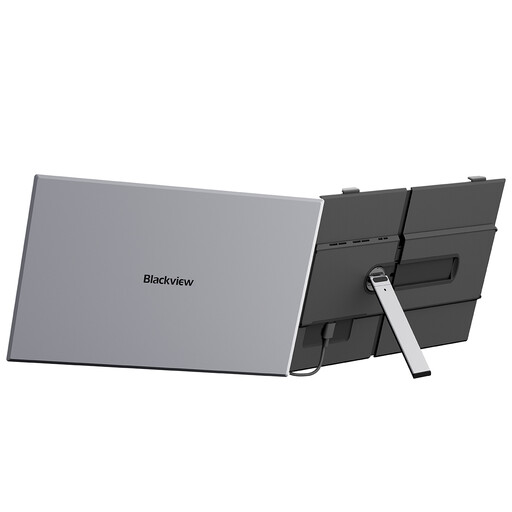
Blackview SCM8 15.3-inch FHD IPS Laptop Screen Extender
Consider this screen extender if you want an additional display for a laptop setup; check the stated device and operating-system fit before choosing it.
The product name specifies a 15.3-inch FHD IPS screen and 100W reverse charge, and lists Windows, Mac, Linux, PS4/5 and Switch.
View on Joybuy
 No image available
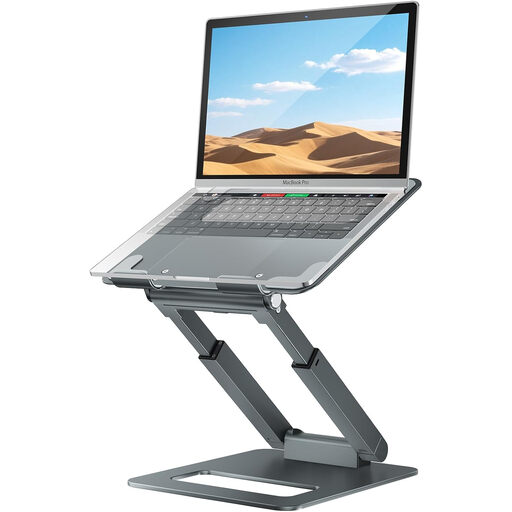
Adjustable Telescopic Laptop Stand
Consider an adjustable stand if you want to reposition your existing laptop screen; plan separate input devices if you will type while the laptop is raised.
The product name describes a telescopic stand with a pull-out design and adjustable height.
View on Joybuy
 No image available
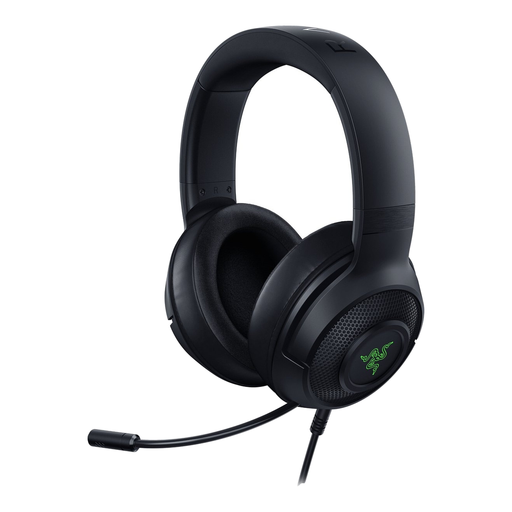
Razer Kraken V3 X Headset, Black
Consider a headset if your laptop desk setup needs dedicated equipment for calls; check that its connection suits your laptop and meeting software.
View on Joybuy
 No image available
HOCO HB28 USB-C Multi-Function Converter
Consider a USB-C converter if you need to expand connections at your desk, after checking that its inputs and outputs suit your laptop and peripherals.
The product name lists HDTV, USB3.0, USB2.0, SD, TF and PD connections.
View on Joybuy
Frequently asked questions
Will any USB-C dock run two separate external monitors from my laptop?
No. Check the exact laptop’s video-capable port and native external-display limit, then compare them with the dock’s display method and the monitors’ resolution and refresh-rate requirements. Plugable’s guidance says MST supports extended displays on compatible Windows and ChromeOS hosts but not through macOS MST; DisplayLink is a separate software-dependent option.
Does closing a MacBook Air lid always enable another external display?
No. Apple says closing the lid of an M4 MacBook Air does not increase its supported external-display count. Apple’s M3 guidance describes two external displays with the lid closed under specified software, power and external-input conditions, so check the exact generation and setup.
If I raise my laptop on a stand, what else should I change?
For prolonged laptop use, the Health and Safety Executive’s guidance describes using a separate keyboard and mouse so the screen can be elevated independently. Check that the stand fits your laptop and position the screen and input devices for your workstation.
Should I buy a webcam or a headset first for home meetings?
Address the part of the call that needs attention: consider a webcam for camera position or video features, and a headset for microphone or listening needs. Check software requirements for camera features and the headset’s connection and meeting-platform variant; neither addresses an unreliable broadband connection.
Must a UK employer pay for equipment I decide to add at home?
Not automatically. The Health and Safety Executive says the display screen equipment rules can apply to permanent or long-term home workers and routine hybrid workers who use DSE daily for continuous periods of an hour or more. Where an applicable workstation assessment identifies action such as providing DSE equipment, the worker cannot be charged for that action; an individual convenience purchase is not, by itself, such a finding.


