Build around the task your current laptop setup handles least well: add a compatible dock and display for more screen space, separate input devices for sustained desk work, or call equipment for frequent meetings. Before buying a dock, check the exact laptop’s video outputs, display limit and charging requirements; a USB-C connector alone does not settle those questions. For regular, prolonged screen work, the Health and Safety Executive’s guidance also points towards assessing the individual workstation rather than assuming everyone needs the same bundle.
Who is this setup for?
Workers reconnecting to a fixed desk
If you regularly connect a laptop to monitors and peripherals, check what its ports and display specification can support before choosing a dock. The number of sockets on the dock cannot establish what the laptop will drive.
People working at a screen for long sessions
If reading, typing and moving between windows occupy much of your working day, screen position and separate input devices may deserve attention before a more elaborate connection setup. The Health and Safety Executive advises looking at the individual workstation for regular display screen equipment use.
Hybrid workers in frequent calls
If meetings are the weak point, focus on the camera and audio connections you can use with your work laptop. Check your meeting platform and any software needed for particular webcam features before relying on them.
What should you check first?
Start with the limitation that most affects your working day, then check compatibility for the equipment that would address it. The percentages describe consumers whose primary need is each concern, not the proportion who might benefit from every accessory in that row.
| Concern |
What to check |
Who this matters to |
| Dock and display compatibility |
Check the exact laptop’s video-capable ports and supported external-display arrangement against the dock, monitors and cables. If the dock is meant to charge the laptop, check its power delivery against the laptop’s requirement. |
I reconnect to external screens regularly and need the whole arrangement to work with my laptop, not merely fit its USB-C socket. Around 36% of consumers put compatibility and expansion first. |
| Screen and input position |
Decide whether screen height, display area or laptop-only typing is the main issue. A raised laptop may call for a separate keyboard and mouse; regular work use may call for an individual workstation assessment. |
Long stretches of reading and typing make my screen and controls the priority, even if I do not need more ports. For around 29% of consumers, sustained desk use is the primary concern. |
| Video calls |
Check the meeting platform, camera connection and any app requirements. For a headset, check its connection type and distinguish stated microphone or noise-control features from assured call performance. |
Frequent meetings make camera placement, privacy and intelligible audio more important to me than adding another display. Around 21% of consumers chiefly prioritise call equipment. |
| Moving between desks |
Check whether wireless controls need Bluetooth or a USB-A receiver, how they are powered and whether the keyboard has the required UK layout. |
I carry my laptop between home and work and want accessories I can reconnect at either desk without changing my usual controls. Portability is the main need for around 14% of consumers. |
Buying mistakes to avoid
-
Assuming every USB-C dock will run your monitors
A dock can fit a USB-C port without providing the intended video arrangement. Microsoft’s docking guidance describes the role of USB-C video modes, while Apple says external-display support depends on the specific Mac model.
Check your exact laptop’s video-capable ports and display limit, then compare the dock outputs, monitor inputs and required cables. Check charging separately.
-
Choosing a stand without considering typing position
Raising a laptop screen also changes where its built-in keyboard and trackpad sit. The Health and Safety Executive treats display screen equipment use as a workstation question, not a problem solved by one accessory.
Work out whether you need to change screen position, input position or both. Consider a separate keyboard and mouse when using a raised laptop for sustained typing.
-
Assuming every webcam feature works on a work laptop
Basic camera operation and app-based features can have different requirements. Logitech says that enhanced features for its Brio 505 have ChromeOS and ARM-processor limitations.
Check the exact webcam’s operating-system and processor requirements, your meeting platform and whether you can install any required app.
-
Applying Great Britain product guidance to Northern Ireland
GOV.UK’s electrical-equipment guidance for Great Britain notes that Northern Ireland provisions differ under the Windsor Framework.
For a powered dock, charger or monitor, check the seller’s documentation for the destination where the item will be supplied or used rather than assuming one set of provisions covers both places.
Brands relevant to this setup
Dell
Dell’s USB-C and Thunderbolt dock ranges are relevant when one desk connection needs to serve displays and peripherals.
- Dell describes docks combining display, audio, data and charging connections.
- Dell’s stated power delivery differs between some Dell and non-Dell systems. Check the particular dock, laptop and display configuration rather than assuming all USB-C laptops will behave alike.
Logitech
Logitech has keyboard-and-mouse sets and webcams relevant to separate desk controls and video meetings.
- Its MX Keys Combo for Business Gen 2 has an English UK QWERTY option; Logitech also specifies a privacy shutter for the Brio 505 webcam.
- Connection and software requirements vary by product. Logitech notes ChromeOS and ARM-processor limits for some Brio 505 software features.
Jabra
Jabra’s Evolve2 headset line is relevant when call audio is a priority.
- Jabra describes active noise cancellation and noise-cancelling microphones on the Evolve2 55.
- Those are manufacturer feature claims, not a promise of microphone or noise-reduction performance in every room; check the connection and fit needed for your setup.
Joybuy product choices
These products address different parts of a laptop desk: connecting displays, adding screen area or separate controls, and equipping a space for calls. Choose the part that answers your primary need, then check its connection requirements against your laptop.
 No image available
Targus USB-C Universal Dual HDMI 4K Docking Station, 100W Power Delivery Pass-Thru
Consider this dock if you want to reconnect a compatible laptop to two HDMI displays at a regular desk.
The product name specifies dual HDMI 4K connections and 100W power-delivery pass-through. Confirm that your exact laptop supports the intended video and charging arrangement, and check the package contents and external power-adapter requirement before buying.
View on Joybuy
 No image available
EMEET All-in-One 4K USB Webcam with Sony Sensor
This is a camera-and-audio option for a desk used regularly for video calls.
Its name specifies fixed focus, an adjustable 98° field of view, a four-microphone array and speakers. Check its USB connection and compatibility with your work laptop and meeting platform; the named features do not establish call quality in your room.
View on Joybuy
 No image available
AOC Q32V4 31.5-inch IPS Monitor
Consider a separate monitor when limited laptop screen area is the main obstacle to desk work.
This Q32V4 variant is identified as a 31.5-inch IPS monitor. Check that your laptop or dock has a suitable video output and that you have the right cable; also allow for its size on your desk.
View on Joybuy
 No image available
Philips 3000 Series SPT6318B/05 Wireless Keyboard and Mouse, UK English
A separate keyboard and mouse can make sense when you raise the laptop screen or want the same controls at a repeatable desk.
This set is identified as the UK English version. Its connection uses a USB-A receiver, so check for a compatible port on your laptop or dock.
View on Joybuy
 No image available
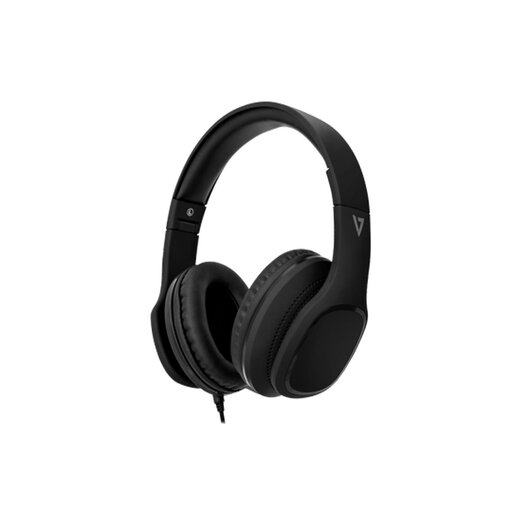
V7 HA701-3EP Wired Over-Ear Headphones with Microphone
For calls at a desk, this wired option is worth considering if your laptop’s audio connection supports its microphone.
The product name specifies 40mm drivers, an inline microphone and passive noise isolation, not active noise cancellation. Check the 3.5mm audio connection on the laptop you intend to use.
View on Joybuy
Common questions
Will any USB-C hub run an external monitor?
No: the connector alone does not establish video output or the number of displays your laptop can support. Check the exact laptop model’s specifications and the hub’s video requirements; Apple likewise advises checking external-display support by Mac model.
What matters if I want a dock to charge my laptop too?
Match the dock’s stated power delivery and required cable or power supply to your laptop’s charging requirements. Check video support separately, along with the display connections you intend to use.
Does every hybrid worker need an external monitor or laptop stand?
No single accessory list fits every home workstation. The Health and Safety Executive advises an individual display screen equipment assessment where its guidance applies to regular home working; use the actual screen, input and workspace problems to decide what equipment may be needed.
Will a DisplayLink dock work on a Mac without an app?
A DisplayLink-based dock or adapter using DisplayLink functionality on macOS needs the DisplayLink Manager app installed and running, according to DisplayLink. Check your exact Mac model’s native external-display support separately, as well as whether you can install the app you need.


