Start with the task that is hardest to manage on your laptop alone: an external monitor can give documents more visible space, while a dock is worth considering when you regularly reconnect several desk accessories. For meetings, consider a webcam or headset if the laptop’s camera or audio does not meet your needs; check display output, charging and device compatibility before buying equipment that depends on them.
Who is this setup for?
Document-heavy hybrid workers
If you keep spreadsheets, documents and reference material open together, decide whether one external display gives you enough visible space before considering a dock. Microsoft Support notes that connecting a Surface to an external display depends on the device model and the cables or adapters used; check the equivalent requirements for your laptop.
People reconnecting several desk accessories
If you repeatedly attach a display, keyboard, mouse or other peripherals at the same desk, a dock may simplify those connections. Check what your laptop’s port supports before relying on the dock for video output or charging.
People on frequent video calls
If camera placement, framing or call audio makes meetings difficult, consider the webcam and headset as separate choices. Check where a camera can mount, whether it works with your meeting software and whether you need a closer microphone or private listening.
What should you check before adding accessories?
Choose the accessory around the work you do at the desk, then check the laptop connection and the space each addition needs.
| Priority |
What to check |
Your needs |
| Document space |
Check the laptop’s video output, the monitor’s input and any required cable or adapter. Confirm the resolution and refresh rate supported by that connection; Microsoft Support says external-display compatibility for Surface devices depends on the model and connection equipment. |
I want documents and reference material visible beside my laptop instead of continually switching windows. |
| Dock connections |
Check the laptop port’s video and charging functions, the dock’s stated display arrangement and its power output for your laptop. Anker’s 565 USB-C Hub specifications, for example, give different single-monitor output for DisplayPort 1.4 and 1.2 laptops. |
At my regular desk, I would rather reconnect a display and several peripherals through one compatible connection. |
| Meeting equipment |
Check webcam mounting and meeting-software compatibility, then compare framing, focus, microphone needs and video specifications. For a headset, check its connector against the laptop. |
My laptop’s camera position or call audio gets in the way of recurring meetings; I may need a camera, a headset or both. |
| Keyboard and mouse |
Check keyboard layout, connection type, any receiver or adapter needed and operating-system compatibility. A laptop stand does not itself add ports or display output. |
I want separate typing and pointer controls when working at a desk, without overlooking the connections they require. |
| Shared desk space |
Check the footprint of a stand and peripherals, cable reach and where a webcam could sit if the laptop is raised or moved. |
My workspace also has other uses, so the equipment needs to fit and be practical to put away. |
Which buying mistakes are easy to avoid?
-
Assuming every USB-C port carries video and charging
A dock may require DisplayPort Alt Mode and USB Power Delivery from the laptop. Anker lists those host requirements for its Nano 8-in-1 dock; the shape of the connector alone does not establish that they are available.
Look up the exact laptop model and port, then compare its display support and charging requirements with the dock’s specifications.
-
Counting display sockets instead of checking display support
The number of sockets on a dock does not establish what a particular laptop can show on two screens. Anker’s dock documentation describes output that varies with host capability and, for its Nano 8-in-1 model, differences between Windows extended displays and macOS mirroring.
Match your intended number of extended screens, resolution and refresh rate to the dock’s model-specific guidance for your laptop and operating system.
-
Choosing a webcam by resolution alone
A resolution figure does not tell you whether the camera will frame you from its intended position or work with your calling software. Logitech’s webcam guidance also identifies frame rate, microphone quality and compatibility as factors to consider.
Check the mount and viewing position first, then compare the camera’s focus, field of view, microphone and software requirements with your meeting setup.
Which brands offer relevant accessories?
These ranges illustrate different accessory types; the connection and display specifications still need checking on the individual model.
Dell
Dell offers USB-C and Thunderbolt docks for connecting displays and desk peripherals through a laptop.
- Dell describes its docking range as carrying video, audio and data through a single connection.
- Charging and display figures are model- and host-specific. Dell lists 130 W for Dell systems and 96 W for non-Dell systems on the Pro Dock WD25TB4.
Anker
Anker’s USB-C hubs and docks provide options for adding ports and connecting external displays.
- Its UK product specifications set out host requirements and display-output conditions for individual models.
- On Anker’s 565 USB-C Hub, stated single-monitor output differs between DisplayPort 1.4 and 1.2 laptops; check the specification for the hub you choose.
Logitech
Logitech’s peripheral range includes keyboards, mice and video-conferencing equipment for desk use.
- Logitech describes wired, wireless and Bluetooth keyboard-and-mouse options across its business range.
- Check the selected device’s connection method, operating-system support and, for a webcam, its mounting and meeting-software requirements.
Joybuy options for desk input and calls
These keyboards, mice, webcams and headset address typing, pointer control and meetings at a laptop desk. Choose a monitor or dock separately if document space or reconnecting several peripherals is your main problem.
 No image available
HP 680 CFT Dual-Mode Keyboard/Mouse Combo
A separate keyboard and mouse for regular laptop desk work. Check the keyboard layout against the one you use before ordering.
View on Joybuy
 No image available
EMEET All-in-One 4K Webcam with Sony Sensor
An option to consider when the laptop camera’s position does not suit recurring meetings. Its title specifies fixed focus, an adjustable 98° field of view, a 4-mic array and USB connection. Check compatibility with your meeting software.
View on Joybuy
 No image available
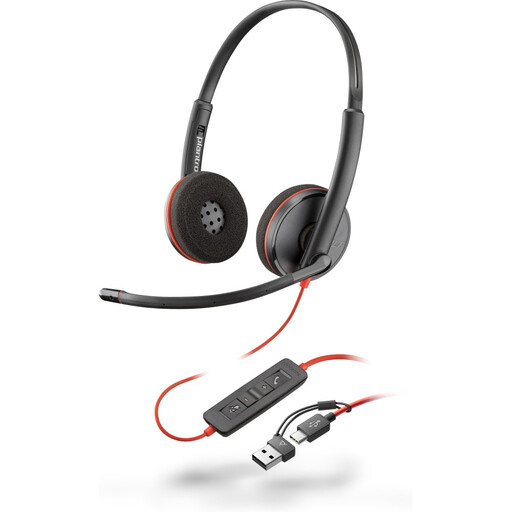
Poly Blackwire 3220 Stereo USB-C Headset with USB-C/A Adapter
A wired headset option when you want separate call audio at your desk. The title identifies a USB-C connection and an included USB-C/A adapter; check which connection your laptop can use for audio.
View on Joybuy
 No image available
Philips 3000 Series SPT6318B/05 Wireless Keyboard and Mouse, UK English, Black
A keyboard-and-mouse set to consider if a UK English layout matters at your home desk. Check its connection requirements and operating-system compatibility for your laptop.
View on Joybuy
 No image available
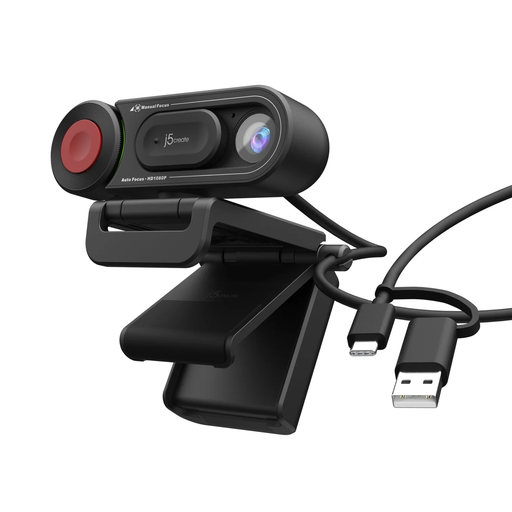
j5create JVU250 HD Webcam with Auto and Manual Focus Switch, Black
A separate camera option for meetings when focus control matters to your setup. Check where it can sit relative to your screen and whether its connection works with your laptop.
View on Joybuy
Questions about laptop desk accessories
Will any USB-C dock charge my laptop and run a monitor?
No: a USB-C-shaped port alone does not establish video-output or charging support. Check the exact laptop port and the dock’s host requirements; Anker specifies DisplayPort Alt Mode and Power Delivery requirements for its Nano 8-in-1 dock.
What matters when connecting two external displays through a dock?
Check the laptop’s supported display arrangement, the dock’s output conditions and whether the operating system will extend or mirror the screens. Anker says its Nano 8-in-1 dock’s two-display behaviour differs between Windows and macOS, so confirm the result for that exact dock and your laptop.
How do I choose a webcam for regular work meetings?
Start with meeting-software compatibility and a mounting position that frames you as intended. Then compare focus, field of view, microphone needs, resolution and frame rate; Logitech’s webcam guidance identifies compatibility and microphone quality alongside video specifications.
What should I do with an old keyboard or webcam?
Use an appropriate electrical-equipment reuse or recycling route rather than treating it as ordinary household waste. GOV.UK’s waste electrical and electronic equipment guidance covers these products, and its retailer guidance says sellers must offer take-back of the same type of waste equipment when a customer buys a replacement.


