One-screen home worker
Needs an external display and wants to avoid buying connection equipment unnecessarily; the first checks are the laptop’s video output and the monitor’s input.


Start with your laptop’s video outputs, supported number of external displays and operating system, then check that they match the monitor and connection method you want. For one screen, a direct cable is a sensible starting point when the laptop output and monitor input are compatible; a dock can bring display and peripheral connections together. If a laptop’s USB-A or USB-C port is data-only, look for a product specifically supporting USB graphics rather than assuming a standard USB-C video adapter will work, as StarTech.com’s guidance explains.
Needs an external display and wants to avoid buying connection equipment unnecessarily; the first checks are the laptop’s video output and the monitor’s input.
Needs two independently extended external displays and may also want keyboard, mouse and other connections gathered at a dock. The laptop and operating system’s display limits matter.
Has USB-A or a data-only USB-C connection and needs to distinguish USB graphics from an adapter that depends on native video output.
For consumers planning a laptop-based home desk, match the connection route to the screen arrangement and the laptop’s actual capabilities before choosing extra equipment.
| Concern | What to check when buying | Who this matters to |
|---|---|---|
| One useful external screen | Match the laptop’s video output to the monitor input; check any adapter’s compatibility. | If I mainly need a larger screen, I would rather avoid adding a dock I may not use. Around 36% of consumers put one-screen space first. |
| Two independent displays | Check the laptop’s external-display limit, operating system, dock technology and stated display modes. | If I need two separate desktops, I want to confirm that the laptop and dock can provide them together; around 29% of consumers prioritise independent dual screens. |
| Older or data-only ports | Identify the exact USB connection and check for explicit USB-graphics and operating-system support. | When my laptop lacks suitable native video, I need a display solution that supports its available port; around 21% of consumers put older-port compatibility first. |
| Simpler connections or positioning | Count the peripheral ports you need and check charging; for an arm, match the monitor’s mounting pattern and weight to its limits. | If my displays already work, I may want fewer separate peripheral connections or a different screen position; around 14% of consumers prioritise desk tidiness or positioning. |
A USB-C connector’s shape does not establish that the laptop supports DisplayPort Alt Mode. StarTech.com explains that this video capability is needed for a native USB-C video adapter.
Check the specifications for your exact laptop before choosing a native-video accessory.
Independent displays depend on the laptop, operating system and connection technology. Plugable’s guidance notes that macOS does not support MST for multiple independently extended displays.
Verify the full laptop, dock and monitor arrangement, including the intended display modes.
StarTech.com specifies that its DK30CH2DPPDU does not provide laptop Power Delivery through the documented USB-A setup.
Check charging support and what the exact package includes before choosing a USB-A connection.
For that StarTech.com USB-A setup, a separate laptop charger may still need to remain connected.
An arm’s mounting pattern and supported weight can matter as much as the monitor’s screen size. Ergotron specifies both for its LX 45-241-224.
Compare the monitor’s mounting pattern and weight with the exact arm’s specifications.
Dell’s UK range includes monitors for direct display connections and USB-C hub setups.
The ThinkPad Universal USB-C Dock 40AY0090UK is a multiport option for a compatible USB-C laptop.
Belkin’s Connect Universal USB-C Dual Display Dock INC002vfBK is a DisplayLink-based option for a supported two-screen setup.
The DK30CH2DPPDU is one model to consider when comparing USB-C docking with a separately adapted USB-A connection.
Ergotron’s LX 45-241-224 is a monitor-arm option for a display setup whose video connections already work.
These Joybuy choices cover external monitors and USB-C hubs for adding a laptop display or bringing desk connections together. Check your laptop’s video support and the ports you need before choosing a hub or monitor.
 No image available
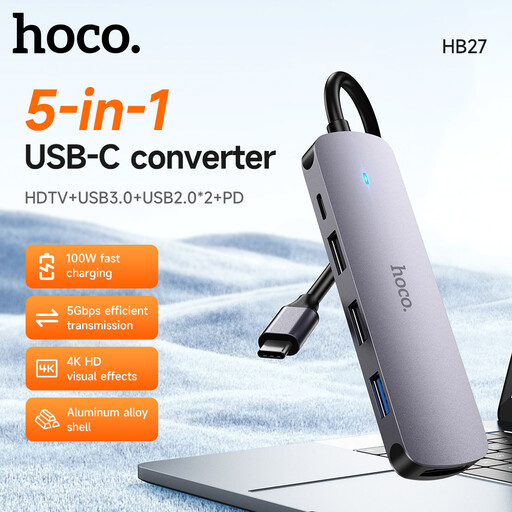
This USB-C hub may suit a desk setup that needs a hub; check that its display connection and ports meet your laptop and peripheral requirements.
USB-C hub; metal gray.
 No image available
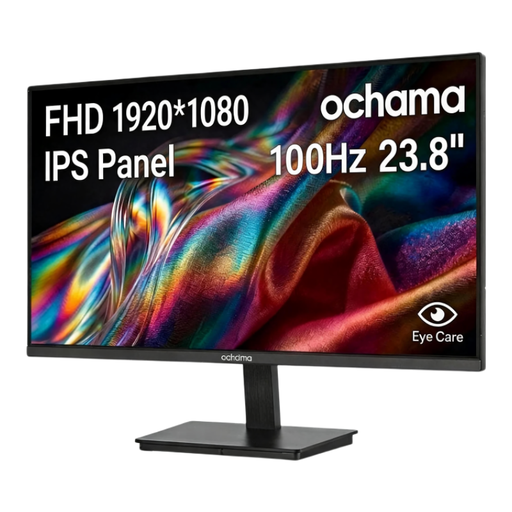
This separate monitor may suit a desk setup needing an external screen; check that its inputs match the laptop or dock.
23.8-inch; 1080P; 100Hz; three-sided narrow bezels.
 No image available
This wide single-screen option may suit a desk where one large display is preferred; the product description says it should be moved by at least two people and used with a desk or mount rated for it.
DQHD 5120 × 1440; 165Hz; 32:9; 1500R; 2 × HDMI 2.1; 2 × DisplayPort 1.4; VESA 75 × 75.
 No image available
This hub may suit a desk that needs multiple connection types; its video output requires a laptop USB-C port that supports DisplayPort Alt Mode.
1 × HDMI 4K120Hz; 1 × HDMI 4K60Hz; 1 × USB-A 10Gbps; 1 × USB-C 10Gbps; 2 × USB-A 480Mbps; RJ45; SD/TF; USB-C PD input.
 No image available
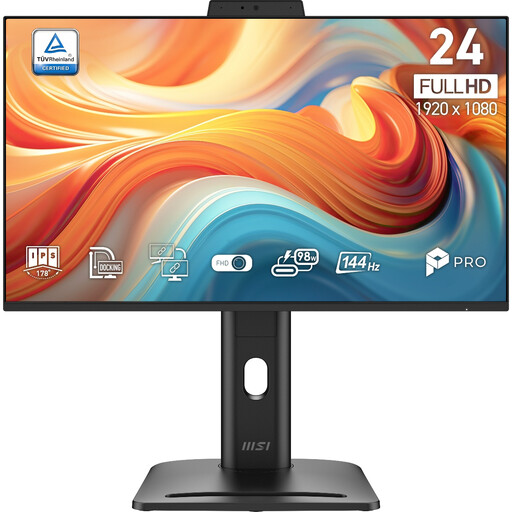
This separate display may suit a desk setup if its stated resolution and refresh rate fit your intended use; check that its inputs match your laptop or dock.
24-inch; 1920 × 1080 (FHD); 144Hz; Adaptive-Sync.
Check the exact laptop model’s USB-C video capability, supported number of external displays and whether that port accepts charging. A USB-C socket can be data-only; for two independently extended screens, also check the host, operating system and dock technology.
Do not assume that it can. A native-video dock needs video from the host, so look for a product that explicitly supports USB graphics over USB-A and check its operating-system and installation requirements. StarTech.com states that its documented USB-A configuration for the DK30CH2DPPDU does not provide laptop Power Delivery.
An MST-based connection does not provide multiple independently extended displays on macOS, according to Plugable’s compatibility guidance. Check the Mac’s native display support or a suitable alternative; a DisplayLink setup needs compatible software and, on macOS, Screen Recording permission.
Where a UK display-screen-equipment assessment indicates that equipment must be provided, the employer cannot charge the worker for it. The Health and Safety Executive’s guidance is conditional: it does not mean that every requested monitor or dock will be supplied.
No. UK Government guidance distinguishes Great Britain from Northern Ireland for electrical equipment placed on the market. For relevant products, Great Britain continues to recognise CE marking alongside or in place of UKCA under the applicable regime; Northern Ireland has separate provisions, as set out by the UK Office for Product Safety and Standards. A marking alone is not a substitute for checking the applicable product requirements.