What should you prioritise?
For regular home or hybrid work, start with the choice between a portable laptop-only arrangement and a workstation that stays set up at a desk.
Laptop-only
Choose it when: You move between locations and do not need permanent multi-window desk space.
Trade-off: There is less equipment to move or reconnect, but the built-in screen and input devices still need to allow a comfortable working position.
Laptop with a desk display
Choose it when: Regular document work or browser multitasking makes screen space and adjustable placement more important.
Trade-off: A monitor and separate input devices need desk space and add equipment to manage; consider the complete workstation rather than the display alone.
| Concern |
What to check |
Who this matters to |
| Desk space and working position |
Consider how long you work at the desk, available space and whether the screen and input devices can be positioned comfortably. |
If I spend long stretches comparing documents and browser windows, I need a workable desk arrangement rather than just a larger laptop. Around 30% of consumers would put desk space and working position first. |
| Portability |
Consider how often the laptop travels and which accessories would stay at each location. |
When I switch between home and office, I want the equipment I carry and reconnect to remain manageable. Roughly 30% of consumers would prioritise portability. |
| Dock and display connections |
Check the exact laptop and dock for the required video protocol, display configuration and charging capability. |
If I reconnect several desk devices regularly, I want one connection that works with my laptop and monitors. About 20% of consumers would make connection compatibility their primary concern. |
| Video calls |
Check the meeting software, camera mounting and lighting, and the microphone arrangement. |
For frequent meetings, I need to address the camera or audio limitation before adding general desk equipment. Around 20% of consumers would put call equipment first. |
Joybuy products for laptop-based setups
These choices cover a laptop, a monitor and desk peripherals for the home and hybrid-work arrangements discussed above. Choose components around the desk you use and check connections before combining them.
 No image available
ASUS ProArt PA278CV IPS WQHD monitor
Consider this external display when a fixed desk needs more screen space for documents and browser tools.
It is identified as an IPS WQHD model. Check video-output compatibility with your laptop and, if you plan to charge over USB-C, whether the available power meets its needs.
Joybuy
 No image available
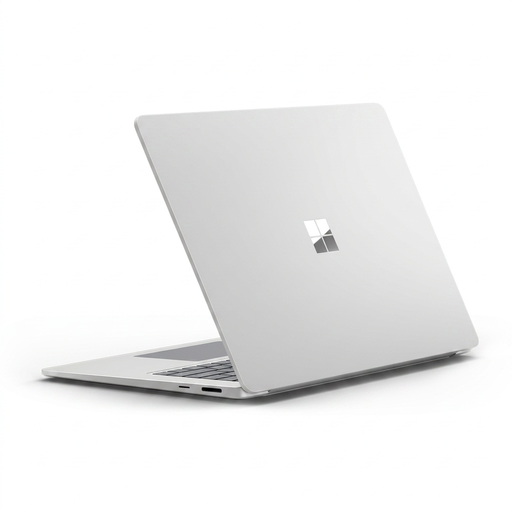
Microsoft Surface Laptop 7 15-inch Copilot+ PC, Snapdragon X Elite, 16GB RAM, 256GB SSD, PixelSense touchscreen, Maya
Consider this laptop if one computer needs to move between work locations for documents, browser tools and calls.
Check that required software works with the Snapdragon X Elite platform, and confirm battery runtime against your time away from a desk.
Joybuy
 No image available
Targus USB-C™ Universal Dual HDMI 4K Docking Station, 100W Power Delivery Pass-Thru, Retail Packaging
Consider a dock when you repeatedly reconnect a laptop to a fixed desk with external displays and peripherals.
This model is identified with dual HDMI 4K connections and 100W power-delivery pass-through. Check your laptop’s video compatibility, its charging needs and whether the required power adapter is included.
Joybuy
 No image available
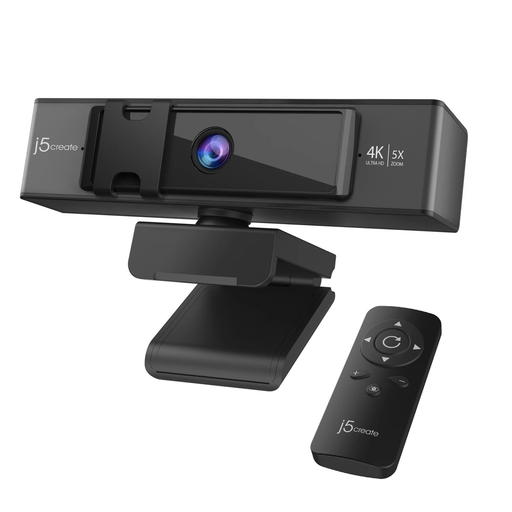
j5create JVCU435 USB™ 4K Ultra HD Webcam with 5x Digital Zoom Remote Control, Black and Silver
Consider a separate webcam when camera placement or framing is more pressing than extra screen space.
The product name specifies 4K video and 5x digital zoom with remote control. Check its placement and compatibility with your meeting software.
Joybuy
 No image available
HP 680 CFT Dual-Mode Keyboard and Mouse Combo
Consider separate input devices when arranging a laptop at a regular desk.
This is a dual-mode keyboard and mouse set. Confirm the keyboard layout suits your typing needs before buying.
Joybuy
Frequently asked questions
Does regular home work mean I need an external monitor?
No: a monitor is not automatically needed for every home workstation. The Health and Safety Executive advises considering whether the worker can maintain a comfortable, sustainable position, with equipment decisions informed by the individual workstation and tasks.
Should I buy work equipment myself before asking my employer?
Check the workplace arrangements and any applicable individual workstation assessment first. Acas advises employers and staff to agree who provides equipment and handles repairs; the arrangement for a particular purchase should be clear before you pay for it.
Will any USB-C dock work with my USB-C laptop?
No: the connector alone does not establish dock compatibility. HP specifies USB-C Power Delivery and DisplayPort Alt Mode for its USB-C G5 Essential Dock, while Lenovo identifies USB-C Alt Mode, DisplayLink or Thunderbolt capabilities for its dock. Check the requirements of the exact dock and laptop, including the intended monitors and charging arrangement.
Is the workplace guidance the same across Great Britain and Northern Ireland?
Use the guidance for the relevant jurisdiction rather than assuming one authority covers both. The Health and Safety Executive provides home-working display-screen guidance for Great Britain; the Health and Safety Executive for Northern Ireland provides separate guidance for Northern Ireland, including assessment of regular display-screen work.


