What should you choose first?
Identify the task that is awkward today, then check the laptop and peripheral specifications before adding devices that depend on one another.
| Priority | What to check | Your needs |
|---|
| Screen position and input |
For prolonged laptop use, plan where the raised screen, separate keyboard and mouse will sit. The Health and Safety Executive advises positioning the screen for comfortable viewing rather than typing on an elevated laptop. |
I spend long stretches working on a laptop and need to position the screen without putting its keyboard and trackpad out of comfortable reach. |
| Visible workspace |
Match a monitor’s inputs to the laptop’s actual video output. Check its size, resolution and stand adjustment against your desk and the work you need to see at once. |
Documents or several open apps feel cramped on my laptop screen, so an external display matters more to me than extra ports. |
| Dock and USB-C compatibility |
Confirm the laptop’s video protocol, supported external-display count and charging requirements; then compare them with the dock, displays and cable. Apple says MacBook Air display limits depend on the model and each display’s resolution and refresh rate. |
I regularly reconnect desk equipment and want fewer separate connections, but only if the dock supports my computer and intended displays. |
| Meeting camera and audio |
Check camera placement and lighting features, then assess the microphone separately from headphone noise cancellation. If Teams call controls matter, Microsoft says certification applies to devices that pass its requirements; check the exact variant. |
On recurring calls, I need a camera I can position well and a microphone suited to the room where I speak. |
| Switching between devices |
Check which computers or tablets a keyboard and mouse support, how switching works and whether required functions depend on software. Logitech describes switching among up to three devices for compatible Easy-Switch products. |
My work and personal devices share a desk, and I would rather switch input devices than repeatedly pair or reconnect them. |
Brand and product-line references
These manufacturer examples illustrate features and compatibility checks for particular product lines; they are not a list of products available in the Joybuy selection below.
Dell
Dell’s dock and USB-C hub monitor specifications offer two ways to connect a fixed laptop desk.
- Dell UK lists up to 100W power delivery for Dell systems and 96W for non-Dell systems on the Pro Dock WD25. Its P2725QE monitor lists USB-C video, data, Ethernet and up to 90W power delivery.
- Those figures belong to different products; check the intended laptop and exact model rather than treating either figure as a general USB-C capability.
Kensington
Kensington’s SD4843P dock is an example for a Windows laptop desk requiring several connections.
- Kensington lists compatibility with Windows laptops using supported Thunderbolt, USB4 or USB-C DisplayPort Alt Mode connections.
- Check the host laptop and intended display arrangement; its stated compatibility should not be assumed for every USB-C computer or operating system.
HP
HP’s Series 5 Pro 527pu is a USB-C monitor example for a fixed desk.
- HP UK lists QHD (2560 × 1440) resolution, USB-C, a USB hub and DisplayPort output for this model.
- Confirm the laptop’s USB-C video capability and the requirements of any planned second-display connection.
Logitech
Logitech provides examples across meeting cameras and device-switching input peripherals.
- Logitech UK describes Brio 300 as a 1080p USB-C webcam with automatic light correction and a noise-reducing microphone. It describes switching among up to three devices for compatible Easy-Switch products.
- Check the exact keyboard or mouse and its supported devices; a webcam’s microphone specification is not a substitute for assessing call audio in your room.
Jabra
Jabra’s Evolve2 55 is a headset reference for people comparing call equipment.
- Jabra describes active noise cancellation and noise-cancelling microphones for the Evolve2 55.
- Check the exact variant’s connection method and any required meeting-platform certification; listening noise cancellation alone does not establish outgoing-call clarity.
Joybuy products for different desk needs
These options address separate parts of a laptop-based home desk: video calls, visible workspace, desk connections, call audio and separate input devices. Choose the part that matches your immediate need, then check its fit with your computer.
 No image available
Targus 2K Webcam with Auto Focus
A separate camera is worth considering when a raised laptop leaves its built-in camera poorly positioned for calls. The product name says 2K, while its listed technical details say Full HD 1080p; confirm the video resolution before choosing it.
View on Joybuy
 No image available
iiyama ProLite XUB2792UHSU-B6 27-inch 4K UHD Monitor
The 27-inch 4K UHD display is an option when laptop screen space is the main constraint. Check how your laptop will provide video to the monitor; confirm USB-C video and charging functions separately if those matter to your desk setup.
View on Joybuy
 No image available
Targus USB-C Universal Dual HDMI 4K Dock, 100W PD Pass-Thru
This dock is relevant if you regularly reconnect a laptop to desk displays and other equipment. Its name specifies dual HDMI 4K and 100W power-delivery pass-through, but the display arrangement and charging still need to match your laptop. Check the required external power adapter and what comes with this variant.
View on Joybuy
 No image available
JBL Tune 780NC Wireless Over-Ear Headphones, Black
For calls from a shared room, consider listening comfort and outgoing microphone audio separately. This model’s name specifies noise-cancelling headphones, but that does not establish how much room noise other callers will hear. Check connection options and certification for your meeting platform if call controls matter.
View on Joybuy
 No image available
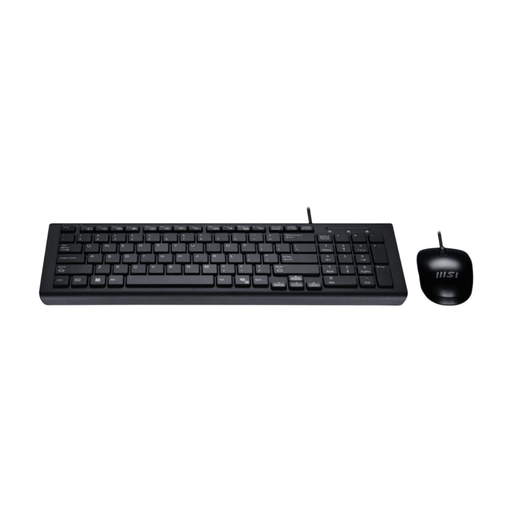
MSI GK-701 Office USB Keyboard and Mouse Set, UK Layout
A separate keyboard and mouse let you position a laptop screen independently for sustained desk work. This set is labelled USB with a UK keyboard layout; check your available connections and confirm device-switching support if you intend to share it between computers.
View on Joybuy
Common questions
Should I buy a dock before a monitor?
If your main problem is limited screen space, choose the monitor and confirm how it connects to your laptop first. Add a dock when repeated reconnection of displays and other desk equipment is the problem; check the laptop’s video output, display limit and charging requirements before selecting one.
Can any USB-C dock run two monitors?
No: a USB-C connector alone does not establish the laptop’s supported display count or video capability. Apple says the number of external displays supported by a MacBook Air depends on its model and the displays’ resolution and refresh rate. Check the exact laptop, dock and intended display settings together.
What else do I need when raising a laptop screen?
For prolonged laptop work, the Health and Safety Executive advises a separate keyboard and mouse so the screen can be raised without moving the input devices out of a usable position. Adjust the screen height, distance and desk arrangement for comfortable viewing.
Do I need a Teams-certified webcam or headset?
Not necessarily for basic calls. If tested Teams compatibility and device call controls are important, check certification for the exact variant: Microsoft says devices receive its certification designation only after passing the applicable requirements.
Does any USB-C cable work with a dock or monitor?
Do not assume so. Cables have different stated power and data capabilities; USB Implementers Forum cable markings distinguish these ratings. Check the particular dock or monitor’s cable requirements before replacing its supplied cable.


