What should you prioritise?
For one laptop used at a regular home desk, identify the need you would address first, then check the laptop and workplace requirements before choosing equipment. A portable hub and a permanent desk dock serve different connection needs; neither substitutes for checking the complete workstation or meeting setup.
| Concern | What to check | Who this matters to |
|---|
| Display position and document space |
Check the laptop’s video output and the monitor connection; consider desk depth and whether separate input devices allow the screen to be positioned appropriately. |
If I spend long periods working across documents, I need a screen and input arrangement that fits my workstation. Around 36% of consumers put that need first. |
| Desk connectivity |
Match the laptop’s display and USB-C capabilities to the intended monitor count, charging requirement and dock host specifications. |
When I return to my home desk, I want to reconnect my display and peripherals without rebuilding the setup; around 29% of consumers prioritise that connection need. |
| Video calls and privacy |
Check the camera or headset connection and work-device permissions; choose features that address your particular framing, audio or privacy concern. |
If calls are a regular part of my day, I need equipment that addresses the camera, voice or privacy issue I actually encounter. That is the first concern for around 21% of consumers. |
| Portability |
Check the hub’s size, cable and display outputs, as well as whether the host supports its stated video and charging functions. |
Because I carry my laptop between locations, I would rather take a compact connection option than maintain a larger travelling setup; around 14% of consumers put portability first. |
Joybuy products for desk connections and calls
These hubs, a dock, webcams and a wired headset address connection and meeting needs at a laptop desk. Choose according to the problem you need to solve, then check laptop compatibility and any rules for your work device.
 No image available
Baseus Metal Gleam Series II 10-in-1 USB-C Hub, Cosmic Black
Consider this hub if your home desk needs HDMI connections, USB peripherals and wired networking.
The listed connections include two HDMI outputs, RJ45, USB-A and USB-C ports, SD/TF card access and a USB-C power-delivery input. The title lists HDMI modes of 4K at 120Hz and 4K at 60Hz; video output requires a laptop USB-C port with DisplayPort Alt Mode. Check the laptop’s intended display arrangement and charging support before purchase.
Joybuy
 No image available
Targus USB-C Universal Dual HDMI 4K Docking Station, 100W Power Delivery Pass-Thru
Consider this dock for a fixed desk where two external displays and wired peripheral connections are priorities.
Its listing describes two HDMI outputs, Ethernet, USB connections and up to 100W power-delivery pass-through. It specifies a USB-C Alt Mode host and an external 100W+ adapter. Check the required adapter, laptop charging needs and whether your laptop and operating system support your intended dual-display resolution and refresh rate.
Joybuy
 No image available
Targus 2K Webcam with Auto Focus
Consider this external camera if positioning or lens privacy is your main concern in frequent video calls.
The listing describes autofocus, a 67° field of view, dual microphones, an adjustable clip and a privacy slider. Its title says 2K, while its detailed resolution specification says 1080p at 30fps; confirm the video mode you need before buying.
Joybuy
 No image available
EMEET All-in-One 4K Webcam with Sony Sensor, 4-Mic Array and Dual Speakers
Consider this camera when you want webcam and audio connections in one desk device.
The listed features include fixed focus, an adjustable 98° field of view, a four-microphone array and dual speakers. Check its USB connector, operating-system compatibility and your employer’s camera and software rules for the laptop you use.
Joybuy
 No image available
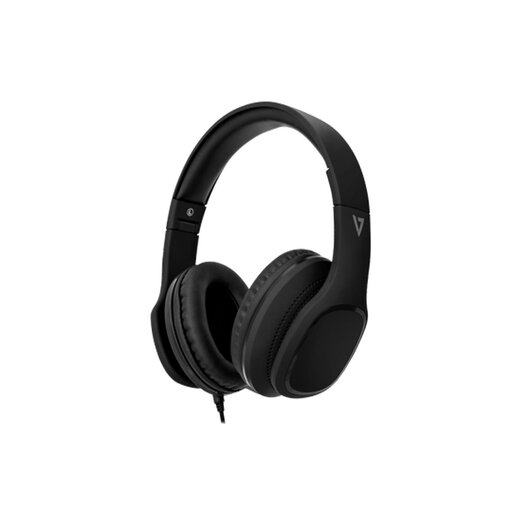
V7 HA701-3EP Wired Over-Ear Headphones with Inline Microphone
Consider this headset if private listening and a cable-mounted microphone suit your calls and travel between workplaces.
The listing specifies a 3.5 mm connection, inline call controls, foldable earcups and a detachable 1.8 m cable. It describes passive noise isolation, not active noise cancellation. Check for a compatible laptop audio socket or suitable adapter.
Joybuy
Common questions
Does my employer need to assess my home laptop workstation?
In Great Britain, the Health and Safety Executive says employers must assess workstations for workers who use display-screen equipment daily as part of normal work for continuous periods of an hour or more. Where work is split between home and another workplace, its guidance says the assessment should cover both settings; this does not state the rules for Northern Ireland.
Can I connect my own webcam or dock to a work laptop?
Check with your employer or IT team before connecting it to a managed work laptop. The National Cyber Security Centre emphasises device management in its guidance on personally owned devices, while the Information Commissioner’s Office discusses separating personal and organisational data. Ask specifically about approved peripherals, USB restrictions, drivers and firmware tools.
Will a USB-C dock work with any USB-C laptop?
No: a USB-C connector alone does not establish the video or charging functions you need. Kensington specifies DisplayPort Alt Mode and Power Delivery host support for its cited portable hub, while its cited multi-display dock has particular Windows and host-connection requirements. Check your exact laptop, operating system, display outputs and charging requirement against the dock’s specifications.
What should I revisit after changing my home desk setup?
Recheck cable connections, screen and camera positioning, and any employer-approved process for accessory updates. In Great Britain, the Health and Safety Executive advises revisiting a display-screen workstation assessment when the workstation or its use changes, or when a worker reports pain or discomfort.


