What to check before buying
For a regular home or hybrid workspace, decide whether mobility, desk layout, connections or meetings is your primary concern before choosing accessories.
Laptop-only
Choose it when: The same computer must travel with you and desk sessions are limited.
Trade-off: For prolonged desk use, the built-in screen and keyboard are harder to position independently; the Health and Safety Executive advises separate input devices or a separate display.
Laptop with a monitor
Choose it when: Your laptop needs to travel, but document or spreadsheet work also calls for a regular desk display.
Trade-off: A dock or USB-C monitor adds connection choices that must match the laptop’s video and charging capabilities.
Desktop
Choose it when: The computer will remain at one desk with its display and peripherals connected.
Trade-off: A fixed arrangement gives up the laptop’s ability to move between workplaces.
| Concern |
What to check |
Who this matters to |
| Desk layout and display space |
Check desk space and screen positioning; plan where a separate keyboard and mouse will go. |
When I spend long sessions comparing files, I need room to position both the screen and input devices comfortably. About 27% of consumers put desk layout and display space first. |
| Portability or a fixed workstation |
List where the computer must be used and check the display outputs needed at the home desk. |
If my work moves between locations, taking the same computer with me matters more than leaving everything connected at one desk. About 33% of consumers make that laptop-or-desktop workflow their primary concern. |
| Connections and charging |
Match the exact computer’s video and charging capabilities to the monitor or dock; check the required cable and power supply. |
I want to reconnect my laptop at the desk without discovering that the screens or charging do not work as expected. Connections and charging come first for about 20% of consumers. |
| Video meetings |
Identify whether camera placement, audio or the call platform is the limiting factor before choosing a peripheral. |
For recurring calls, I need a setup that addresses the picture or sound problem I actually encounter, rather than another screen by default. About 20% of consumers put meeting participation first. |
Joybuy products for a desk setup
These monitors and a docking station are options for adding display space or connections to a regular workspace. Choose between them according to the computer you already use, your desk layout and the connections it supports.
 No image available
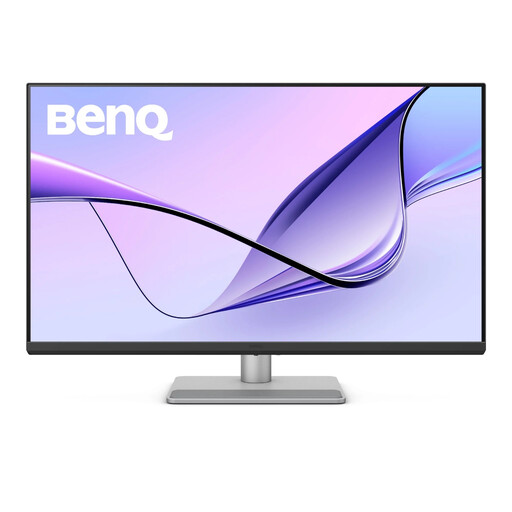
BenQ MA320UP 32-inch 4K USB-C monitor
Consider this for a fixed desk where you want a separate display for document or multi-window work. Its title specifies a height-adjustable stand; check your computer’s display output and charging requirements before planning a USB-C connection.
View on Joybuy
 No image available
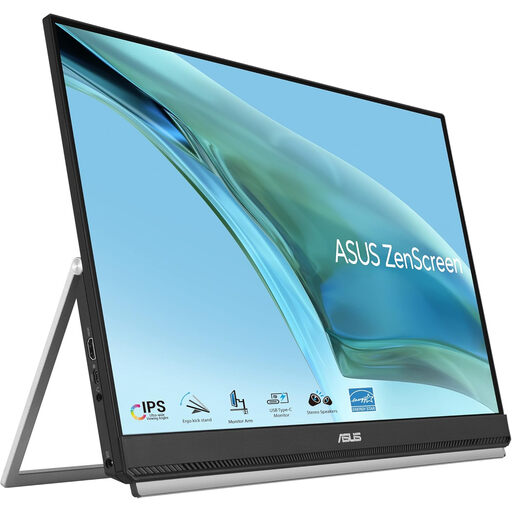
ASUS ZenScreen MB249C IPS USB-C monitor
This external display is worth considering when a laptop needs more screen space at a home desk. Check the mounting arrangement you need and whether your exact laptop supports video over its USB-C connection; confirm its charging requirements separately.
View on Joybuy
 No image available
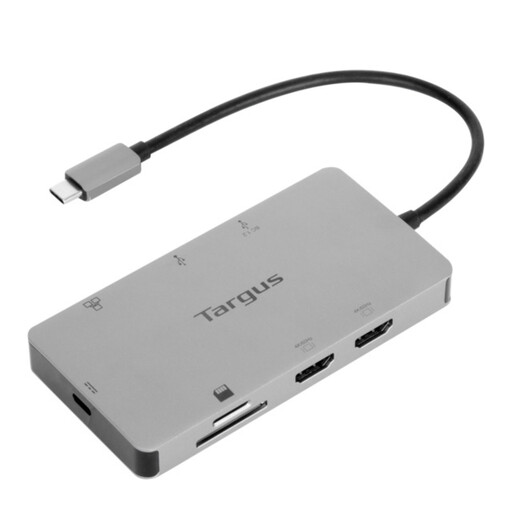
Targus USB-C Universal Dual HDMI 4K Docking Station, 100W pass-through
Consider a dock if you regularly reconnect a laptop to two displays and desk peripherals. This model’s title specifies dual HDMI 4K connections and 100W Power Delivery pass-through; check the laptop’s display and charging support, and confirm whether the required external power adapter is supplied.
View on Joybuy
 No image available
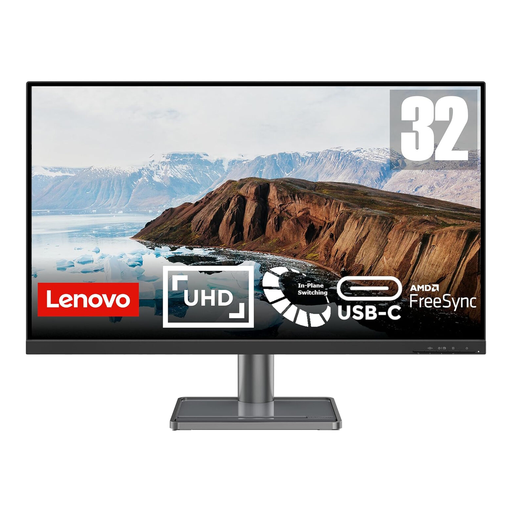
Lenovo L32p-30 31.5-inch 4K USB-C monitor
This separate display is an option for document or multi-window work at a regular desk. Its title specifies an IPS panel and USB-C connection; check the monitor’s power-delivery capability against your computer before relying on it for laptop charging.
View on Joybuy
 No image available
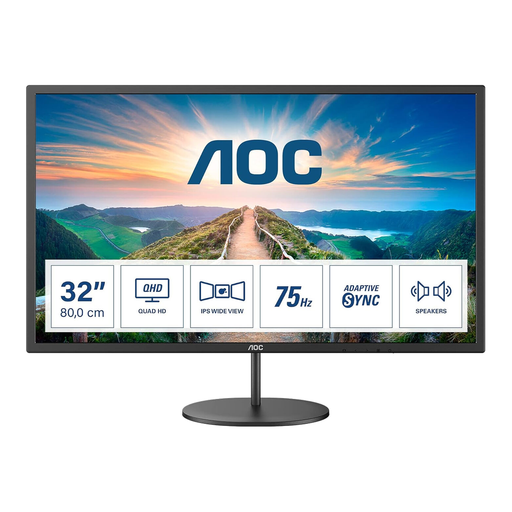
AOC Q32V4 31.5-inch 2K IPS monitor with speakers
Consider this for a desk where a separate screen is the main requirement. If you need to raise or reposition the display, check the included stand’s adjustment options before choosing it.
View on Joybuy
Questions about home-working equipment
Should I add a monitor or replace my laptop?
If the main difficulty is screen space or screen position during regular desk work, consider a monitor before replacing an otherwise suitable laptop. For prolonged laptop use, the Health and Safety Executive advises separate keyboard and mouse use so the screen can be raised, or a separate display; a different processor does not address that layout choice.
Will any USB-C port handle a monitor, dock and charging?
No: the presence of a USB-C connector does not establish which video or charging functions a particular laptop supports. Check the exact laptop specification, then compare its supported display modes and charging requirements with the monitor or dock and the cable you intend to use.
Do display-screen-equipment duties apply when I work from home?
They can apply to employees who work from home permanently or long term, or routinely split their time between home and another workplace, according to the Health and Safety Executive. Discuss any applicable workstation assessment with your employer rather than assuming a personal equipment purchase settles its duties.
What if a monitor, dock or peripheral I bought is faulty?
If goods bought in the UK are faulty, keep your order details and evidence of the problem, then contact the trader. GOV.UK’s consumer-rights guidance identifies repair or replacement remedies for faulty goods, and the Consumer Rights Act explanatory notes published by legislation.gov.uk state that the trader bears the costs of repair or replacement. These remedies are distinct from changing your mind about a working product.


