For dialogue-only cleanup, choose a laptop that supports your exact audio software, plug-ins and interface before comparing graphics hardware. Check memory and storage against your software’s requirements, and plan for an elevated screen with a separate keyboard and mouse at the standing desk. A creator-class graphics configuration makes more sense when the same projects also involve demanding video or compatible GPU-accelerated effects.
Who is this for?
The useful laptop specification depends on whether dialogue cleanup is the whole job, part of a fixed desk routine or one step in video production.
Dialogue-only audio editor
You remove noise, clicks, hum or unwanted pauses from speech recordings. Start with the requirements for your editing software, restoration plug-ins and audio interface rather than choosing a laptop for its graphics specification.
Standing-desk regular
You spend sustained sessions at the desk and need room to position the screen separately from the keyboard and mouse. The Health and Safety Executive recommends that arrangement for prolonged laptop use; your display, storage and audio interface also need a workable connection plan.
Audio-and-video creator
Dialogue cleanup is one stage of a workflow that may include demanding video or compatible GPU-accelerated effects. ASUS describes those visual workloads for its ProArt line, but that positioning does not establish a graphics-hardware requirement for audio-only repair.
What matters when choosing?
Confirm software and interface support first, then compare the configured memory and storage, the complete desk setup and any separate video-workload needs.
| Concern |
What to check |
Who this matters to |
| Software and interface compatibility |
Check the exact editing-software and plug-in versions against the operating system, then confirm the audio-interface driver and connection. Adobe’s Audition 25.x Windows requirements specify ASIO-compatible or Windows Driver Model audio support. |
If my interface or restoration plug-in will not work on the new laptop, the rest of its specification cannot solve the problem. Around 33% of consumers put compatibility first. |
| Memory and media storage |
Compare installed memory, internal SSD capacity and your media-storage arrangement with your software’s requirements. For Audition 25.x, Adobe lists 16GB RAM for HD media and a fast internal SSD for the application and cache. |
When I repeatedly open, process and export recordings, I need enough working space for the files and cache. Around 27% of consumers place memory and storage first. |
| Standing-desk setup |
Plan an elevated screen or external display, a separate keyboard and mouse, and connections for the audio interface and storage. Check whether the laptop’s ports or a compatible dock accommodate the full arrangement. |
I want to raise the screen without having to type at the same height, while keeping my desk equipment connected. For around 20% of consumers, that setup is the primary concern. |
| Combined audio and video work |
Identify the video applications or effects you will use before choosing a discrete GPU or larger creator-class configuration. ASUS describes ProArt P16 graphics options for video and AI-effects workflows, not as a requirement for dialogue-only cleanup. |
If dialogue repair sits inside a demanding video project, I need to account for that wider workload. Around 20% of consumers prioritise mixed-media capability. |
Buying pitfalls
-
Choosing the GPU before checking the audio tools
A graphics specification cannot resolve an unsupported plug-in or audio-interface driver. Adobe’s Audition 25.x Windows requirements, for example, include audio-device support as a separate requirement.
Write down your editing-software version, restoration plug-ins and interface model. Confirm each against the operating system and the configuration you intend to buy.
-
Confusing call features with recorded-dialogue restoration
A built-in microphone or call-noise feature does not establish what the laptop can do with a dialogue track that has already been recorded.
Assess cleanup through the restoration software and monitoring equipment you plan to use, alongside the laptop’s compatibility, memory and storage.
-
Planning for the laptop but not the desk
The Health and Safety Executive advises using a separate keyboard and mouse so a laptop screen can be elevated during prolonged use. The complete arrangement may need more connections than the laptop offers directly.
Map the display, keyboard, mouse, audio interface, storage and charging connections before choosing the laptop or dock.
A riser or display, input devices, dock and suitable cables or adapters may also be needed for the arrangement you choose.
-
Assuming warranty terms carry over between listings
Joybuy’s listed manufacturer-warranty terms for the MacBook Air and ASUS ProArt P16 examples differed when those listings were described; neither term establishes a rule for other models or variants.
Read the warranty, seller, configuration and returns details on the exact product page before ordering.
Brands to consider for these workflows
These product lines illustrate different configurations to investigate; a brand name alone does not establish compatibility with your audio tools.
Apple
MacBook Air is worth considering if your editing software, plug-ins and interface support the intended macOS version and you want a compact laptop for a connected desk.
- Apple’s UK MacBook Air specifications list configurations with 16GB unified memory, SSD storage, a headphone jack, two Thunderbolt 4/USB-C ports and external-display support.
- Check whether those ports, or a compatible dock, can serve your display, storage, input devices and audio interface together.
Dell
The XPS line offers a Windows route to investigate if moving the laptop between work locations matters to you.
- Dell lists an XPS 13 configuration starting at 1kg, with a 13.4-inch 2.5K touch display.
- Check the exact model’s installed memory, ports and audio-interface driver support rather than applying range-level details to every configuration.
ASUS
ProArt P16 is relevant when dialogue cleanup forms part of a demanding visual-production workflow.
- ASUS describes ProArt P16 configurations with CPU and GPU options aimed at video and compatible AI-effects work.
- That manufacturer positioning does not show that creator-class graphics improve ordinary dialogue-only restoration. Match the configuration to visual tasks you will actually run.
Joybuy laptop choices
These laptops span compact formats and larger configurations that may suit projects combining dialogue with visual work. For any model, check your audio software and interface first, then make sure its connections suit your standing-desk arrangement.
 No image available
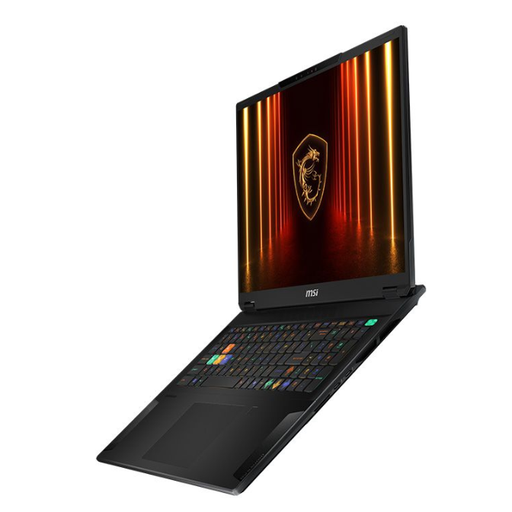
MSI Stealth 18 AI Studio A1VGG-001UK, Core Ultra 9, 32GB/2TB, RTX 4070
Consider this 18-inch configuration if dialogue editing is part of a workflow that also calls for its graphics hardware; the GPU is not, by itself, a reason to choose it for audio-only cleanup.
The product name specifies an Intel Core Ultra 9 processor, 32GB RAM, a 2TB SSD and NVIDIA GeForce RTX 4070 graphics. Confirm support for your audio applications and interface, and whether the laptop suits how often you will move it.
View on Joybuy
 No image available
Microsoft Surface Laptop 7 15-inch, Snapdragon X Elite, 16GB/256GB, Maya
This is a 15-inch option to assess for a Windows-based dialogue workflow, provided your exact applications, plug-ins and interface support its Snapdragon configuration.
The product name specifies 16GB RAM and a 256GB SSD. Check whether that storage capacity accommodates your projects and how your intended display, dock and audio equipment will connect.
View on Joybuy
 No image available
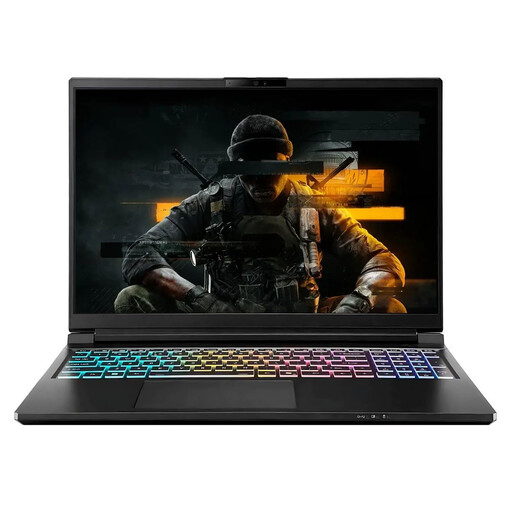
Stormforce Exobook 16 QHD+, Ultra 9, 32GB/4TB, 5080
Consider this 16-inch configuration if substantial local storage is important to your editing projects, while checking the supplied operating system and your audio-tool compatibility before purchase.
The product name specifies 32GB memory and 4TB storage. Plan the complete display, dock and interface connection arrangement rather than assuming that screen size or storage capacity settles the desk setup.
View on Joybuy
 No image available
Apple MacBook Pro 14.2-inch M5 Pro, 15-core CPU/16-core GPU, 24GB/2TB, Silver
This Mac configuration is worth assessing if your dialogue software, restoration plug-ins and audio interface support the macOS version you intend to use.
The product name specifies 24GB memory and 2TB storage. Check the full display, storage and interface connection plan, including any dock you would use at the standing desk.
View on Joybuy
 No image available
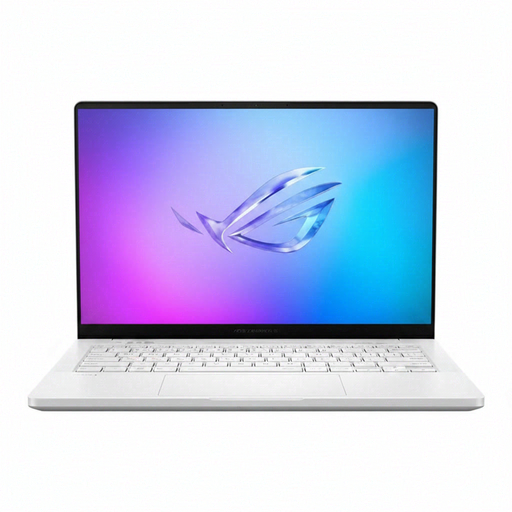
ASUS ROG Zephyrus G14 GA403WR-QS088W, Ryzen AI 9 HX 370, 32GB/2TB, RTX 5070 Ti, German Grey
Consider this 14-inch Windows laptop if the same projects include compatible graphics-intensive work; its discrete GPU is not an established requirement for dialogue-only cleanup.
The product name specifies a WQXGA+ display, 32GB memory, a 2TB SSD, NVIDIA GeForce RTX 5070 Ti graphics and Windows 11 Home. Confirm audio software and interface support, plus the ports needed for your desk.
View on Joybuy
Frequently asked questions
Can I use just the laptop for long sessions at a standing desk?
Plan for a separate keyboard and mouse so you can elevate the laptop screen during prolonged use. The Health and Safety Executive recommends this arrangement; check that the support and any connected equipment fit your desk.
What specification should I start with for dialogue cleanup?
Start with the requirements for your exact editing software and plug-ins, not a universal “audio laptop” specification. As a version-specific reference, Adobe lists 8GB RAM as a minimum for Audition 25.x, 16GB for HD media and a fast internal SSD for the application and cache.
Do I need a discrete GPU to restore dialogue?
Not solely because you are cleaning dialogue. A discrete GPU is more relevant to consider if your wider project includes demanding video or compatible accelerated effects; ASUS describes those visual workflows for its ProArt line without establishing a GPU requirement for audio-only repair.
When do UK display-screen-equipment rules matter?
The Health and Safety Executive says the Display Screen Equipment Regulations apply to workers who use display screen equipment daily for continuous periods of an hour or more. If that describes your work, consider the whole workstation arrangement rather than treating the laptop purchase as the only setup decision; a personal or self-employed arrangement needs to be assessed on its own circumstances.


