For digital marking beside a bright window, prioritise the finish and brightness specified for the exact laptop screen: an anti-glare finish addresses reflections, while a higher brightness figure alone does not establish how reflective the screen will be. Choose an operating system only after checking your institution’s marking platform, browser and file requirements; a Mac may suit supported workflows, while Windows is necessary if your institution requires it.
Who needs which checks?
People marking near a bright window
If daylight reflections make rubrics, comments or submissions difficult to read, check the finish and stated brightness of the exact panel rather than relying on a laptop family name. Lenovo UK and Apple publish different display specifications for the configurations discussed below.
People using an institution’s marking platform
Check the required operating system, browser, file types and supported software versions before choosing a laptop. Microsoft Support describes macOS and Windows support for Microsoft 365, but an institution’s marking service can set separate conditions, as OCR’s RM Assessor3 requirements illustrate.
People marking large volumes of work
Long sessions with scanned submissions or media files make working space, keyboard and pointing-device use, and a suitable internet connection worth considering. OCR’s RM Assessor3 guidance identifies connection and input requirements for that particular service.
What matters when choosing?
Start with the marking system you must use, then check the exact screen you will be looking at beside the window. Consider file handling and your working setup before settling on a size.
| Concern |
What to check |
Who this matters to |
| Reflections and readability |
Check the exact panel’s stated finish and brightness; neither a nit figure nor a laptop family name tells you both. |
If window reflections obscure comments and student work, I want a screen I can position and read comfortably. Around 46% of consumers put reflection-related readability first. |
| Platform compatibility |
Confirm your institution’s supported operating system and browser, plus any required annotation tools or file types. |
When a marking service is prescribed, I need it to open my submissions and run its required tools. Compatibility is the primary concern for around 27% of consumers. |
| Long-session workflow |
Check the service’s display and input requirements, and whether your connection suits the files you mark. |
For extended sessions or large scanned and media submissions, I need room to work and dependable navigation. Around 27% of consumers prioritise that workflow. |
Buying pitfalls
-
Treating brightness as proof of low reflections
A brightness rating and an anti-glare finish describe different properties. Apple specifies a 500-nit display for the MacBook Air discussed here, while Lenovo UK explicitly specifies an anti-glare, 400-nit panel for ThinkPad configuration 21QC002KUK; those figures alone do not establish how either will look at your window.
Check both specifications for the exact configuration, and consider whether you can place the screen away from direct reflections.
-
Assuming any laptop will run the marking system
Microsoft 365 support does not establish compatibility with a separate marking service. OCR’s RM Assessor3, for example, has its own device and connection requirements.
Ask your institution for its current requirements, including the browser, operating system and file types you will use.
-
Choosing a compact screen without considering the workload
Moving between scripts, rubrics and feedback during long sessions may make working space and input devices important. Large or media-heavy submissions can also place different demands on an online workflow.
Check the requirements for your heaviest assignment files and whether your preferred mouse or external display will work with the laptop you choose.
Relevant brands to consider
Lenovo
A Windows laptop range worth checking when an explicitly specified anti-glare panel is a priority.
- Lenovo UK specifies a 14-inch WUXGA IPS, anti-glare, non-touch, 400-nit display and Windows 11 Pro for ThinkPad T14 Gen 6 configuration 21QC002KUK.
- Those display specifications belong to that configuration; check the panel and software requirements again for any other T14 Gen 6 variant.
Apple
A macOS option to consider if your institution supports the required marking workflow.
- Apple specifies a 13.6-inch, 500-nit display for the MacBook Air covered here.
- The stated brightness does not establish an anti-glare finish. Confirm both your institution’s macOS requirements and whether the screen suits your window position.
Joybuy product choices
These laptops offer different starting points for bright-window marking: compare their exact display information first, then check each one against your institution’s software and file requirements. The Chromebook needs its own ChromeOS compatibility check rather than being treated as a Windows or Mac alternative by default.
 Image unavailable
ASUS Vivobook 14 X1407QA-LY003W Copilot+ PC, Snapdragon X, 16GB/512GB, Quiet Blue
Consider this model if its screen and required marking software suit your setup; confirm the exact panel finish and how your institution’s tools work with its Snapdragon X processor.
The product name specifies 16GB RAM and a 512GB SSD.
View on Joybuy
 Image unavailable
Acer Chromebook Plus 514 CB514-5H, Core i3-1315U, 8GB/256GB, Iron
Consider this Chromebook only if your institution’s marking platform, browser requirements and assignment files work with ChromeOS; also check the exact screen finish and brightness for your window position.
The product name specifies a 14-inch WUXGA display at 1920 × 1200, 8GB RAM and a 256GB SSD.
View on Joybuy
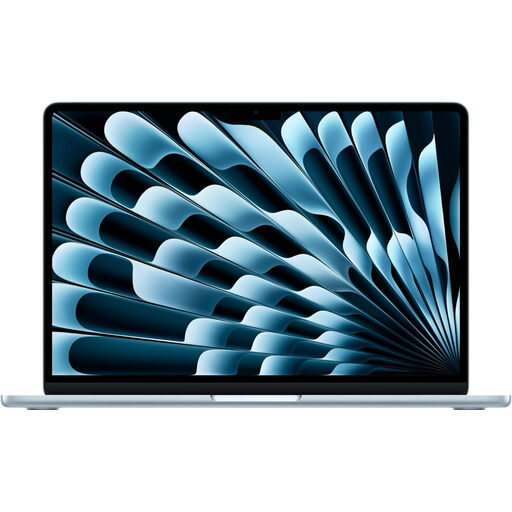 Image unavailable
Apple MacBook Air 13-inch (2026), M5, 16GB/1TB, Sky Blue
Consider this MacBook Air if your institution supports the macOS marking workflow and you can assess how its screen handles reflections where you work.
The product name specifies an M5 chip with a 10-core CPU and 10-core GPU, 16GB memory and a 1TB SSD. Apple specifies a 500-nit display for this MacBook Air range, but that brightness figure does not establish an anti-glare finish.
View on Joybuy
Frequently asked questions
Is a higher nit rating enough beside a bright window?
No: stated brightness does not tell you whether a screen has an anti-glare finish. Apple specifies a 500-nit MacBook Air display, whereas Lenovo UK explicitly identifies a 400-nit anti-glare panel on ThinkPad configuration 21QC002KUK. Check both properties on the exact laptop you intend to buy.
Should I choose Windows or macOS for digital marking?
Choose an operating system supported by your institution’s actual marking service. Microsoft Support lists both Windows and supported macOS versions for Microsoft 365, and OCR lists both platforms in its RM Assessor3 requirements, but neither establishes the requirements of your own service. Confirm its browser, file and operating-system rules before purchase.
What connection do I need for online marking?
Follow your marking platform’s connection requirements, particularly if submissions include scans or media. OCR recommends 2 Mbps of dedicated bandwidth for RM Assessor3 and warns that large files or a shared connection can slow navigation; another service may set different requirements.
What should I do with an old laptop when replacing it?
Ask the seller about its take-back arrangements rather than putting the old laptop in household waste. GOV.UK says retailers must offer take-back of waste equipment of the same type as an item a customer buys; check how the seller handles collection or handover, and erase personal data before handing over the device.


