For document-heavy work, start with one external monitor if your laptop has a compatible video output and one more screen gives you enough room. Add a second only if the exact laptop model supports two external displays; choose a compatible dock when you also want to connect desk peripherals through one connection. Check the laptop’s display limits, the monitor inputs and the resolution and refresh rate you need before buying: a dock or adapter cannot make an unsupported video connection work.
Who is this setup for?
People working across several windows
If documents, spreadsheets and calls compete for space on a laptop screen, assess a direct monitor connection first. Once a display is connected, Microsoft’s Windows guidance explains how to arrange external screens; choose an extended desktop rather than duplicating the same view when you need separate workspaces.
Hybrid workers with a fixed home desk
If you regularly disconnect your laptop, a dock may let you reconnect displays and peripherals at the desk with fewer separate connections. Check the laptop port and display limits first: Dell notes that not every USB-C port carries video.
Owners of laptops with an unfamiliar USB-C port
The connector shape alone does not establish monitor support. Look up the exact laptop model and confirm a video-capable USB-C connection, such as DisplayPort Alt Mode or Thunderbolt, before choosing a USB-C monitor, adapter or dock.
What should you check first?
Decide how many separate screens you need, then check the laptop’s supported display configuration before choosing the connections for your desk.
One external monitor
Choose it when: One additional screen gives your documents or calls a separate place and your laptop has a compatible video output.
Trade-off: A direct connection still depends on the laptop’s supported display mode; a data-only USB-C port will not send the picture.
Two external monitors
Choose them when: You want a call or messages visible alongside document work, and the laptop supports two external displays in the intended configuration.
Trade-off: Two screens take more desk space and each still counts towards the laptop’s display limit.
USB-C or Thunderbolt dock
Choose it when: A compatible laptop needs a repeatable desk connection for displays and peripherals, or more physical display connectors.
Trade-off: The dock must work with the laptop’s port protocol, and its advertised display capacity does not override the laptop’s limits.
| Priority |
What to check |
Your needs |
| Visible workspace |
Decide whether one or two external screens are needed. Check that the laptop supports that number, then set the displays to extend rather than duplicate the desktop. |
I want my document and reference material visible at the same time. If calls also need their own screen, two external displays may be worth considering—provided my laptop supports them. |
| Video compatibility |
Match the laptop’s video output to the monitor input and required resolution and refresh rate. For USB-C video, confirm DisplayPort Alt Mode or Thunderbolt support in the exact laptop specifications; Dell cautions that not every USB-C port sends video. |
A USB-C socket on my laptop is not enough reason to order a USB-C monitor or adapter. I need to know that this particular port carries a display signal. |
| Desk connections |
Use a direct cable for matching video ports, or a compatible adapter for a connector mismatch. For a dock or charging monitor, check the laptop protocol, display configuration and charging requirements. |
I would rather reconnect my laptop to the desk with fewer cables. That matters more to me than a dock’s number of ports if I move the laptop often. |
| Screen position |
Check the screen’s adjustment or mounting options against the available desk space. Plan its position and lighting alongside the connection; the Health and Safety Executive says workstation assessments for relevant display-screen-equipment users should cover both home and office where applicable. |
For long sessions with documents, I need the added screen to fit where I work, not merely connect to my laptop. |
What can go wrong?
-
Assuming every USB-C socket carries video
A USB-C monitor or dock may show no picture when the laptop port is intended for data or charging only. Dell’s docking guidance explicitly notes that not every USB-C port supports video.
Check the exact laptop manual for DisplayPort Alt Mode or Thunderbolt video support before choosing a USB-C display connection.
-
Using a dock’s display limit as the laptop’s limit
A dock’s stated monitor capacity does not establish what a particular laptop can drive. Apple says a hub or daisy-chaining does not increase a Mac’s maximum supported display count; Lenovo specifies compatible host protocols for its docks.
Compare the intended number of screens and their resolution and refresh-rate combination with both the laptop and dock documentation.
-
Buying an adapter for a port with no video output
An adapter can address a connector mismatch, but it cannot supply a display signal from a data-only laptop port.
Confirm video output at the source port first, then check that the adapter suits the monitor input and intended display mode.
-
Planning cables but not screen placement
An extra monitor also needs a workable position on the desk. The Health and Safety Executive says assessments should cover both home and office arrangements where relevant.
Consider screen position, lighting and available desk space before settling on the monitor and its mounting arrangement.
Relevant brand guidance
Dell
Dell’s connection and docking guidance helps distinguish a video-capable USB-C port from a USB-C port used for other purposes.
- Dell documents USB-C display connections that use DisplayPort or Thunderbolt support.
- Dell cautions that not every USB-C port supports video; check the exact laptop, including non-Dell models.
Lenovo
Lenovo’s specifications provide model-specific examples for checking laptop ports and dock compatibility.
- Lenovo PSREF lists two Thunderbolt 4/USB4 ports with DisplayPort 2.1 and an HDMI 2.1 port for the specified ThinkPad X1 Carbon Gen 13 Aura Edition configuration, model 21NS013BZA.
- Lenovo lists compatible host protocols for its ThinkPad Universal Thunderbolt 4 Dock; that does not establish the display configuration supported by every laptop.
Apple
Apple’s model-specific display guidance matters when a MacBook Air owner is considering a second external screen.
- Apple states that MacBook Air models with the M4 chip support up to two external displays simultaneously alongside the built-in display.
- Check the precise model and supported resolution and refresh-rate configuration before choosing the screens or connection method.
BenQ
BenQ’s GW2786TC is an example to examine when considering a USB-C monitor for a laptop desk.
- BenQ lists data transfer and 65W power delivery through one USB-C cable for the GW2786TC.
- Confirm that the laptop supports the required USB-C video connection and that the monitor’s power delivery meets its charging needs.
Joybuy options for the desk
These options cover external screens, a dual-HDMI dock and a direct HDMI cable for document-focused laptop setups. Which connection works depends on your laptop and the display configuration you want.
 No image available
ASUS ZenScreen MB249C IPS USB-C monitor
Consider this external screen if you want a separate space for documents or calls. Before relying on its USB-C connection, confirm that your laptop supports the required video mode; check the monitor’s dimensions and mounting arrangement against your desk.
View on Joybuy
 No image available
Targus USB-C Universal Dual HDMI 4K dock, 100W pass-through
This dock is relevant to a fixed desk with two HDMI display connections and laptop charging through pass-through power delivery. Confirm that your laptop supports the required USB-C video protocol and two-display configuration, and check the required power adapter and what comes with the dock.
View on Joybuy
 No image available
AOC Q32V4 31.5-inch IPS monitor
The 31.5-inch screen is an option to assess when desk space and document layout are priorities. Check the exact monitor input against your laptop’s video output and supported display mode; confirm its positioning options if screen adjustment matters to you.
View on Joybuy
 No image available
ASUS ZenScreen MB166CR FHD monitor
This secondary screen is worth considering when you move your laptop between workspaces. Its USB-C connection needs a compatible laptop video output; also check how you will position the screen wherever you plan to use it.
View on Joybuy
 No image available
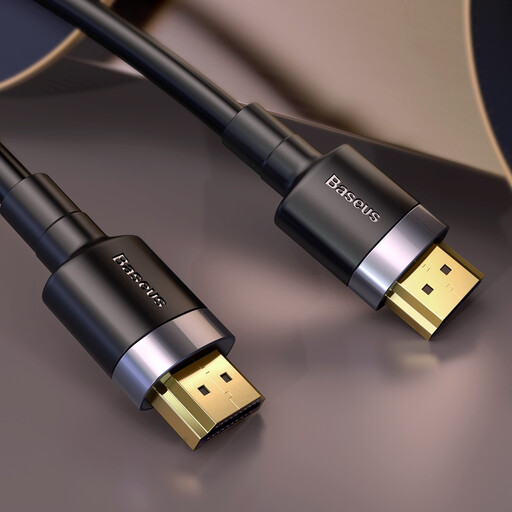
Baseus Cafule male-to-male HDMI cable
A direct cable suits a laptop and monitor with compatible HDMI ports; it cannot provide video from a port without an HDMI output. Confirm that the display mode meets your needs and check the supplied cable length for this variant.
View on Joybuy
Frequently asked questions
Can my laptop’s USB-C port connect to a monitor?
Only if that port supports video. Check the exact laptop specifications for DisplayPort Alt Mode or Thunderbolt support rather than relying on the connector shape; Dell cautions that not every USB-C port sends video.
When do I need a dock rather than a cable or adapter?
Use a direct cable when compatible video ports meet your needs, and an adapter when a confirmed video output needs a different connector. Consider a compatible dock for a repeatable connection to displays and desk peripherals, or for more physical display connectors; it does not raise the laptop’s documented display limit.
Can an M4 MacBook Air use two external monitors?
Yes, Apple states that MacBook Air models with the M4 chip support up to two external displays simultaneously in addition to the built-in display. Check the precise Mac model and the supported resolution and refresh-rate configuration before choosing both monitors.
What should I consider when adding a screen to a home workstation?
Plan where the screen will sit as well as how it connects. The Health and Safety Executive says the Display Screen Equipment Regulations apply to workers using such equipment daily for continuous periods of an hour or more, and its guidance says assessments should cover both home and office arrangements where relevant.


