What to check before buying
Work from the complete workstation outward: first establish screen and input-device positioning, then check desk space and movement between locations, and finally confirm connection and charging compatibility.
| Priority |
What to check |
Your needs |
| Screen and input position |
Check whether the screen can sit directly in front of you at a suitable height and roughly arm’s length away. If raising a laptop, allow room for a separate keyboard and mouse. |
I need the screen, keyboard and mouse to work together as a complete arrangement for prolonged laptop work, rather than relying on a laptop at an unsuitable height. |
| Video and charging compatibility |
Confirm the exact laptop port supports the required video protocol, monitor count and resolution. Compare dock power delivery with the laptop’s charging requirement, and check cable requirements. |
I need to know that the laptop can send video to the planned display setup and charge as required before I buy a dock or monitor. |
| Desk space and mobility |
Measure usable desk space for a fixed monitor, cables and input devices. For a portable screen, check stable placement, compatible ports and the practical setup at each location. |
I want a setup that fits my home desk and travel pattern, without carrying or duplicating equipment that I do not need. |
| Assessment-led equipment |
Where applicable, use an individual display screen equipment assessment to identify changes or equipment needed for the actual home-and-office pattern. Keep voluntary upgrades separate from assessment-led provision. |
I need to distinguish a personal convenience purchase from equipment or changes identified through my employer’s workstation assessment. |
Joybuy product options
Joybuy product options for a hybrid laptop workstation, covering dock, portable-monitor and fixed-monitor routes.
 No image available
Targus USB-C Universal Dual HDMI 4K Docking Station
A dock route for a regular desk that reconnects two displays and several peripherals through one laptop connection.
Stated features include two HDMI 2.0 outputs, 100W Power Delivery pass-through, Gigabit Ethernet, USB ports and SD/microSD card readers.
Check the laptop’s USB-C Alt Mode support, display limit, charging requirement, monitor inputs, operating-system limits and cable needs. The 100W pass-through requires an external 100W or higher adapter.
Joybuy
 No image available
UPERFECT 14-inch Full HD Touchscreen Portable Monitor
A portable second-screen option for moving between home, office and temporary desks.
The stated specification includes a 14-inch Full HD IPS touch panel, 60 Hz refresh rate, 180° adjustable stand, VESA compatibility and USB-C one-cable operation on compatible hosts.
USB-C one-cable use depends on host video output; otherwise a separate power supply is required. Check touch compatibility and whether the full arrangement provides stable screen positioning for sustained work.
Joybuy
 No image available
ASUS ZenScreen MB166CR Full HD Portable Monitor
A lightweight secondary-screen route for workers alternating between home and office desks.
Stated features include a 15.6-inch Full HD IPS display, USB-C with DisplayPort Alt Mode, an anti-glare surface, 780g weight and 11.8mm profile.
It requires a compatible USB-C DisplayPort Alt Mode host, and HDMI is not stated as supported. Check the laptop’s power and video capability, plus the stand or screen-height arrangement needed for sustained use.
Joybuy
 No image available
CRUA 32-inch QHD Curved Monitor
A fixed-desk monitor option for a workstation that needs more display area than the laptop screen provides.
The stated specification includes a 32-inch 2560×1440 display, HDMI and DisplayPort inputs, tilt adjustment and VESA 100×100 mounting.
Measure desk depth, usable surface area and viewing distance before choosing a 32-inch display. Confirm the laptop’s video output, supported resolution and cable requirements, and assess keyboard and mouse positioning separately.
Joybuy
 No image available
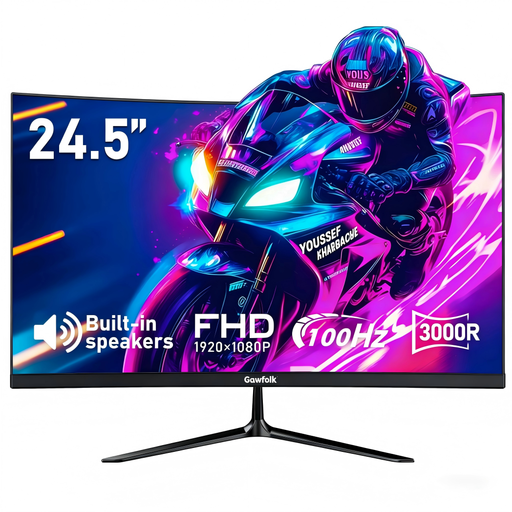
Gawfolk 24.5-inch Full HD Curved Monitor
A separate-screen option for a mainly desk-based laptop setup with a more moderate monitor size.
The stated features include a 24.5-inch 1920×1080 curved display, HDMI and VGA inputs, tilt adjustment, VESA 75×75 mounting and built-in speakers.
Confirm that the laptop has a compatible video output and that the required cable is available. Check whether the supplied stand reaches the required screen height; VESA mounting may be relevant to the desk layout.
Joybuy
Frequently asked questions
Do the DSE Regulations automatically mean every hybrid worker needs an external monitor or dock?
No. The Health and Safety Executive says home workers may not need office-type furniture or equipment to achieve a comfortable, sustainable posture. Where the regulations apply, the individual assessment should determine whether the existing arrangement is suitable and whether additional equipment is needed.
Who should arrange and pay for equipment identified by a DSE assessment?
For workers covered by the regulations, the employer should carry out an individual assessment. The Health and Safety Executive says that where an assessment identifies action such as providing DSE equipment, the worker cannot be charged for that equipment. A voluntary purchase alone does not establish that it was assessment-required equipment.
Does the same assessment need to consider home and office use?
Yes, where the worker uses display screen equipment in both places. The Health and Safety Executive says assessments should cover home and office situations, although the employer remains responsible for the arrangements.
Can I assume a USB-C port will connect a monitor through a dock?
No. Which? notes that a USB-C connection may support DisplayPort video and audio, so capability depends on the individual laptop connection. Check the laptop documentation and the dock’s supported host protocols before purchase.
Does similar guidance apply in Northern Ireland?
Northern Ireland has its own Display Screen Equipment Regulations (Northern Ireland) 1992. The Health and Safety Executive for Northern Ireland says they can apply to workers using DSE daily for continuous periods of an hour or more, including permanent, long-term and hybrid home workers. Use Northern Ireland-specific employer guidance where the worker is based there.


