For one larger screen, start with a monitor and a direct cable that match the laptop’s documented video output. Use an adapter when a video-capable output needs a different connector, or consider a dock when connecting several desk devices or displays is the priority. Check the exact laptop’s display limits before buying: a USB-C socket, splitter or dock port does not by itself establish what the laptop can drive.
Who needs an external display?
Home workers who need one larger screen
If the laptop screen feels cramped for documents, calls or side-by-side apps, start with the laptop’s documented video output and a matching monitor input. A direct connection keeps the setup straightforward, but the laptop’s display limits still apply.
People reusing a monitor with a different connector
If your monitor’s input does not match the laptop’s socket, establish what video signal the laptop can output before choosing an adapter. As StarTech.com explains, USB-C DisplayPort Alt Mode depends on support across the host port, cable and connected device.
People connecting several desk devices
A dock may suit a desk where displays, keyboard, mouse and other connections are plugged in repeatedly. Dell’s docking guidance makes clear that the laptop connection and dock type affect display support; check charging and operating-system compatibility for the exact combination too.
What matters when choosing a connection?
Work out what the laptop can output, then choose between a direct connection, connector conversion and a dock according to what you need at the desk.
| Concern | What to check | Who this matters to |
|---|
| One larger screen |
Match a documented laptop video output to a monitor input; check the laptop’s external-display limit. |
When my laptop screen is too small, I want a larger work area without adding conversion hardware. Around 36% of consumers put a straightforward single-screen connection first. |
| Reusing a monitor |
Check the output signal, adapter direction and monitor input; for USB-C video, check the whole DisplayPort Alt Mode connection path. |
I already have a monitor and need its input to work with my laptop’s different connector. For around 29% of consumers, making that existing display connect is the primary concern. |
| One-cable desk setup |
Compare the exact laptop and dock for supported displays, operating system and charging requirements. |
Connecting my display and desk accessories each time is cumbersome, so I want to consolidate those connections. That convenience comes first for around 21% of consumers. |
| Limited native video output |
Check whether a DisplayLink product supports the intended display mode and whether its software can be installed on the laptop. |
If my laptop cannot natively provide the extended display arrangement I need, I can consider a software-driven route. Around 14% of consumers put this kind of expansion first. |
Connection mistakes to avoid
-
Assuming every USB-C port carries video and charging
A connector can fit while the expected display function remains unavailable. Dell notes that not every USB-C port supports video output.
Check the laptop specification for its video and charging capabilities, then check the adapter or dock and required cable against that port.
-
Buying a splitter for two separate desktops
Microsoft Support explains that a basic splitter duplicates a signal rather than creating two independent display signals.
If you need an extended desktop, check the laptop’s multi-display support and choose a compatible connection or display technology instead.
-
Choosing a dock by counting its sockets
Available sockets alone do not establish the display configuration your laptop can use. Dell advises that the host connection and graphics capability affect multi-monitor setups.
Compare the dock’s supported display modes and charging specification with the exact laptop model, operating system and intended monitors.
-
Overlooking DisplayLink software requirements
Plugable distinguishes its DisplayLink products, which use DisplayLink software, from its non-DisplayLink USB-C and Thunderbolt products.
Before selecting a DisplayLink dock, check operating-system support and whether you are permitted to install and maintain the required software on a work-managed laptop.
Brands and technologies to consider
Dell
Dell’s monitor and docking guidance can help you compare direct connections with different dock connector types.
- Its support guidance explains that dock connections and laptop capabilities affect the displays available.
- A Dell dock’s ports do not establish compatibility with every laptop or operating system.
StarTech.com
StarTech.com’s adapter guidance is relevant when a USB-C connection is being considered for a monitor.
- It explains the need for DisplayPort Alt Mode support across the host port, cable and connected device.
- That guidance cannot establish whether a particular unlisted laptop or cable supports the mode.
Plugable
Plugable distinguishes driver-based DisplayLink products from its other USB-C and Thunderbolt docks.
- Its product guidance helps identify when DisplayLink software is part of the connection.
- Check the exact dock’s operating-system support and intended monitor modes before purchase.
DisplayLink
DisplayLink is a software-driven display route to consider when native video output does not meet the intended arrangement.
- DisplayLink Support documents extended-display configuration on Windows.
- The route depends on compatible products and software; an ordinary video splitter is not an equivalent way to extend a desktop.
Joybuy options for home laptop display expansion
These choices cover standalone monitors, a direct HDMI cable and a USB-C dock. Pick the connection route your laptop supports before deciding which screen size or desk arrangement suits you.
 No image available
CRUA 32-inch 1500R Curved Monitor, 2560 × 1440
Consider this standalone screen if a larger work area suits your desk and your laptop has a supported connection to its HDMI or DisplayPort input.
The title specifies 165 Hz and VESA 100 × 100 mm mounting. Check which resolution and refresh rate the laptop can deliver through your chosen connection; confirm colour coverage separately if it matters to your work.
View on Joybuy
 No image available
Targus USB-C Universal Dual HDMI 4K Dock, 100W PD Pass-Thru
Consider a dock if you regularly connect displays and other desk devices, provided your laptop supports the dock’s required USB-C video connection.
The title identifies dual HDMI outputs and 100W power-delivery pass-through. Confirm the exact laptop and operating system support the intended dual-display arrangement, and check whether pass-through charging meets the laptop’s requirements.
View on Joybuy
 No image available
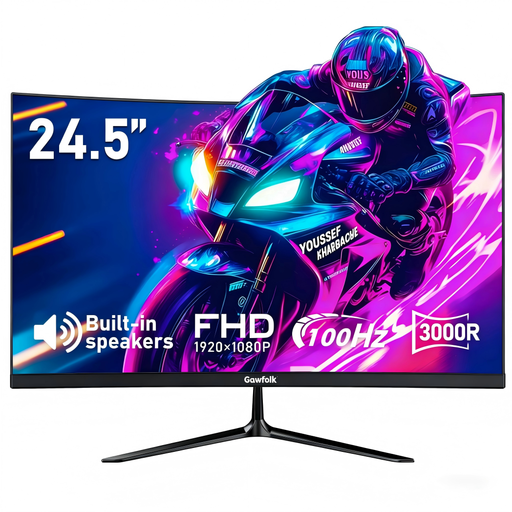
Gawfolk 24.5-inch Curved Full HD Monitor
This is a standalone display to consider when you want a single external screen and can connect the laptop to its HDMI input.
The title specifies 100 Hz and VESA 75 × 75 mm mounting. Check the laptop’s supported output and the display mode you intend to use; confirm the response-time specification separately if it affects your choice.
View on Joybuy
 No image available
CRUA 49-inch Curved Ultrawide Monitor, 5120 × 1440
Consider this wide standalone screen if you want space for side-by-side work and have a desk that can accommodate it.
The title specifies a 32:9 display, two HDMI 2.1 inputs, two DisplayPort 1.4 inputs and a height-adjustable stand. Check that the laptop can drive the intended display mode and that the desk or mount can support the screen; the listing advises two people to move it.
View on Joybuy
 No image available
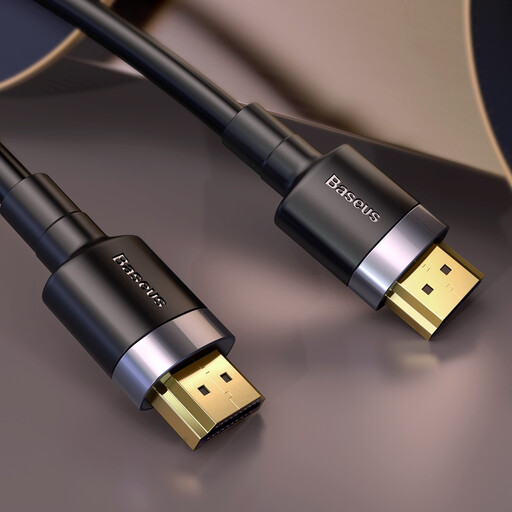
Baseus Cafule HDMI Male-to-Male Cable, 3 m, Black
A direct cable is a straightforward choice when the laptop has an HDMI video output and the monitor has a compatible HDMI input.
This cable is 3 m long. It cannot add a video output to a laptop that does not already provide one; check both connection points before buying.
View on Joybuy
Questions about laptop display expansion
Will any USB-C port connect my laptop to a monitor?
No: the USB-C connector alone does not establish video-output support. For a DisplayPort Alt Mode connection, StarTech.com says the host port, cable and connected device must support the mode; check the specifications for your exact laptop and connection path.
Can an HDMI splitter give me two independent desktops?
No, a basic splitter duplicates one signal rather than creating two independent ones, as Microsoft Support explains. For an extended desktop, check the laptop’s supported display outputs or whether a compatible dock or graphics route meets your needs.
How many external monitors can I connect to a Mac laptop?
The supported number depends on the Mac model and the displays’ resolution and refresh rate, according to Apple Support. Check your exact Mac model’s display specification before choosing a multi-monitor adapter or dock.
Does a DisplayLink dock need software?
Yes, DisplayLink-based products use a software-dependent display path. Plugable distinguishes those products from its non-DisplayLink USB-C and Thunderbolt docks; check software support and installation permissions for your laptop before buying.


