Buying priorities
Start with the laptop you already use: its ports, display limits and charging capability determine whether a monitor or dock can work as intended. Then choose the route that fits the available desk space and whether portability still matters.
| Priority |
What to check |
Your needs |
| Connection compatibility |
Check the exact laptop port and whether it supports HDMI, DisplayPort, USB-C DisplayPort Alt Mode, USB4 or Thunderbolt. Confirm supported display count, resolution, refresh rate and the required cable or adapter. |
I need the monitor, adapter or dock to work with my specific laptop and intended display arrangement. |
| One-cable desk use |
Compare the monitor or dock’s stated power delivery with the wattage the laptop can accept. Check video, USB and Ethernet ports, host compatibility and cable requirements. |
I want to connect a display, keyboard, mouse and possibly network access at a fixed desk without repeatedly plugging in separate accessories. |
| Desk arrangement |
Consider screen position, keyboard, mouse, monitor adjustment and available desk area together. For an arm, verify the monitor mounting interface and the arm’s supported size and weight. |
I need the display and input devices to fit the desk as a complete working arrangement, not just as separate purchases. |
| Extend or replace |
Decide whether an external display solves the workflow issue before replacing a working laptop. For an all-in-one, check software, file access, employer IT requirements and peripheral compatibility. |
I want more usable screen space while keeping laptop portability, unless a permanently based desktop workstation genuinely fits my work pattern better. |
Joybuy product options
Joybuy options for extending a laptop at a regular home desk, plus one all-in-one route for a permanently based workstation.
 No image available
ASUS ProArt PA248CRV WUXGA IPS Monitor
A separate display option for a regular laptop desk where USB-C video, charging and peripheral connections are useful.
Listed with a 24.1-inch 1920 × 1200 IPS panel, 96W USB-C power delivery, HDMI, DisplayPort, USB hub and height, swivel, pivot and tilt adjustment.
Check whether the laptop supports USB-C DisplayPort Alt Mode, accepts the stated charging level and can run the intended display configuration.
Joybuy
 No image available
ASUS ProArt PA278CV WQHD IPS Monitor
A 27-inch option for a regular desk user who wants a separate laptop screen with adjustable positioning.
Listed with a 2560 × 1440 IPS panel, HDMI, DisplayPort, USB-C power delivery, two USB hub ports, VESA 100 × 100 mm mounting and an adjustable stand.
Confirm the USB-C charging capability, cable choice, desk space and the laptop’s supported resolution and refresh rate before purchase.
Joybuy
 No image available
Targus USB-C Universal Dual HDMI 4K Docking Station
A dock option for reconnecting compatible displays, charging and desk peripherals through a USB-C host connection.
Listed with two HDMI 2.0 ports for 4K at 60Hz, 100W power-delivery pass-through, Ethernet, USB-A ports and SD/microSD readers.
Verify the laptop and operating system support the planned display arrangement. The stated 100W charging is pass-through and needs a suitable external power adapter.
Joybuy
 No image available
Dahua 32-inch Curved 4K OLED Monitor
A large fixed-desk display option for a laptop workspace where the desk can accommodate a 31.5-inch screen.
Listed with a 31.5-inch 3840 × 2160 QD-OLED panel, Type-C 65W, HDMI 2.1, DisplayPort 1.4, USB hub, 120 mm height adjustment and VESA 75 × 75 mm mounting.
Check the laptop, cable and display limits for the intended 4K setup, and measure the workstation layout before choosing this screen size.
Joybuy
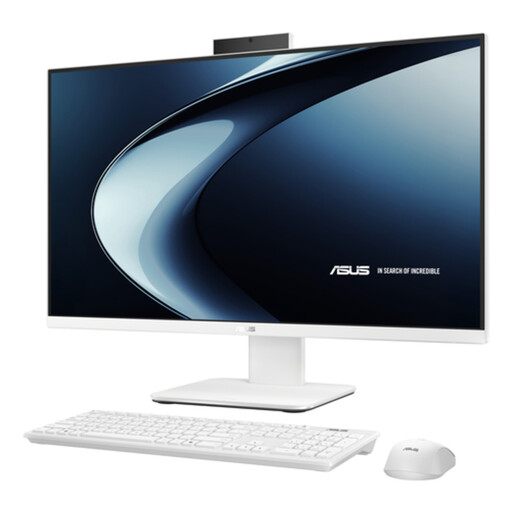 No image available
ASUS V400 AiO V470VAK-WPE032W 27-inch All-in-One PC
A replacement route for a permanently based home workstation rather than an accessory for an existing work laptop.
Listed with a 27-inch 1920 × 1080 IPS anti-glare display, Intel Core i7-13620H, 16GB DDR5 RAM, 512GB NVMe SSD, Windows 11 Home, Wi-Fi 6, HDMI and four USB ports.
Check employer IT requirements, required software, file access and peripherals before changing platform; this route does not retain laptop portability.
Joybuy
Frequently asked questions
Does every USB-C laptop port support an external monitor and charging through one cable?
No. USB-C is a connector type; video, charging and high-bandwidth dock functions depend on the laptop, port implementation, cable and connected device. Check the exact laptop specification for display output and charging support, then compare it with the monitor or dock specification.
What should I verify before buying a dock for one or two external monitors?
Check the laptop model, stated operating-system compatibility, host port, supported number of external displays, target resolution and refresh rate, dock output, charging provision and correct cables. A laptop can impose lower display limits than the dock’s advertised maximum.
When is a laptop stand with separate keyboard and mouse preferable to an external monitor?
It can suit a smaller desk when one screen is enough for the work being done. HSE guidance describes separating the keyboard and mouse from the laptop so the screen can be elevated on a riser or similar support; the complete workstation still needs to fit the individual arrangement.
Is an employer legally required to buy a monitor for a UK hybrid worker?
There is no universal requirement in the cited HSE guidance for every hybrid worker to receive a monitor. Where display screen equipment regulations apply, HSE guidance says the individual workstation should be assessed to determine whether additional equipment is needed.
Can any monitor be fitted to a monitor arm?
No. Check that the monitor has a compatible mounting interface and that the arm supports its stated size and weight. VESA’s mounting standard describes mounting interfaces, but it does not establish compatibility for every monitor and arm combination.


