For one external screen, start by checking whether a cable or video adapter matches a video output on your laptop and an input on the monitor. Consider a USB-C dock for more desk connections only when your laptop supports the required displays and charging; an older laptop may instead use a compatible USB-A DisplayLink dock, which requires software. For two independently extended screens, confirm two supported display paths or a dock documented for your exact setup: Microsoft Support says a basic display splitter duplicates a signal rather than creating two independent displays.
Who needs which setup?
Home workers adding one larger monitor
If you want more room for documents, browser windows and calls while keeping your existing peripherals, check a direct video cable or suitable adapter first. Microsoft Support notes that external-display compatibility depends on the device model and the cable or adapter used.
Home workers building a dual-screen desk
Two independently extended monitors call for a confirmed display configuration, not merely two available sockets. Check your laptop’s supported display paths and the resolution and refresh rate you want on each monitor before choosing a dock.
Users of older USB-A laptops
A USB-A DisplayLink dock is worth considering when there is no suitable native USB-C video connection and you need additional screens. Check that the computer and operating system meet the dock’s requirements and that you can install DisplayLink software.
What should you check before buying?
Direct cable or video adapter
Choose when: You need one monitor and have a confirmed video output that matches its input.
Trade-off: It does not bring your USB peripherals together in one laptop connection.
Native USB-C or Thunderbolt dock
Choose when: Your laptop supports the dock’s required display configuration and you want to connect screens and peripherals through one desk connection.
Trade-off: The dock’s stated display and power limits do not establish what your particular laptop can drive or accept.
USB-A DisplayLink dock
Choose when: An older laptop needs added displays but lacks a suitable native USB-C video route.
Trade-off: DisplayLink requires compatible software; DisplayLink Support also warns that some protected video may not play on a Mac while its screens are connected.
| Priority |
What to check |
Your needs |
| Independent screens |
Check the laptop’s supported external-display count and each intended display path. For two extended screens, confirm the dock’s supported configuration at your target resolution and refresh rate. Microsoft Support says a basic splitter duplicates one signal. |
I need two separate work areas, not the same picture repeated on both monitors. |
| Ports and inputs |
Confirm the laptop port’s video capability, the monitor’s input and the matching cable or adapter. Select that input on the monitor; Microsoft Support identifies the device model, connection equipment and input setting as relevant checks. |
One working screen is enough for me, provided the connection fits the laptop and monitor I already have. |
| Desk connections and charging |
Compare the dock’s display modes and peripheral ports with your setup. Check its power output for your type of laptop against the laptop’s supported charging input and original charger. |
I want to reconnect my screens, keyboard and other accessories with fewer plugs, but still need to know whether the dock can charge my laptop. |
| DisplayLink compatibility |
Check the dock’s supported operating systems and required software. DisplayLink Support recommends 4 GB or more RAM for two or more DisplayLink displays in its cited Windows guidance; Mac users should also check its protected-video limitation. |
My older laptop has USB-A ports, and I can use a software-based display connection if it meets my computer’s requirements. |
Which connection mistakes matter?
-
Using a splitter for two extended desktops
Microsoft Support says a basic display splitter duplicates the signal, leaving both monitors showing the same image instead of separate work areas.
Confirm two supported display paths or a dock documented to run the number of independent screens you need at your chosen display settings.
-
Assuming any USB-C socket can drive the dock
The connector’s shape does not establish the laptop’s display capabilities. A dock’s stated maximum is not a guarantee for every laptop and monitor combination.
Check the exact laptop model, its USB-C video support and the dock’s display modes against your monitor inputs, resolutions and refresh rates.
-
Overlooking DisplayLink software and usage limits
DisplayLink screens depend on compatible software and system resources. DisplayLink Support says some protected content may not play on a Mac while DisplayLink screens are connected.
Check operating-system support and installation permissions before choosing a USB-A DisplayLink dock. If protected video playback on a Mac’s external screen matters to you, check a supported native video connection instead.
-
Assuming dock power replaces the laptop charger
Dell UK specifies 100W for Dell systems and 96W for non-Dell systems on its WD25 dock. Those figures do not establish the charging result for every laptop.
Compare the dock’s applicable power specification with your laptop’s accepted USB-C charging input and original charger before relying on one cable for power.
Relevant dock brands
These brand examples illustrate different docking routes; compatibility still depends on the particular dock and laptop.
Dell
Dell’s WD25 is a USB-C desk dock to examine when display connections, peripherals and laptop charging need to share a connection.
- Dell UK specifies support for up to four displays on the WD25 and lists dual-display 4K at 60 Hz among its video modes.
- Those are WD25 specifications, not a promise that every connected laptop supports each mode; Dell UK also specifies different power output for Dell and non-Dell systems.
Lenovo
Lenovo’s ThinkPad Universal USB-C Dock is a reference point for a Windows laptop desk using display and peripheral connections.
- Lenovo UK lists DisplayPort and HDMI among its 11+ ports and describes the dock as compatible with most USB-C laptops running Windows 10 or above.
- “Most” does not confirm support for your laptop’s intended monitor arrangement or charging needs; check the exact models.
Plugable
Plugable offers USB 3.0 Type-A docks using DisplayLink, a route to consider for a compatible older laptop needing display and port expansion.
- Plugable Technologies identifies DisplayLink as the technology used in its USB 3.0 Type-A docking range.
- Check the chosen dock’s operating-system and software requirements. DisplayLink Support documents a protected-video limitation on macOS while DisplayLink screens are connected.
Joybuy options for connecting a laptop display
These options cover a direct HDMI cable and USB-C-connected adapters or docks for laptop desks. Check the display modes and connections you need against your own laptop and monitors; a product with several display sockets does not necessarily run several independent screens.
 No image available
Targus USB-C Universal Dual HDMI 4K Docking Station, 100W PD Pass-Thru, Retail Packaging
Consider this for a desk needing two HDMI monitor connections and USB-C power pass-through. Confirm that your laptop supports the required video configuration and charging input, and check which power adapter the setup requires and whether it is included.
View on Joybuy
 No image available
V7 V7UC-U3CRJ45HDVG-BLK USB-C Adapter, 4K HDMI, VGA, Gigabit Ethernet, 100W PD, Dual USB 3.0
This is an option for connecting one external screen alongside wired networking and USB peripherals. Its stated single-display operation does not meet a need for two independently extended screens through the adapter. Check your laptop’s USB-C video and charging support before choosing it.
View on Joybuy
 No image available
USB-C Adapter, 2 HDMI, DP, 2 USB 3.0, 2 USB 2.0, RJ45, PD, SD/TF and Audio
The named display and peripheral connections may suit a desk with several accessories. Before using it for two extended monitors, confirm its simultaneous display modes and your laptop’s USB-C video support; the number of output sockets alone does not establish either.
View on Joybuy
 No image available
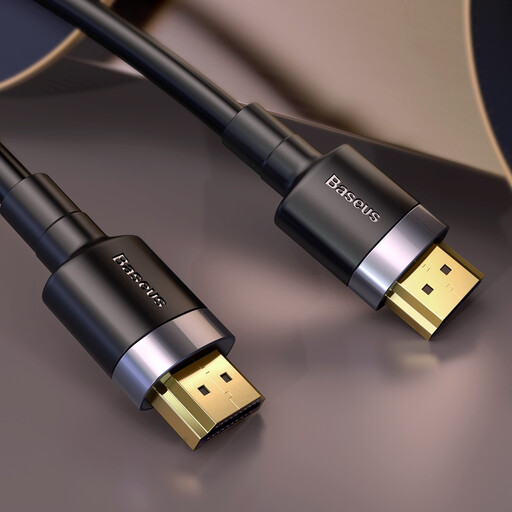
Baseus Cafule 4K HDMI Male-to-Male Cable, 3m, Black
For a direct monitor connection, check that both laptop and monitor have compatible HDMI ports and support your intended display setting. This cable connects by HDMI; it does not add USB peripheral, network or charging connections.
View on Joybuy
 No image available
Mokin 2USBC to TB+ Adapter, 2xUSB A 3.0, 1USB C3.0, SD/TF, HDMI 4K60Hz
The named HDMI, USB and card connections make this an option for a USB-C-connected desk with one external screen and peripherals. Confirm the laptop’s required USB-C video support and the display mode you need; do not assume the adapter provides charging or two independent external displays.
View on Joybuy
Common questions
Can an HDMI splitter give me two independently extended monitors?
A basic splitter will not do that: Microsoft Support says it duplicates the same signal. For separate extended work areas, confirm two supported display paths or a dock documented for the number of independent displays and settings you need.
What should I check before buying a USB-C dock?
Check your exact laptop model’s USB-C video capability, supported external-display count and charging input, then compare its requirements with the dock’s display modes and power specification. Also match the dock’s outputs to your monitors’ inputs and intended resolution and refresh rate; the USB-C connector alone does not confirm compatibility.
Does a USB-A DisplayLink dock need software?
Yes. DisplayLink Support provides software installation guidance, so check the chosen dock’s operating-system requirements and whether you can install its software. Its cited Windows guidance recommends 4 GB or more RAM for two or more DisplayLink displays.
What if I watch protected streaming video on a Mac?
Check the display route before choosing DisplayLink. DisplayLink Support says some protected content may not play while DisplayLink screens are connected to a Mac. If playback on the external screen is important, check whether your laptop supports a native video connection for that monitor.


