People reconnecting at one desk
If you move your laptop between locations and want your usual display, keyboard, mouse and network connection ready at one desk, consider whether a portable hub or powered dock covers the connections you use.


Choose a dock only after checking your exact laptop’s port capabilities, supported external-display setup and charging requirements. A USB-C hub can suit a simpler or more portable desk, while a powered USB-C or compatible Thunderbolt dock can serve a fixed setup; DisplayLink is a conditional alternative when native video output is limiting and its software requirements work for you. As USB-IF’s USB Type-C overview makes clear, the connector alone does not establish which functions a laptop port supports.
If you move your laptop between locations and want your usual display, keyboard, mouse and network connection ready at one desk, consider whether a portable hub or powered dock covers the connections you use.
If you need a particular number of independent external screens at specific resolutions and refresh rates, check your exact laptop’s display support and the dock’s simultaneous-display modes. The number of video sockets alone is not enough to confirm the setup.
If your laptop’s native video capability may not meet your desk requirements, you could consider a compatible DisplayLink dock, provided its software, permissions and limitations are acceptable.
Consider it: If you mainly want portable reconnection for a display and peripherals, and your laptop supports the required video and charging modes.
Trade-off: Pass-through charging needs a suitable charger; Anker says its 565 hub does not include a charger or cable, and its display modes depend on the laptop’s DisplayPort capability.
Consider it: If you return to a fixed desk with displays, Ethernet and USB devices, and your laptop supports the dock’s required USB-C video mode.
Trade-off: It is less convenient to carry than a compact hub. Lenovo’s UK listing specifies 65 W charging for the 40AY0090UK package with a 90 W adapter, so check the exact package rather than relying on broader up-to wording.
Consider it: If your verified Thunderbolt or suitable USB4 laptop can use the connections offered by the specific dock.
Trade-off: CalDigit specifies 18 ports, up to 98 W laptop charging and 2.5GbE for the TS4, but says available features depend on the host; those figures do not confirm every laptop’s display capability.
Consider it: If native display support does not meet your screen requirement and the dock, operating system and workplace permissions suit a software-driven setup.
Trade-off: StarTech specifies driver installation for its DK30C2DPEPUE; DisplayLink documents a macOS Screen Recording permission requirement and possible protected-video playback problems while its screens are connected.
For consumers considering a hub or dock for a hybrid desk, the deciding check is the one that matters most to the devices and connections they plan to use together.
| Concern | What to check when buying | Who this matters to |
|---|---|---|
| Display compatibility | Check the exact laptop port and simultaneous display modes, including resolution and refresh rate; USB-IF’s USB Type-C overview explains why the connector shape alone does not establish its capabilities. | When I need a particular number of screens to work at specified settings, I want to know what my laptop can drive alongside the dock. About 33% of consumers put display compatibility first. |
| Charging and package contents | Match the laptop’s charging requirement to the dock’s host output and exact package; check whether the charger and cable are included. Lenovo lists 65 W charging for its 40AY0090UK package, while Anker says the 565 requires a separate charger. | If I rely on the dock to power my laptop, I need the delivered output and included accessories to fit my setup. About 27% of consumers prioritise charging and what comes in the package. |
| Desk and network connections | List the devices you want connected together, then check the dock’s port types and functions. Anker distinguishes its USB data ports from its charging input; Lenovo lists a 1 Gbps RJ45 port for the 40AY0090UK. | When I return to a desk, I want my peripherals and wired network ready without reconnecting several separate adapters. About 27% of consumers prioritise repeatable desk and network connections. |
| Software-dependent displays | Confirm the dock’s DisplayLink technology, supported operating system, driver and permissions; on a Mac, consider DisplayLink’s documented permission and protected-content limitations. | If native video output will not meet my screen needs, I want to know whether a software-based option is acceptable on my laptop and workplace system. About 13% of consumers prioritise this display route. |
A dock’s listed single-display mode may differ from its simultaneous dual-display modes, which can also depend on the laptop’s DisplayPort capability. Anker describes these distinctions for its 565 hub.
Check the exact laptop and dock specifications for the number of independent displays, resolution and refresh rate you intend to use at the same time.
A power-input rating or broad up-to claim does not by itself confirm the power delivered to your laptop. Package details can matter: Lenovo lists 65 W charging and a 90 W adapter for the 40AY0090UK, while Anker says the 565 needs a separate charger.
Check the exact package’s host-output figure against your laptop’s charging requirement, and confirm which power accessories are supplied.
A pass-through hub may require you to provide a suitable charger and cable.
DisplayLink is software-dependent. StarTech specifies driver installation for its DK30C2DPEPUE; DisplayLink documents a macOS permission requirement and possible protected-video playback limitations.
Before choosing this route, check the dock, operating system, required permissions and whether workplace IT allows installation.
Allow for setup steps and, on a managed device, possible IT approval.
These examples illustrate different dock routes; a brand’s inclusion does not establish that a product suits your laptop or is available for your purchase.
The 565 is a compact USB-C hub example for buyers who want Ethernet and portable peripheral expansion, provided their laptop supports the required display mode.
The ThinkPad Universal USB-C Dock 40AY0090UK is a fixed-desk example with USB data connections and wired networking.
The Thunderbolt Station 4 is a Thunderbolt-oriented fixed-desk option for hosts that support the connections a buyer needs.
The DK30C2DPEPUE illustrates a DisplayLink option with USB-C and USB-A host connection choices.
These Joybuy listings are USB-C hub and multiport options for connecting a laptop to desk displays and peripherals. Check your laptop’s video and charging capabilities against the exact product before buying.
 No image available
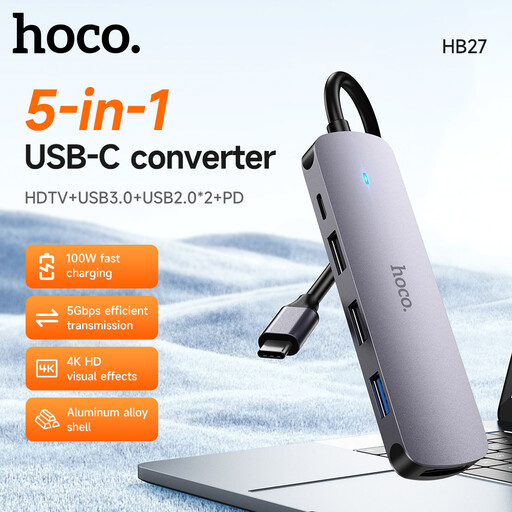
A USB-C hub option for reconnecting a laptop at a desk. Check the laptop’s supported display mode and charging method against the hub’s requirements.
 No image available
A multiport option for a desk setup that needs display, peripheral and network connections. Its title lists dual HDMI outputs, including 4K120Hz and 4K60Hz modes, RJ45, USB ports, SD/TF slots and USB-C PD. The stated DisplayPort Alt Mode condition means your laptop’s USB-C port must support the video mode you need; the output labels alone do not confirm the laptop’s simultaneous-screen capability.
 No image available
An 8-in-1 USB-C expansion option for a laptop desk. The product title identifies 4K HD projection and TF/SD card slots; the two card slots cannot be used simultaneously. Check the laptop’s video and charging support for your intended setup.
 No image available
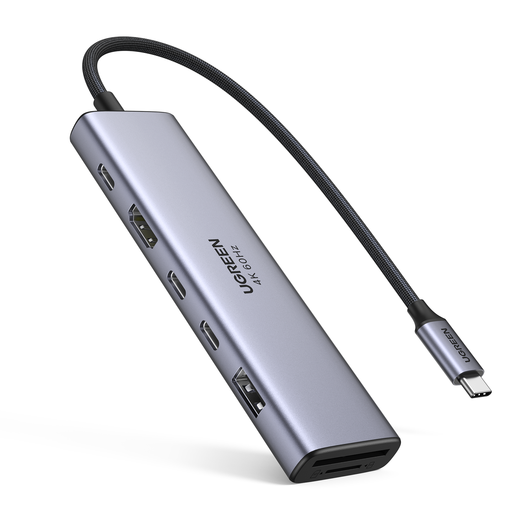
A compact USB-C hub option for a display and peripherals. Its title lists HDMI, two USB-C 3.2 ports, USB-A 3.2, SD/TF and PD; confirm the laptop’s supported display mode and charging requirements before choosing it.
 No image available
A multiport adapter option for connecting displays, wired networking and peripherals. Its title lists two HDMI outputs, DisplayPort, RJ45, USB ports, PD and SD/TF; check your laptop’s supported video configuration and charging requirements.
No; the connector shape alone does not confirm display or charging support. Check the exact laptop model and port against the dock’s required video modes, simultaneous-display limits and host power output. USB-IF’s USB Type-C overview explains that USB-C ports can support different functions.
Check with workplace IT that the required software and permissions are allowed. DisplayLink says its macOS Manager needs Screen Recording permission to render an external display, and documents possible protected-video playback problems while DisplayLink screens are connected.
Not necessarily. Anker says the 565 A8388 needs a charger for pass-through charging and that its charger and cable are not included. Check the exact package and delivered host power rather than treating the power-input rating as the laptop’s charging output.
For covered distance sales, UK government guidance says customers must be told they can cancel up to 14 days after delivery without giving a reason; check the transaction and any applicable exceptions. Faulty goods have separate statutory remedies, and a seller cannot remove consumer rights with a no-returns notice. A compatibility mismatch does not by itself establish that a product is faulty.