Regular one-cable desk returner
If you carry your laptop between locations but leave a screen and peripherals at one desk, reconnection and suitable charging are likely to matter.


A powered dock makes sense when you regularly reconnect a compatible laptop to several desk devices; a compact hub or direct connections may be enough for a simpler setup. Check your exact laptop’s video-capable ports, external-display limit, operating system and charging needs against the dock’s simultaneous display modes and power output before choosing.
If you carry your laptop between locations but leave a screen and peripherals at one desk, reconnection and suitable charging are likely to matter.
If you want two independent external displays, check what your exact laptop, operating system and dock can run at the same time.
If you use one external screen and a few accessories, compare a compact hub or direct connections with a larger powered dock.
Start with the laptop’s video support and the number of screens you want to run, then check host charging and the connections your desk actually needs.
| Concern | What to check when buying | Who this matters to |
|---|---|---|
| Laptop and operating-system compatibility | Identify the exact laptop model and video-capable port; check its display limit, operating system and any dock-specific software requirements. | When I return to my desk, I need the dock to work with my particular laptop and operating system. Consumers who put compatibility first make up around 28%. |
| Repeated reconnection and charging | Compare the power delivered to your laptop with its charging requirement, and confirm which host cable and power supply are included. | If I reconnect several desk devices regularly, I want fewer cables to handle and suitable charging. Consumers who prioritise easy reconnection and charging make up around 22%. |
| Simultaneous external displays | Compare the dock’s simultaneous-output modes with your laptop’s display limit and the resolution and refresh rate you intend to use. | When I need two independent screens, I want both to run at the modes I plan to use. Consumers who put multiple displays first make up around 22%. |
| Keeping the setup simple | List the laptop and monitor sockets already available, then compare direct connections or a hub with the connections a powered dock adds. | If my desk needs only one screen and a few accessories, I would rather avoid extra equipment I will not use. Consumers who prioritise a simple setup make up around 17%. |
| Peripheral ports and wired networking | Count the USB-A and USB-C devices you use, and check whether you need Ethernet and a matching network connection. | At a fixed desk, I need the right sockets for my peripherals and, if required, wired networking. Consumers who prioritise these connections make up around 11%. |
The laptop’s display capability matters as well as the dock. A Mac’s native external-display limit is not raised by adding a hub.
Check the exact laptop, operating system and simultaneous-display specifications. If considering a DisplayLink option, check its software requirements and viewing limitations too.
An unsuitable choice may leave a screen unusable or mean changing the connection method.
Power delivered to the laptop can depend on the dock model and host. A hub’s pass-through charging may also require a separate charger.
Check the output specified for your laptop and confirm which power supply and cables are included.
A pass-through hub may mean supplying a separate compatible charger.
If the laptop already has suitable display and accessory connections, a full dock may add equipment beyond what the setup needs.
Inventory the laptop and monitor ports, then count the cables you would reconnect before choosing direct connections, a hub or a powered dock.
A dock, power supply or adapter may add to the equipment you keep at the desk without providing a needed connection.
Anker’s 555 USB-C Hub is a compact option to consider for a desk needing one HDMI connection alongside USB and Ethernet.
Dell’s WD25 and WD25TB4 illustrate powered USB-C and Thunderbolt desk-dock options with host-dependent charging output.
The DK31C2DHSPDUE is a multi-display dock to consider when its stated host and operating-system requirements match the desk setup.
The TS4 is a port-rich Thunderbolt dock to consider when a compatible laptop and desk can use its connections.
The ThinkPad Universal USB-C Dock 40AY0135UK is an option to assess for a compatible Windows USB-C laptop.
These Joybuy choices are USB-C hubs and multiport adapters for laptop desk connections. Check your laptop’s video support and the display arrangement you need before choosing a model.
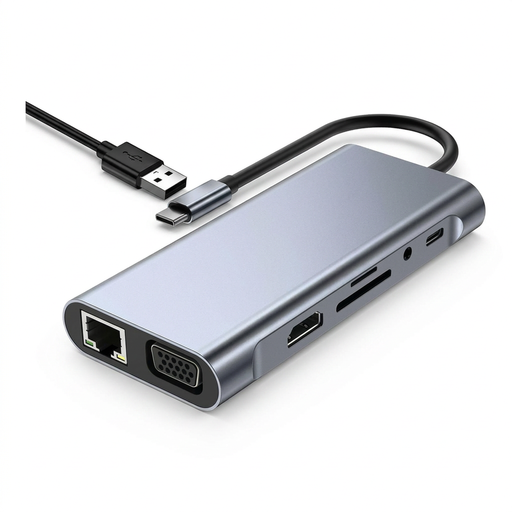 No image available
For a desk needing display and peripheral connections, this hub lists HDMI, VGA, USB, RJ45 Ethernet and a Type-C PD port.
The listed HDMI output supports up to 4K@30Hz and VGA up to 1920x1080@60Hz. Check whether the outputs can run in your intended arrangement with your laptop; the description advises powering the hub through its Type-C PD port when using the displays.
 No image available
For a desk needing two HDMI connections, USB ports and card slots, this hub lists two HDMI outputs, USB-A and USB-C ports, RJ45, and SD/TF slots.
The listed HDMI outputs are up to 4K@120Hz and 4K@60Hz. Video output requires a device supporting USB-C DisplayPort Alt Mode; check the simultaneous display modes supported by your exact laptop.
 No image available
This USB-C expansion dock is described as an 8-in-1 device with 4K HD projection and dual TF/SD card slots.
Check your laptop’s USB-C video support and the display mode you need before relying on it for a monitor connection.
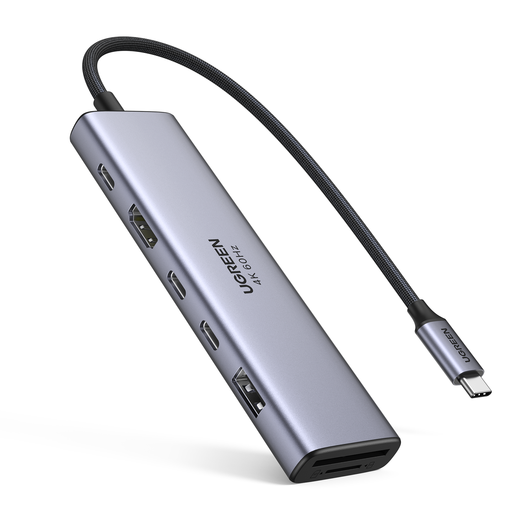 No image available
For a desk needing HDMI, USB and card-reader connections, this model lists HDMI, two USB-C 3.2 ports, one USB-A 3.2 port, SD/TF and PD.
The description specifies up to 100W PD pass-through. Check the host’s video support and whether the pass-through arrangement meets your laptop’s charging needs.
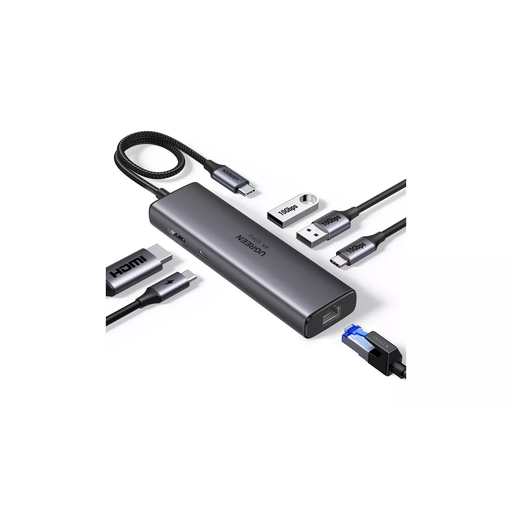 No image available
For a desk needing HDMI, USB and wired networking, this model lists HDMI, USB-A and USB-C data ports, and Gigabit Ethernet.
The title specifies HDMI 4K/60, and the description specifies up to 100W pass-through charging. Check the laptop’s video support and charging requirement before choosing.
No: the connector shape alone does not confirm video output. Check the exact laptop port’s video support and the dock’s host requirements; for a Mac display adapter, Apple specifies DisplayPort Alt Mode or compatible Thunderbolt support.
No. Apple says a supported hub or daisy-chain does not increase a Mac’s maximum number of external displays. If considering a software-driven DisplayLink device instead, check that route separately: its manager requires Screen Recording permission on macOS, and DisplayLink documents a protected-video limitation while its screens are connected.
Check that each screen’s input and cable are supported by the screen, dock and laptop, then confirm the intended simultaneous resolution and refresh rate. For a powered dock, check the included supply and the power delivered to your laptop rather than treating the adapter’s wattage as the host-charging figure.
Check whether the host cable and power supply are included. A pass-through hub may need a separate suitable charger; a software-driven DisplayLink setup requires its macOS software and permission. Follow the maker’s support instructions if the device needs updates.