What to check before buying
Check what the laptop can output first, then choose between a direct connection, a USB-C dock or a USB-A DisplayLink route. Dell, Apple Support, Plugable and DisplayLink guidance all point to model-specific compatibility rather than connector shape alone.
| Concern |
What to check when buying |
Who this matters to |
| Number of independent displays |
Check the exact laptop model’s external-display limit and the dock’s supported display configuration. |
I need two screens for separate tasks, not just a mirrored image; around 27% of consumers put two-screen compatibility first. |
| Useful screen space without extra kit |
Compare a direct video connection with a hub monitor, and check whether the laptop supports the monitor’s input. |
If one extra screen is enough, I would rather avoid connections I will not use; around 20% of consumers prioritise a straightforward single-screen setup. |
| USB-A-only laptop connection |
For USB graphics, check the exact dock, operating system and driver requirements; allow for separate laptop charging where needed. |
With a USB-A-only laptop, I need a display route that does not rely on a plug adapter adding video; around 20% of consumers put older-laptop compatibility first. |
| Peripherals and cable consolidation |
Check upstream and downstream ports, video support and whether the laptop can use the dock or monitor’s stated power delivery. |
I want my screen and desk peripherals connected together, with charging only if my laptop supports it; around 20% of consumers prioritise consolidating desk connections. |
| High-resolution or ultrawide output |
Match the laptop, cable or adapter, dock and monitor against the intended resolution and refresh rate. |
If an ultrawide or other high-resolution mode is the reason for adding a screen, I need that mode to work through the whole setup; around 13% of consumers put output resolution first. |
Relevant monitor and docking brands
These examples describe specific models and connection routes; features should not be assumed to apply to every product from a brand.
Dell
Dell’s P2425H is a direct-connected monitor with HDMI and DisplayPort inputs, while its P2725DE is a QHD USB-C hub monitor, according to Dell UK.
- The model specifications distinguish video inputs from hub and downstream ports.
- The P2425H’s downstream USB-C port is data-only; check the exact port before treating it as a laptop video input.
Lenovo
Lenovo’s ThinkPad Universal USB-C Dock, model 40AY0090UK, provides DisplayPort and HDMI connections for compatible laptop configurations.
- Lenovo lists both DisplayPort and HDMI connections on this dock.
- Lenovo conditions dock functions on host support, so check the laptop’s USB-C video protocol and display configuration.
Plugable
Plugable describes the UD-6950H as a USB 3.0 Type-A or Type-C DisplayLink dock for compatible systems.
- Plugable specifies support for two displays up to 3840 × 2160 on supported systems with the DisplayLink driver installed.
- Driver support and permission to install the software matter; the dock’s USB-A connection does not charge the laptop.
BenQ
BenQ’s UK specifications describe the 27-inch QHD GW2790QT as a USB-C hub monitor with 65 W power delivery.
- The stated USB-C arrangement combines a display connection, hub functions and power delivery.
- The laptop must support video through its USB-C port, and the specified power delivery must suit its charging requirements.
Kensington
Kensington’s SD4780P documentation describes a hybrid USB-C and USB-A dock with dual-display outputs.
- The model illustrates a dock route for setups involving different host connection types.
- Kensington notes a separate power splitter for some USB-A power-delivery situations; the documented North American SKU does not establish a UK variant.
Joybuy product options
The options below cover USB-C hubs for desk connections and single external monitors for adding screen space to a laptop setup.
 No image available
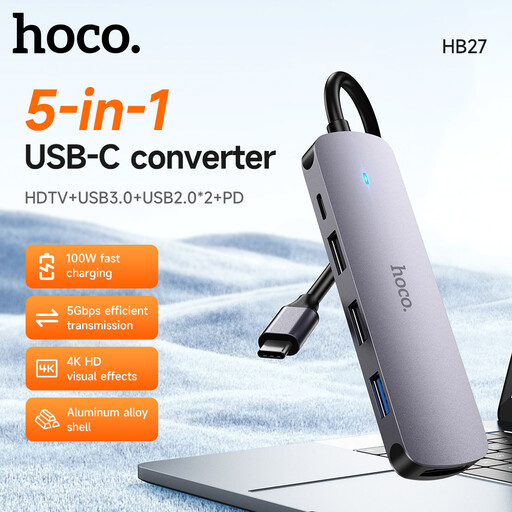
HOCO HB27 USB-C Hub – Metal Gray
A hub option for a desk setup needing a monitor connection alongside peripherals; check that the laptop’s video output is compatible with the connection used.
View on Joybuy
 No image available
HOCO HB28 USB-C Multi-Function Converter
A multi-connection option for a desk setup; confirm that the laptop supports video over the connection used and check the power requirements before relying on PD.
- HDTV, USB 3.0 and USB 2.0
- SD, TF and PD
- Metal Grey
View on Joybuy
 No image available
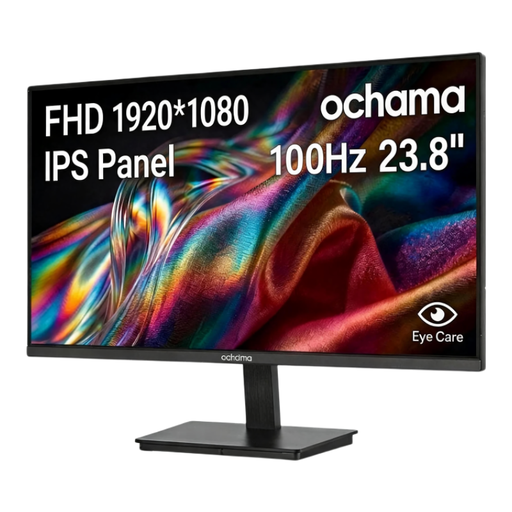
ochama Office Monitor 23.8-Inch 1080P 100Hz
A single-screen option for adding a separate workspace; check that the laptop’s video output and the required cable match the monitor’s connection.
- 23.8-inch 1080P display
- 100Hz refresh rate
- Three-sided narrow bezels
View on Joybuy
 No image available
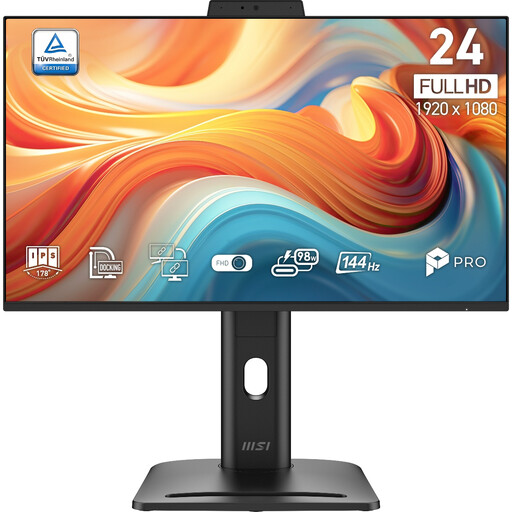
PRO MP245PDG E14 24-inch FHD 144Hz Monitor
A direct-connected single-monitor option; match one of its listed inputs to a video output supported by the laptop.
- 24-inch, 1920 × 1080 (FHD)
- 144Hz refresh rate
- HDMI, DisplayPort and VGA inputs
- Adjustable stand
- Black
View on Joybuy
 No image available
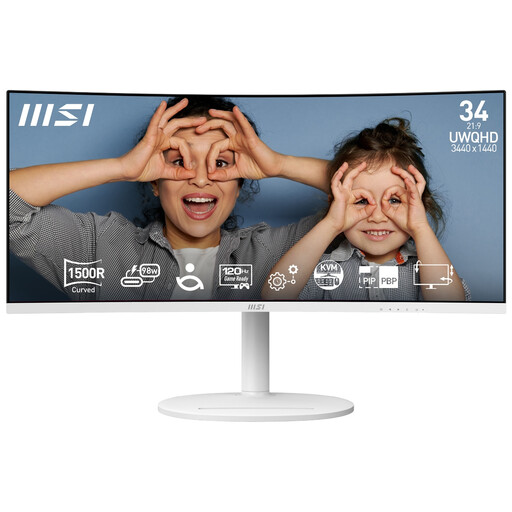
Modern MD342CQPW 34-inch UWQHD 120Hz Curved Monitor
A single-screen ultrawide option for keeping multiple applications visible; USB-C video requires a laptop port that supports video output, and the stated power delivery must suit the laptop.
- 34-inch, 3440 × 1440 (UWQHD)
- 120Hz refresh rate
- 1500R curved display
- USB-C DisplayPort Alternate Mode
- USB-C, USB-A and USB-B ports
- Up to 98W power delivery
- White
View on Joybuy
Frequently asked questions
Does every USB-C laptop port drive a monitor?
No. Dell’s guidance explains that USB-C ports do not all support video output. Check the particular laptop port’s documented video capability, such as DisplayPort Alt Mode or Thunderbolt, rather than relying on connector shape.
Will two video sockets on a dock give me two extended screens?
Not necessarily. The laptop’s supported display count, operating system, connection bandwidth and dock configuration all matter. Check the exact laptop-and-dock combination at the resolutions and refresh rates you intend to use.
Does a Full HD laptop screen limit an external ultrawide monitor to Full HD?
The built-in screen’s resolution alone does not establish the external display limit. Check the exact laptop’s external-output specifications and the full connection path against the monitor’s native resolution and intended refresh rate.
What should I check before using a USB-A DisplayLink dock?
Confirm that the exact dock supports the laptop’s USB connection and operating system, and that you can install its required software. DisplayLink Support notes that conventional USB-A docks do not charge the laptop, so plan on separate charging where needed.
Will two dock outputs give an M1 MacBook Air two native external displays?
No: Apple Support specifies one native external display for the MacBook Air (M1, 2020). A DisplayLink dock is a separate, software-dependent route; check support for the exact dock and macOS setup rather than assuming its two sockets change Apple’s stated native limit.


