Choose a powered dock if you regularly reconnect several displays and peripherals at a fixed desk; for one monitor and fewer accessories, a compact hub or direct cable may be enough. Start with the exact laptop model: its video-capable ports, external-display support and charging needs determine what any connection can deliver.
Who each setup suits
One-cable desk switchers
If you move a laptop between home and another workplace, a dock can keep the home monitor and everyday peripherals connected at the desk. Check that its host connection and delivered charging suit your laptop before relying on a single cable.
Multi-display and wired-network users
Several monitors, Ethernet and USB devices make a fuller dock worth considering. Compare the intended display arrangement with the exact laptop’s support, not just the number of sockets on the dock.
Lightweight one-monitor users
With one display and few accessories, a direct cable or compact hub may meet the need without a permanent dock. A laptop stand can be chosen separately, but it does not consolidate connections on its own.
What to check before buying
Decide what must reconnect at the home desk, then check the laptop’s port and display specifications before comparing dock or hub features.
| Concern | What to check | Who this matters to |
|---|
| Host and display compatibility |
Check the exact laptop’s video-capable ports and supported external-display arrangement against the chosen connection. |
If I need particular monitors to work, I want to establish what my laptop can actually drive before choosing a hub. About 36% of consumers put compatibility first. |
| Repeatable desk connections |
Count the monitors, network and USB devices you would otherwise reconnect individually. |
When I return to my home desk, I want my regular devices ready without changing several cables. For about 36% of consumers, reducing those repeated connections is the primary need. |
| Charging and peripheral capacity |
Compare charging delivered to your laptop with its requirements, and check the ports needed for your devices. |
I need the laptop to charge while my desk devices are connected, so an impressive port list alone will not settle the choice. Adequate charging and connections come first for about 21% of consumers. |
| Simple, portable connection |
Check whether the laptop and monitor accept a direct cable; otherwise identify the adapter or small hub required. |
For one screen and a few accessories, I would rather carry or connect only what I use. Roughly 7% of consumers prioritise keeping the setup simple. |
Connection mistakes to avoid
-
Assuming every USB-C port carries video
A hub may fit the socket without producing the intended monitor output. Plugable notes that USB-C ports differ in capability; HP specifies DisplayPort Alt Mode, Thunderbolt 3 Alt Mode or USB4 for full data and video on its USB-C 100W G6 Dock.
Check the laptop’s exact port specification and the requirements of the hub or dock you plan to use.
-
Choosing by the dock’s maximum display claim
Multiple outputs on a dock do not override the laptop’s display limits. Apple says simultaneous external-display support varies by Mac model and by display resolution and refresh rate.
List your intended screens and modes, then check both the laptop’s display-support information and the dock’s conditions.
-
Applying one charging figure to every laptop
Delivered power can differ by host. Dell lists up to 130W for Dell systems and 96W for non-Dell systems on the SD25TB4.
Compare the figure applicable to your laptop with its manufacturer’s charging recommendation, and check what power equipment comes with the product.
-
Overlooking software requirements for extra displays
A DisplayLink-based arrangement can require software configuration. DisplayLink says its Manager app needs Screen Recording permission on macOS to render extended or mirrored displays.
Check whether the exact dock uses DisplayLink and whether you can install and authorise the required software on your computer.
Brands to consider
Dell
Dell’s SD25TB4 is a Thunderbolt 4 dock aimed at a fixed desk, including use with Dell and non-Dell laptops.
- Dell lists 2.5GbE and charging of up to 130W for Dell systems or 96W for non-Dell systems.
- Check the host laptop and connected displays against the stated display modes; the maximum charging figure does not apply to every laptop.
Kensington
The SD5700T is a Thunderbolt 4 dock for a desk where laptop charging and external displays are priorities.
- Its product listing states dual 4K at 60Hz or single 8K at 30Hz, with 90W Power Delivery for Thunderbolt 4-enabled devices.
- Check the laptop’s Thunderbolt capability and display support rather than assuming those modes work through any USB-C port.
HP
HP’s USB-C 100W G6 Dock illustrates why the host port matters as much as the dock’s connectors.
- HP specifies DisplayPort Alt Mode, Thunderbolt 3 Alt Mode or USB4 on the PC for full data and video capability.
- Confirm the configuration and package contents of the particular listing before ordering.
Plugable
Plugable’s docking guidance distinguishes native USB-C video connections from software-assisted DisplayLink setups.
- Its guidance directs buyers to check the host computer, operating system, display count and resolution.
- Check whether a specific dock needs video-capable hardware, additional software or both; a USB-C connector alone does not answer that question.
Joybuy connectivity options
These options cover a fuller home-desk dock, multiport hubs and smaller adapters for display or peripheral connections. Choose by the functions your laptop can support and the devices you need to reconnect.
 No image available
Targus USB-C Universal Dual HDMI 4K Docking Station, 100W PD Pass-Thru
Consider this for a desk where consolidating display connections matters. The product name specifies dual HDMI 4K and 100W Power Delivery pass-through; check the laptop’s video and display support, and confirm whether a suitable external power adapter is supplied.
View on Joybuy
 No image available
Baseus Metal Gleam Series II 10-in-1 USB-C Hub, Cosmic Black
This hub suits a desk needing a choice of display and peripheral connectors. Its name lists two HDMI outputs, USB-A and USB-C ports, RJ45, SD/TF readers and a PD port. Check simultaneous display modes with your laptop and monitors, and confirm the charging wattage you require.
View on Joybuy
 No image available
V7 V7UC-U3CRJ45HDVG-BLK USB-C Display and Ethernet Adapter
Consider this for a simpler desk connection using a display, wired network and USB peripherals. Its name specifies HDMI, VGA, Gigabit Ethernet, 100W Power Delivery and two USB 3.0 ports. The stated SST mode is for a single display; do not assume HDMI and VGA can drive separate screens together, and verify host video support.
View on Joybuy
 No image available
Mokin 2USBC to TB+ Hub with HDMI 4K60Hz and SD/TF
This is an option for a one-monitor desk that also needs USB connections and card-reader access. The name lists HDMI 4K60Hz, USB-A, USB-C and SD/TF connections. Confirm that your laptop supports the required video connection and check charging pass-through separately if you need it.
View on Joybuy
 No image available
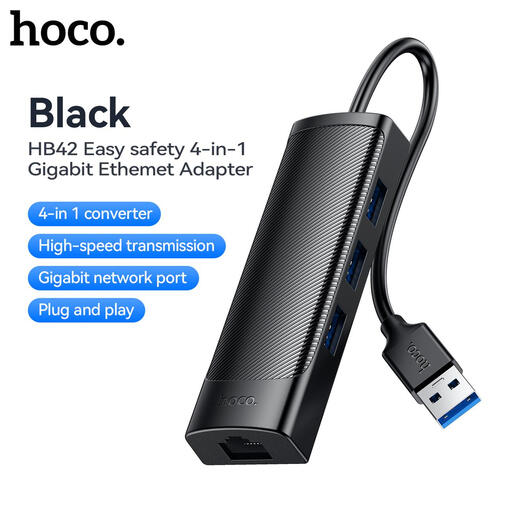
HOCO HB42 USB-A Hub with Gigabit Ethernet, 0.2 m
Choose this only if extra USB connections and wired networking are the functions you need from the hub. Its name specifies three USB 3.0 ports and RJ45 LAN; it uses a USB-A host connection. Arrange any display and laptop charging connections separately, and check that your laptop has a suitable port.
View on Joybuy
Common questions
Will any USB-C laptop work with a display hub?
No. A USB-C socket alone does not establish video support. Check the exact laptop’s port specifications and the hub’s host requirements; for example, HP requires DisplayPort Alt Mode, Thunderbolt 3 Alt Mode or USB4 for full data and video on its USB-C 100W G6 Dock.
Will a multi-monitor dock let my Mac run two external displays?
Check the exact Mac model before buying. Apple says its supported number of simultaneous external displays depends on the model and on each display’s resolution and refresh rate; extra dock outputs do not establish that the Mac can use them together.
What should I check before choosing a DisplayLink dock?
Confirm that the exact dock uses DisplayLink and that you can use its required software. DisplayLink says macOS requires Screen Recording permission for DisplayLink Manager to render extended or mirrored displays.
Do I need a full dock for one monitor, keyboard and mouse?
Not necessarily. If the laptop and monitor have compatible connections, a direct display cable may handle the screen, while a small hub can add ports for peripherals. Check whether you also need laptop charging or wired networking through the same connection before moving to a fuller dock.


