What should you check before choosing?
A hub or direct adapters can suit a simpler desk; consider a powered USB-C dock for a regular charging and peripheral setup, or Thunderbolt or USB4 for expansion on a compatible laptop. DisplayLink calls for a separate check of software access and display compatibility.
| Priority |
What to check |
Your needs |
| Independent displays |
Check the laptop’s supported external-display count, then the dock’s extended-display mode at each monitor’s intended resolution and refresh rate. Laptops Direct cautions that two video sockets do not by themselves establish support for two independent screens. |
I need each external monitor to show its own desktop, not a copy of the same image. |
| Host compatibility |
Identify the exact laptop model, host-port technology and operating system. Check whether the required video mode, data connection and dock features work on that host; a USB-C connector alone does not establish them. |
My laptop has to support the connections I plan to use, even if the dock has the right-looking ports. |
| Charging |
Compare the dock’s stated host power delivery with the laptop maker’s power requirement. Check whether a suitable power supply is included and whether the dock needs an external adapter. |
I want to connect at my desk without discovering that the laptop still needs its own charger. |
| Peripherals and network |
Count the keyboard, mouse, storage and wired-network connections you will use together. Match Ethernet capability to your network equipment; for fast external storage, check both the dock connection and the laptop’s compatible host technology. |
My desk needs enough usable connections for its everyday devices, including Ethernet if I use a wired network. |
| DisplayLink software |
Check the dock’s supported operating-system version and whether software installation is allowed. DisplayLink Support says its Manager application is required for DisplayLink products on macOS and needs Screen Recording permission. |
If I need a DisplayLink display setup, I must be able to install its software and grant the required permissions, including on a managed work or study laptop. |
Brands and product lines to consider
These examples illustrate different docking approaches; their stated capabilities still need checking against your laptop and displays.
CalDigit
The TS4 is a Thunderbolt dock aimed at a fixed desk with numerous connections.
- CalDigit’s UK TS4 specification states up to 98W host power delivery and describes dual 4K 60Hz display use for specified host systems.
- CalDigit says USB-C hosts have reduced functionality; the achievable display arrangement depends on the computer, including its Mac model where applicable.
Kensington
The SD5920T EQ combines Thunderbolt and DisplayLink approaches for supported multi-display setups.
- Kensington states support for up to four 4K 60Hz displays under the host and chipset conditions in its SD5920T EQ product information.
- That maximum is not a promise for every laptop: check the exact host technology, operating system, Mac chipset where relevant and required DisplayLink setup.
Plugable
Plugable’s UD-6950PDH is an example of a USB-C dock built around DisplayLink for supported systems.
- Plugable describes dual-4K display connections, 100W laptop charging and Ethernet for the UD-6950PDH.
- Plugable says driver installation is required for full functionality; confirm the exact laptop and operating-system version before relying on its display arrangement.
Joybuy options for a connected desk
These Joybuy options cover USB-C docks, a hub and a single-display adapter for connecting desk displays and peripherals. Check each option against your laptop’s video support and charging needs.
 No image available
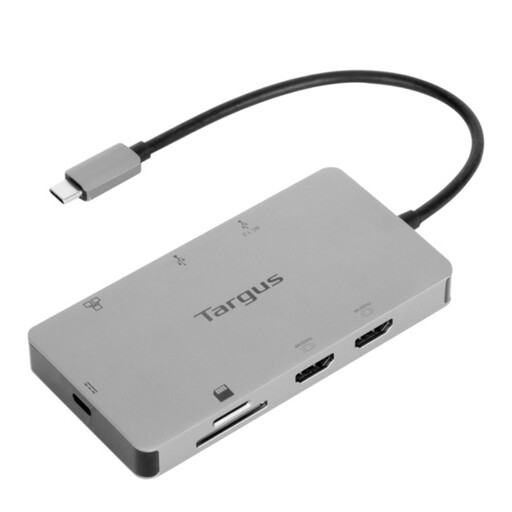
Targus USB-C Universal Dual HDMI 4K Dock, 100W Power Delivery Pass-Thru (Retail Packaging)
Consider this for a desk where dual HDMI connections and power pass-through matter. The named 100W figure is for Power Delivery pass-through; confirm the power adapter arrangement and your laptop’s supported extended-display mode before relying on either feature.
Joybuy
 No image available
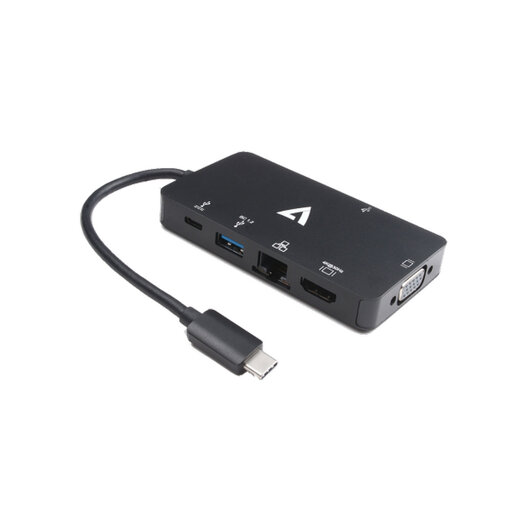
V7 V7UC-U3CRJ45HDVG-BLK USB-C Adapter
This adapter is a route for a desk needing one external display and wired peripherals, not two independent extended displays. Its named connections include 4K HDMI, VGA, Gigabit Ethernet, two USB 3.0 ports and 100W Power Delivery; check your laptop’s USB-C video and charging requirements.
Joybuy
 No image available
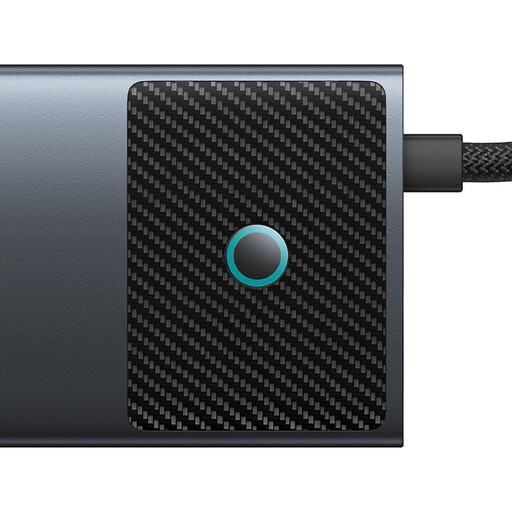
Baseus Metal Gleam Series II 10-in-1 USB-C Hub, Cosmic Black
This hub brings display, network and accessory connections together for a USB-C desk setup. Its title names separate HDMI outputs rated 4K 120Hz and 4K 60Hz, alongside USB ports, RJ45, SD/TF and a USB-C PD input; those individual HDMI ratings do not establish the mode available when both are used together. Check the laptop’s DisplayPort Alt Mode support, simultaneous display mode and power delivered to the host.
Joybuy
 No image available
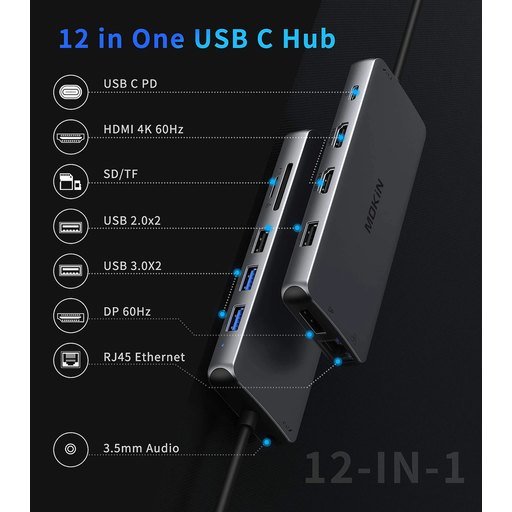
USB-C Hub with 2 HDMI, DP, USB 3.0 and USB 2.0, RJ45, PD, SD/TF and Audio
This hub lists two HDMI connections, DisplayPort, two USB 3.0 and two USB 2.0 connections, plus RJ45, PD, SD/TF and audio for a desk with several devices. Before planning multiple extended monitors, check the laptop’s display limit and the simultaneous modes you need; also confirm host charging output and Ethernet speed if either is important to your setup.
Joybuy
Laptop docking questions
Will two HDMI or DisplayPort sockets give me two extended monitors?
Not necessarily: the laptop must support the intended number of independent external displays as well as the dock’s stated mode. Check both specifications at your monitors’ planned resolutions and refresh rates; a basic splitter mirrors one signal rather than creating another extended desktop.
What should I check on a Windows laptop before buying a dual-monitor dock?
Identify the exact laptop and its graphics hardware, then check the supported external-monitor count and host-port video capability. Microsoft Support advises checking the manufacturer’s supported monitor count if a second or third display does not work as expected.
Is a USB-C dock enough to run multiple displays from a Mac?
The USB-C connection alone does not settle that question. Apple Support says the number of simultaneous displays depends on the Mac model and each display’s resolution and refresh rate, so check your model’s Display Support or Video Support specification before choosing a dock.
Can a Chromebook use a dock with multiple monitors?
It can if the particular Chromebook and connection support the intended setup. Google Chromebook Help says the model determines whether up to one, two or three external monitors can be connected; check the Chromebook’s instructions and the dock’s compatibility information.
Does a DisplayLink dock need software?
Plan for a software check before buying. DisplayLink Support documents installation for Windows and macOS; on macOS, DisplayLink Manager is required for DisplayLink products and needs Screen Recording permission. Confirm that you can install and maintain the required software on your laptop.


