What to check before choosing
USB-C docks
Consider when: the laptop’s specific USB-C port supports the dock’s video method and the operating system supports the intended two-screen arrangement.
Trade-off: a USB-C connector does not by itself confirm video support, and some hub-and-Mac combinations may mirror rather than extend displays.
Thunderbolt docks
Consider when: the laptop has a compatible Thunderbolt port and the dock’s documented display, data and power capabilities match your setup.
Trade-off: the host and operating system still determine which dock modes and charging levels apply.
USB-A DisplayLink docks
Consider when: the laptop has a compatible USB-A connection but no suitable video-capable USB-C port, and you can use the required DisplayLink software.
Trade-off: the software and operating-system requirements need checking, and USB-A does not charge the laptop through the dock connection.
Direct monitor connections
Consider when: the laptop already supports two independent external displays through its available video connections.
Trade-off: you may have more cables to reconnect, and an adapter cannot raise the laptop’s supported display limit.
USB hub with separate video adapters
Consider when: the laptop’s direct video output meets your screen needs but you also need more USB connections, or a separately checked adapter is needed for another display.
Trade-off: check each adapter’s video method, software and display limits; a plain USB hub does not add video capability.
For an existing laptop, compare its ports and display limits with the monitors and desk connections you need before choosing a dock or adapter.
| Concern |
What to check |
Who this matters to |
| A host connection that carries video |
Check the exact laptop port specification, including required Thunderbolt or DisplayPort Alt Mode support, or explicit DisplayLink support for a USB-A dock. |
If my laptop lacks a suitable video-capable USB-C port, I need a route that works with the connections it actually has; around 36% of consumers put host compatibility first. |
| Two independent screens |
Check the laptop and operating system’s display limits, whether both screens extend, and the dock’s simultaneous resolution and refresh-rate support. |
If I need two separate workspaces, I want both displays to extend at settings the complete setup supports; around 29% of consumers prioritise the independent-display result. |
| Laptop charging through the dock |
Compare the laptop’s charging requirement with the power delivered to that host, and check whether a pass-through hub requires a separate charger and cable. |
If I want to leave my laptop charger at home, I need the dock to supply suitable power to my particular laptop; around 21% of consumers put charging first. |
| Enough desk connections |
Count the USB devices you use and check the monitor inputs, host cable and whether direct video already meets your screen needs. |
If I regularly reconnect several desk peripherals, I want the setup to reduce that cable swapping without adding connections I will not use; around 14% of consumers prioritise desk consolidation. |
Joybuy product options
These Joybuy options are USB-C hubs and docks for monitor and peripheral connections. Check the exact laptop’s video-capable USB-C port, operating-system support and independent-display limits before choosing either option.
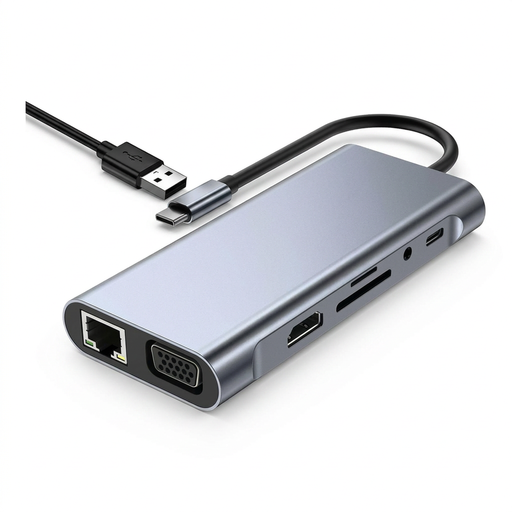 Image unavailable
USB C Hub Docking Station TW11A, 11 in 1
For a desk needing monitor outputs and USB connections, provided your laptop supports the intended video arrangement.
Listed connections include 4K HDMI, VGA up to 1920 × 1080 at 60 Hz, USB 3.0 and USB 2.0, Type-C PD input, RJ45, SD and TF card readers, and 3.5 mm AUX. The description recommends powering the hub through its dedicated Type-C PD port when using the displays.
Joybuy
 Image unavailable
Targus USB-C Universal Dual HDMI 4K Docking Station
For a USB-C laptop desk needing two monitor connections and additional peripheral ports, if the host supports the intended dual-display setup.
The listing specifies a USB-C Alt Mode host connection, two HDMI 2.0 outputs, two 4K UHD displays at 60 Hz, USB-A ports, Gigabit Ethernet and 100 W PD pass-through. It requires an external 100 W-or-higher adapter connected to the dock as its power source.
Joybuy
Laptop dock FAQs
Will a USB-A-to-USB-C adapter make a native-video USB-C dock work from my laptop’s USB-A port?
Do not assume it will. Check whether the dock explicitly supports DisplayLink or another documented USB-A video method; a native-video USB-C dock instead depends on a suitable host video connection.
What must I set up for a DisplayLink dock on a Mac?
Check the dock’s macOS compatibility and install the required DisplayLink software. DisplayLink Support says macOS users must grant DisplayLink Manager Screen Recording permission and restart the app for the change to take effect.
Can I stop using my laptop’s original charger?
Only if the host connection and dock supply suitable power to that laptop. USB Standard A-B docks do not charge the laptop through that connection, and a pass-through hub may require a separate charger and cable.
What if an online UK purchase is faulty or misdescribed?
GOV.UK says faulty or misdescribed goods carry refund rights. For eligible distance purchases, a customer can tell the seller within 14 days of receipt that they wish to cancel and then has another 14 days to return the item; check the applicable terms, as a manufacturer’s warranty is not the only remedy.
Must an electrical dock or supplied mains equipment have UKCA rather than CE marking throughout the UK?
No single UKCA-only rule applies throughout the UK. GOV.UK sector guidance dated 31 March 2026 lists UKCA or CE for electrical equipment placed on the Great Britain market, and CE or UKNI together with CE for Northern Ireland. These are product-market requirements, not confirmation that a particular dock has been certified.


