Choose a powered USB-C dock for a fixed desk if your laptop supports the displays and charging you need through its USB-C port. A Thunderbolt dock makes more sense when a compatible laptop needs more high-speed connections; a USB-C hub suits a simpler desk. Check the laptop’s external-display limit and the dock’s delivered charging output before buying, and consider DisplayLink only if its software requirements work for you.
Who needs a desk dock?
Multi-monitor desk workers
If you use two or more independent external screens, check the exact laptop’s display limit as well as the dock’s stated resolution and refresh-rate arrangement. Apple Support and Microsoft Support both describe host-side limits that matter here.
One-cable desk users
If a display, keyboard, mouse, webcam, headset and wired network stay at your desk, a dock can keep those connections together. Laptops Direct identifies this as a home-office use case; the ports you need still have to match your equipment.
Users with demanding peripherals or charging needs
If you connect fast storage or many devices, check the laptop’s Thunderbolt or USB4 capability and the dock’s host connections. For laptop power, compare the delivered charging rating with your laptop’s requirements rather than relying on the connector alone.
What matters when choosing?
Start with what your laptop can output and accept, then choose the connections that need to stay at your desk.
Powered USB-C dock
Consider it: for a fixed desk needing displays, peripherals and wired networking through one compatible laptop connection.
Bear in mind: USB-C port shape alone does not establish video output, charging or independent-display support, as Laptops Direct notes.
Thunderbolt dock
Consider it: when a Thunderbolt or USB4 laptop needs extensive connections or fast external peripherals.
Bear in mind: CalDigit says full TS4 functionality depends on the host; a dock cannot remove the laptop’s own display limits.
USB-C hub
Consider it: when one display and a few accessory connections cover your desk.
Bear in mind: check separately whether the particular hub provides the network connection and laptop charging you need.
DisplayLink-capable dock
Consider it: for additional displays only after checking the exact laptop, operating system and dock compatibility.
Bear in mind: DisplayLink requires software; DisplayLink Support says macOS users must grant DisplayLink Manager Screen Recording permission.
| Concern |
What to check |
Who this matters to |
| Independent displays |
Match the exact laptop’s external-display limit and video-capable port to the intended screen count, resolution and refresh rate. |
I need separate desktops on my monitors, not the same picture twice. Around 36% of consumers put confirmed independent-display support first. |
| One-cable desk connections |
Count the USB device types you use and check for the audio and Ethernet connections your desk requires. |
My regular peripherals should stay connected when I take the laptop away. Keeping those desk connections together is the main concern for around 29% of consumers. |
| Laptop charging |
Compare the dock’s delivered host-charging rating and required power supply with the laptop’s charging specification. |
I want the desk connection to power my laptop without relying on an unsuitable charging rate. Around 21% of consumers prioritise that charging fit. |
| Basic expansion |
Decide whether one external display and a limited set of ports are enough, including whether you will use a separate charger. |
If my desk uses only a screen and a few accessories, I do not need connections I will leave unused. Simpler expansion comes first for around 14% of consumers. |
Mistakes to avoid
-
Assuming every USB-C port supports the same setup
USB-C ports can differ in video, data and charging support. A dock’s connection list cannot override the laptop’s port or graphics limits.
Look up the exact laptop model and check its host-port functions and external-display support before choosing a dock.
-
Counting video sockets instead of independent screens
Two outputs do not, by themselves, establish that a laptop can extend its desktop across two monitors. Microsoft Support notes that an ordinary splitter duplicates one signal.
Check the complete laptop-and-dock display arrangement against your monitors’ resolution and refresh rate.
-
Reading a power figure as guaranteed laptop charging
A stated power figure may describe an input or a maximum under particular conditions, rather than what reaches your laptop.
Check the dock’s delivered host-charging rating, its required power supply and whether your laptop accepts charging through that port.
-
Choosing DisplayLink without planning for software
DisplayLink-based displays depend on compatible software. DisplayLink Support says DisplayLink Manager on macOS needs Screen Recording permission.
Confirm the dock chipset and operating-system support, and make sure you can install the software and grant the required permission.
Brands to consider for desk docking
Targus
Targus offers USB-C docking options aimed at desks needing conventional display, USB, network and audio connections.
- Targus UK specifies dual 4K 60Hz output, Gigabit Ethernet and up to 100W Power Delivery for its DOCK182EUZ model.
- That model’s stated setup still depends on the laptop’s compatible display output and charging support.
CalDigit
CalDigit’s TS4 is a Thunderbolt-oriented option for a fixed workstation with many connections.
- CalDigit UK Shop lists 18 ports, up to 98W host charging and 2.5GbE for the TS4.
- CalDigit says full functionality depends on the host computer; USB-C hosts have reduced functionality, and display support varies by host.
Plugable
Plugable provides model-specific guidance for Thunderbolt, USB4, USB-C and DisplayLink display setups.
- Plugable’s TBT4-UDZ guidance separates display possibilities by host connection and computer hardware.
- A supported monitor arrangement for one laptop or Mac generation should not be assumed to work on another.
Joybuy products for desk connections
These USB-C docks and hubs address fixed-desk connections, from a simpler set of accessories to setups with several display connectors. Match each product’s ports and charging arrangement to your exact laptop; the products below do not represent the Thunderbolt or DisplayLink routes.
 No image available
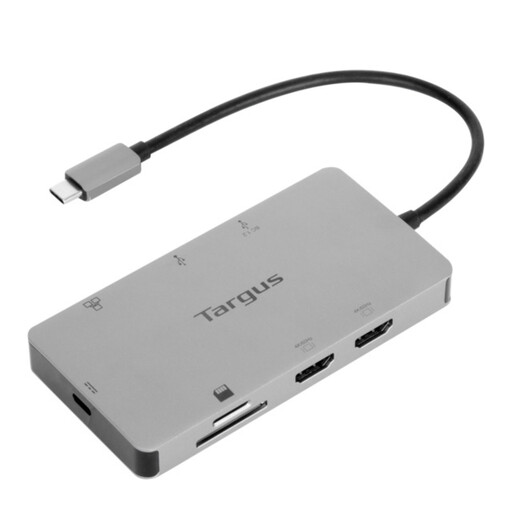
Targus USB-C Universal Dual HDMI 4K Dock with 100W Power Delivery Pass-Thru (Retail Packaging)
Consider this dock if you want to connect desk peripherals alongside HDMI displays and need to assess laptop charging through the same setup.
The product title specifies dual HDMI 4K connections and 100W Power Delivery pass-through. Check whether your laptop supports the intended independent-display arrangement and what power supply the dock requires.
View on Joybuy
 No image available
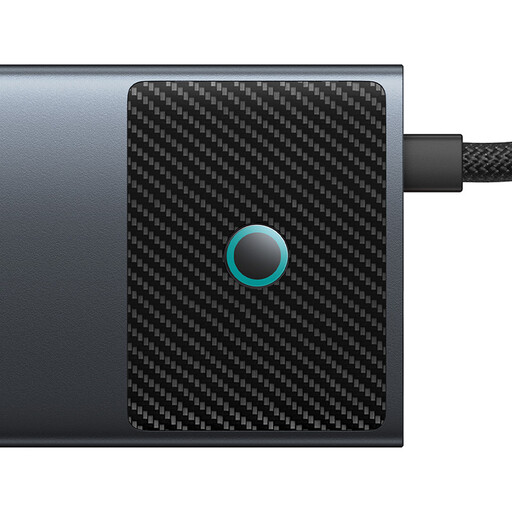
Baseus Metal Gleam Series II 10-in-1 USB-C Hub, Cosmic Black
This hub is worth considering when a fixed desk needs HDMI, USB devices, a network cable and card access together.
Its title lists separate HDMI outputs rated at 4K 120Hz and 4K 60Hz, USB-A and USB-C data ports, RJ45, SD/TF slots and USB-C PD input. Confirm the simultaneous display modes supported with your laptop and the power actually delivered to it.
View on Joybuy
 No image available
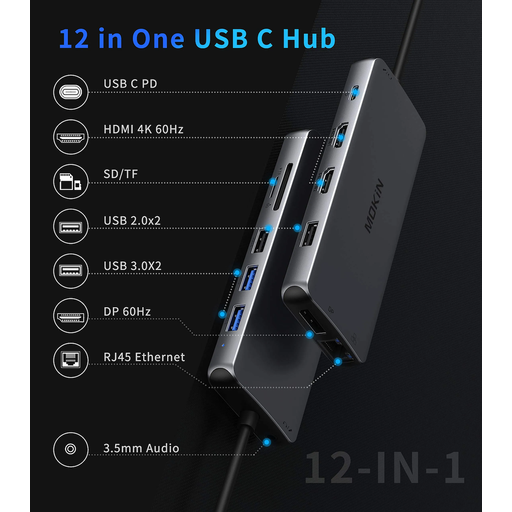
USB-C Multiport Hub with 2 HDMI, DisplayPort, RJ45, PD, SD/TF and Audio
Consider this connection mix if your desk has varied display cables and peripherals, provided the supported display arrangement matches your laptop.
The title also lists two USB 3.0 and two USB 2.0 ports. Check the independent-screen modes, Ethernet speed and laptop charging output needed for your setup.
View on Joybuy
 No image available
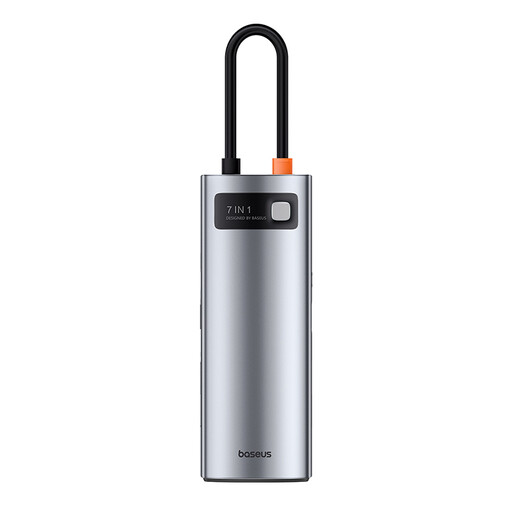
Baseus Metal Gleam Series 7-Port USB-C Hub, Grey
This hub may suit a simpler desk where one external display and accessory expansion meet your needs.
Check the display connection against your laptop and monitors. If you want the hub to charge the laptop, confirm the required separate power supply and the delivered charging output.
View on Joybuy
 No image available
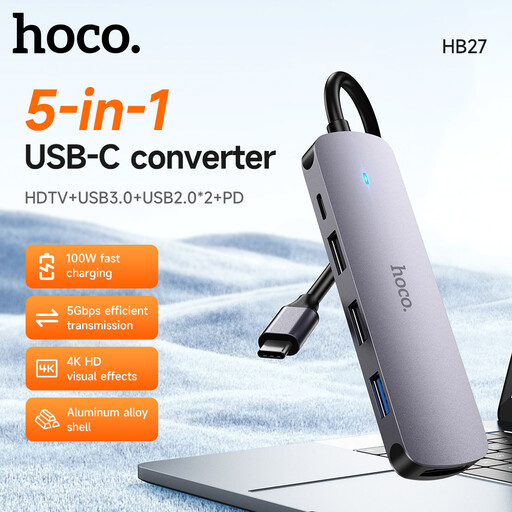
HOCO HB27 USB-C Hub, Metal Gray
Consider this hub for basic desk expansion only after checking that its connections cover the devices you leave at your desk.
If display output, wired networking, audio or laptop charging matters to you, check the full port and power specifications against your laptop before choosing it.
View on Joybuy
Common questions
Can any USB-C laptop use a dual-monitor dock?
No: a USB-C connector does not guarantee the video capability needed for two independent screens. Check your exact laptop’s external-display limit and host-port features, then match them to the dock’s stated resolution and refresh-rate configuration.
Why might two display sockets show the same picture?
Two sockets alone do not establish two independent video signals. Microsoft Support notes that an ordinary splitter duplicates a signal; check the laptop’s graphics and display support as well as the dock configuration if you need an extended desktop.
What does a DisplayLink dock require on a Mac?
A compatible DisplayLink setup requires DisplayLink Manager on macOS. DisplayLink Support says you must grant the app Screen Recording permission and restart it after granting permission; check compatibility with your exact Mac and dock before buying.
Will a dock labelled 100W charge my laptop at 100W?
Not necessarily: the label may not describe power delivered to your particular laptop. Check the dock’s upstream charging output, its required power supply and whether your laptop accepts charging through the connected port.


