Daily one-cable desk users
You regularly reconnect a laptop to a monitor, input devices, network and power, and want to check whether one supported host connection can handle the setup.


Start with your exact laptop and the screens you want to use: one external monitor may need only a compatible cable, while regularly reconnecting displays, peripherals, Ethernet and power can make a dock useful. Choose USB-C or Thunderbolt only if your laptop supports the dock’s intended display arrangement, and consider DisplayLink only if its software and permissions suit your setup.
You regularly reconnect a laptop to a monitor, input devices, network and power, and want to check whether one supported host connection can handle the setup.
You need independent external displays and must check the exact laptop or chip’s display limits before comparing native docks with software-based DisplayLink.
You mainly need one external screen and want to know whether a direct cable or a docking monitor will meet your needs without a separate dock.
Decide how many screens and desk connections you need, then check the laptop’s port, display and charging support before settling on a dock or simpler setup.
| Concern | What to check when buying | Who this matters to |
|---|---|---|
| Connecting the regular desk | Check that the laptop host port supports the dock’s required video and data connection, and that its ports match the desk devices. | When I reconnect my monitor, peripherals, network and power most days, I want fewer separate connections. Around 32% of consumers put routine desk connection first. |
| Running independent screens | Check the exact laptop model or chip’s supported screen count and settings, then confirm the dock’s video method fits. | If I need several independent screens at their intended settings, I want the laptop and dock combination to support them. Around 25% of consumers prioritise multi-screen compatibility. |
| Charging through the setup | Compare the power delivered to the laptop with its charging requirement, and check the exact adapter and bundle. | When I want desk charging through the same connection, I need the dock’s host power and supplied equipment to suit my laptop. Around 19% of consumers prioritise laptop power. |
| A simpler single-screen setup | Check whether a compatible direct cable or docking monitor provides the display, connections and power you actually need. | If I mainly use one external screen, I would rather avoid a full dock unless it adds a needed connection. Around 12% of consumers prioritise a simpler setup. |
| Wired network access | Check for an Ethernet port on the dock or accessory, and whether other desk devices also need to reconnect. | When wired networking is my main missing connection, I want to compare a dedicated adapter with a dock that also handles other devices. Around 12% of consumers prioritise wired networking. |
A USB-C port may not provide the video or charging functions you need, so a dock can fit physically but fail to deliver the intended setup.
Check the exact laptop’s port specification, then compare it with the dock’s host connection and power output.
The laptop’s display limit and the dock’s video method both affect whether the planned screens can work independently.
Check the complete laptop-and-dock combination for your screen count, resolution and refresh rate.
DisplayLink uses software. On macOS, DisplayLink Manager requires Screen Recording permission, and DisplayLink Support notes that some protected video may not play while DisplayLink screens are connected.
Before choosing this route, check operating-system support, permission policies and whether the protected-video limitation affects your use.
Manufacturer specifications can set different host-power limits by laptop brand or require particular equipment and connection conditions.
Compare the power delivered to your laptop—not just the dock’s headline rating—with its charging requirement and the exact product bundle.
Lenovo’s ThinkPad Universal USB-C Dock 40AY0090UK is one option to assess for a one-cable desk; docking monitors are another approach if you are comparing a combined screen and connection setup.
The Dell Pro Thunderbolt 4 Dock WD25TB4 is a fixed-desk Thunderbolt option to assess with a compatible laptop.
The TS4 is a Thunderbolt dock to consider when its connections suit a compatible fixed-desk setup.
The A83B3 is a DisplayLink-capable option to assess if you are considering software-driven additional displays and multiple desk connections.
These Joybuy options relate to home-office laptop connections, from multi-connection docks to simpler display and network adapters. Confirm your laptop’s video, charging and display support before choosing.
 Image unavailable
Consider it for a desk that needs display, network and peripheral connections, provided your laptop supports the dock’s video method.
Listed features include dual HDMI outputs, Gigabit Ethernet and 100W PD pass-through. The description specifies USB-C Alt. Mode for video and an external 100W+ adapter as the power source.
 Image unavailable
Consider it when you need several desk connections and your laptop supports the intended video and power arrangement.
The listed connections include up to four 4K@60Hz video outputs, USB data ports and RJ45. Its PD input is specified at up to 100W; check the laptop-and-dock combination for the number of independent screens it supports.
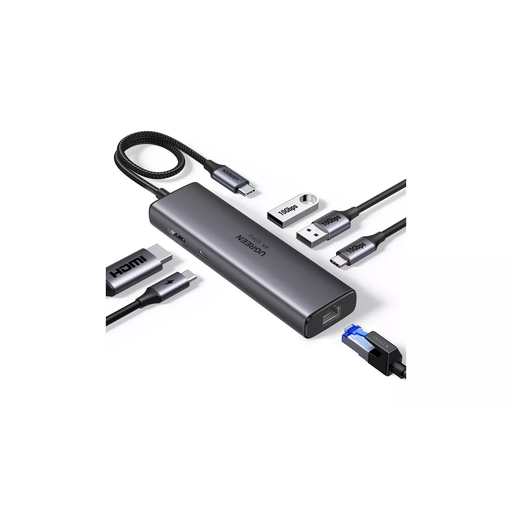 Image unavailable
Consider it for a desk using a display, USB peripherals and wired networking, after confirming the laptop supports its video and charging connections.
The listed features include HDMI up to 4K@60Hz, Gigabit Ethernet and up to 100W PD pass-through.
 Image unavailable
Consider it for a desk needing two HDMI connections and wired network access, if the laptop supports USB-C DisplayPort Alt Mode.
The listed HDMI outputs are up to 4K@120Hz and 4K@60Hz, with RJ45 up to 1000Mbps and a PD input up to 100W. Video output requires a connected device that supports USB-C DisplayPort Alt Mode.
 Image unavailable
Consider it for a simpler setup with one external display, wired networking and USB peripherals, provided the laptop supports the required connection.
The adapter is specified for single-display operation, with HDMI up to 4K@30Hz, VGA up to 1920x1200 and Gigabit Ethernet.
No. Check the exact laptop model and port, because a USB-C connector alone does not establish video or charging support. Then compare the laptop’s supported displays and power requirements with the particular dock.
A hub or daisy-chain arrangement does not raise the Mac’s maximum external-display count, according to Apple Support. Check your exact Mac model and supported resolution and refresh-rate combination; if you are considering DisplayLink instead, account for its software and permission requirements.
Install compatible DisplayLink Manager software and grant the macOS Screen Recording permission it requires. If the laptop is managed by your employer, check that the software and permission are allowed before choosing this route.
If the UK display-screen-equipment rules apply to your home or hybrid work, your employer should assess the workstation. The Health and Safety Executive says workers cannot be charged for equipment that an applicable assessment identifies as necessary action; this does not apply to every occasional home laptop user.