What matters when choosing a dock or hub?
Decide what the laptop can connect first, then list the screens, power and peripherals you want at the desk. That distinction helps you choose between a direct adapter, a portable hub, a powered dock and a software-dependent display connection.
| Concern | What to check | Who this matters to |
|---|
| Video compatibility |
Find the exact laptop model’s external-display limit and video-capable port specification. Match these to the dock’s display modes and your monitors. |
If I am setting up an external screen, I need to know the laptop can drive it before counting sockets on a dock. Around 36% of consumers put host and display compatibility first. |
| Charging and peripherals |
Compare power delivered to the host with the laptop’s charging requirement, including any brand-specific conditions. Check the required USB, Ethernet and other desk connections. |
When I return to my regular desk, I want charging and everyday devices to reconnect through one cable. For roughly 29% of consumers, that is the primary need. |
| Multiple displays and software |
Check the screen count, resolution and refresh rate for the laptop and dock together. If an output uses DisplayLink, confirm operating-system support and permission to install its software. |
With several screens or a managed work laptop, I need a display method I can actually use under my device restrictions. That comes first for around 21% of consumers. |
| Portability |
List the connections you need away from your main desk. Compare a compact hub or adapter’s ports, charger arrangement and size with a powered dock. |
If I carry the connection between locations, I would rather take a smaller accessory than unused desk capacity. Around 14% of consumers prioritise that lighter setup. |
Joybuy options for a hybrid-work desk
These options cover USB-C docks, multiport hubs and a single-display adapter for reconnecting a laptop at a desk or carrying connections between locations. Choose by the connections you need, then confirm the exact laptop’s video and charging compatibility.
 No image available
Targus USB-C Universal Dual HDMI 4K Docking Station, 100W PD Pass-Thru
For a desk where two HDMI connections are a priority, check that your laptop supports the intended display arrangement. The product name specifies 100W Power Delivery pass-through; confirm the power delivered to your laptop and whether the required external adapter is included.
View on Joybuy
 No image available
V7 V7UC-U3CRJ45HDVG-BLK USB-C Adapter
For a lighter desk setup centred on one external display, choose between its HDMI and VGA connections to match your monitor. Its named connections also include Gigabit Ethernet, two USB 3.0 ports and 100W Power Delivery; check laptop video support and delivered charging before buying.
View on Joybuy
 No image available
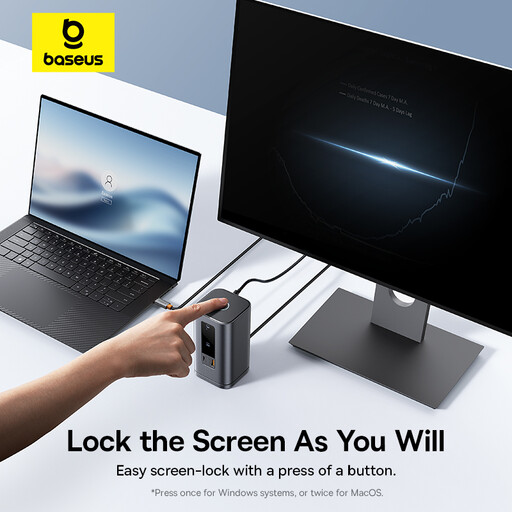
Baseus Wisdom Series 11-in-1 (WIN) Workstation, Space Gray
Consider this workstation hub if several desk connections need to come together. Before relying on a particular multi-screen arrangement or laptop charging through the hub, check the modes supported by your laptop and the power delivered to it.
View on Joybuy
 No image available
USB-C Hub with 2 HDMI, DP, USB, RJ45, PD, SD/TF and Audio
For a desk needing several types of connection, its name identifies two HDMI ports, DisplayPort, two USB 3.0 ports, two USB 2.0 ports, RJ45, PD, SD/TF and audio. Confirm the usable display modes with your exact laptop and check its charging requirements before treating those connections as a complete one-cable setup.
View on Joybuy
 No image available
HOCO HB28 USB-C Multi-Function Converter, Metal Grey
For a simpler display-and-peripheral connection, the named ports are HDTV, USB 3.0, USB 2.0, SD, TF and PD. Check your laptop’s video mode, the display output you require and the charging power available through the converter.
View on Joybuy
Questions before choosing a dock
How can I tell whether my laptop’s USB-C port supports a monitor?
Check the specifications for your exact laptop model and port for a documented video-output mode, such as DisplayPort Alt Mode or Thunderbolt. The USB-C connector shape alone does not establish video support; Apple Support also advises Mac users to check their model’s display limits.
Will a dual-monitor dock run two screens from any laptop?
No: the dock’s display specification applies under its stated conditions, and the laptop may support a different number of external screens. Compare the laptop’s official display specification with the dock’s modes, including the resolution and refresh rate you intend to use.
When should I consider a DisplayLink dock?
Consider a DisplayLink model when its software-driven outputs meet your additional-screen needs and its requirements fit your laptop. Plugable and DisplayLink explain that these outputs can require software, so confirm operating-system support and installation permission on an employer-managed device.
How much charging power does my dock need to deliver?
Compare power delivered to your type of laptop with the laptop’s documented charging requirement, rather than relying on the largest figure in a dock title. Dell, for example, specifies different WD25TB4 power limits for Dell and non-Dell systems; also check whether the dock needs a separate power supply.
What if an online-purchased dock is faulty or not as described?
Faulty or misdescribed goods can give rise to statutory remedies under the UK Consumer Rights Act 2015, distinct from a retailer’s change-of-mind policy. GOV.UK provides guidance on returns and remedies; keep the listing and order details so you can show what was described and agreed.


