Choose the microphone connection before comparing dock port counts: a USB microphone needs a suitable spare USB data port, while a 3.5 mm microphone needs an audio-input arrangement compatible with its plug. Then check the exact laptop’s dock connection, monitor support and charging requirements; a dock’s advertised ports alone cannot establish what the whole shared workstation will do.
Who needs which setup?
The microphone’s connector determines the first check; the other devices and laptops sharing the desk determine the rest.
Analogue-microphone desk users
If you use a 3.5 mm microphone or wired headset, look for a dock-side audio input that works with its plug, rather than assuming extra USB ports solve the connection. CalDigit lists a front combo port and separate rear audio input on the TS4; Kensington lists a combo jack on the SD5700T. Neither port description establishes compatibility with every microphone or adaptor.
USB-microphone shared-desk users
If the microphone connects by USB, count it alongside the keyboard, mouse and other devices that stay at the desk. Check the laptop’s connection and display capabilities before relying on the dock to reconnect everything with one cable.
IT-managed hot-desk teams
If different laptops regularly use the same desks, charging and management requirements may matter alongside a USB microphone. Dell lists management-related features for the SD25TB4, but specifies different charging figures for Dell and non-Dell systems.
What matters when choosing?
Start with the microphone plug, then map every device at the desk and check the capabilities of each laptop that will use it.
| Concern |
What to check |
Who this matters to |
| Analogue microphone input |
Identify the microphone’s 3.5 mm plug type and confirm that the dock’s input or combo jack accepts it. |
If my microphone or wired headset has a 3.5 mm plug, I need a compatible input on the dock rather than just an audio-out socket. Around 33% of consumers put this connection first. |
| USB microphone and desk devices |
Allow a USB data port for the microphone, then check the remaining peripherals and the laptop’s monitor support. |
When I change desks or laptops, I want the USB microphone and everyday peripherals to reconnect without rearranging cables. This is the primary need for around 42% of consumers. |
| Shared-laptop charging and management |
Compare each laptop’s charging requirement with the applicable dock figure, and check whether the organisation uses its management features. |
For a managed hot desk, I need the dock to work with the laptops that rotate through it, not just one machine. Around 25% of consumers prioritise that consistency. |
Mistakes to avoid
-
Assuming a matching USB-C plug enables every dock feature
USB-C describes the connector, not an identical set of data, video and charging capabilities on every laptop. Laptops Direct advises checking the exact laptop’s port specification before comparing docks.
Check that laptop’s external-display limits and charging requirements against the dock’s supported setup.
-
Taking any audio jack as a microphone input
An audio-out socket is different from an input, while a combo jack’s label does not establish that every standalone microphone plug or adaptor will work.
Match the microphone’s connector to the dock’s documented input arrangement and seek model-specific confirmation for a 3.5 mm setup.
An incompatible plug arrangement may call for a correctly wired adaptor or a separate USB audio interface.
-
Using the highest charging figure for every laptop
Dell UK specifies 130 W power delivery for Dell systems and 96 W for non-Dell systems on the SD25TB4. A shared desk with different laptops should not treat the Dell-system figure as universal.
Compare the applicable figure and connection requirements with each laptop intended for that desk.
-
Counting ports without planning the whole workstation
A port total does not show which connections remain available once the microphone, displays, network and other peripherals are in place. The laptop’s supported display and connection features also matter.
Make a connection list for the desk, then check the dock and laptop specifications together.
Brands to consider for this setup
These model examples illustrate different connection priorities; check the exact dock and laptop combination rather than treating a brand name as a compatibility guarantee.
CalDigit
The TS4 is a desk-dock example for users who want a stated analogue audio-input arrangement alongside USB connections.
- CalDigit lists a front 3.5 mm combo audio input/output, a separate rear audio input, three Thunderbolt 4 ports, three USB-C ports, five USB-A ports and up to 98 W host charging for the TS4.
- CalDigit says full functionality depends on the host computer; confirm the microphone plug and the laptop’s supported features before choosing it.
Kensington
The SD5700T is a Thunderbolt 4 desk-dock example with a headset-style audio combo jack.
- Kensington’s 2021 SD5700T announcement lists four Thunderbolt 4 ports, four USB-A ports, Gigabit Ethernet, an audio combo jack and 90 W power delivery for the specified Thunderbolt-capable laptops.
- Confirm that the particular microphone or headset works with its combo jack and that the laptop meets the dock’s connection requirements.
Dell
The SD25TB4 is an option to assess for IT-managed desks where the microphone connects by USB.
- Dell UK lists six USB ports and management-related features for the SD25TB4, with 130 W power delivery for Dell systems and 96 W for non-Dell systems.
- Check the applicable charging and management requirements for the laptops in use. If you need a 3.5 mm microphone input, confirm that connection for the exact model before choosing it.
Joybuy products for shared desks
These USB-C docking options are worth assessing for a shared desk with a USB microphone. If you use an analogue microphone, check the specific dock’s audio-input compatibility before treating its 3.5 mm connection as a solution.
 No image available
MOVESPEED DK5A1 10-in-1 USB-C docking station
Consider this for a desk that needs USB peripherals alongside a listed 3.5 mm audio connection; confirm the microphone’s plug compatibility before relying on the analogue route.
The product title specifies 4K at 60 Hz HDMI, 10 Gbps USB-C, 10 Gbps and 5 Gbps USB-A, and SD/TF slots rated at 160 MB/s. Check the exact laptop’s display and charging support separately.
View on Joybuy
 No image available
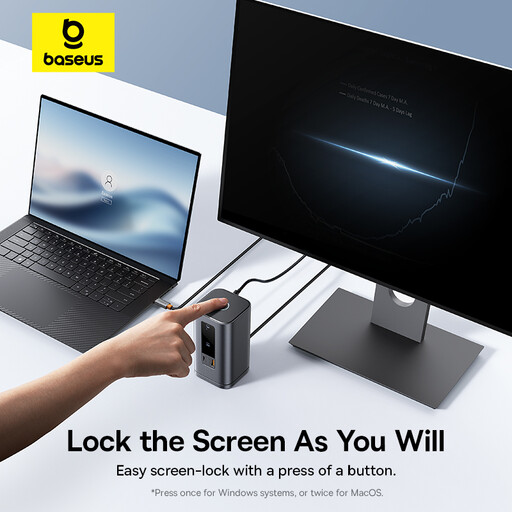
Baseus Wisdom Series 11-in-1 WIN Workstation, Space Gray
For a USB-microphone desk, confirm that a suitable data port remains free after the other peripherals are connected. Check the exact laptop’s display and charging requirements, and confirm an audio input separately if the microphone uses a 3.5 mm plug.
View on Joybuy
 No image available
USB-C dock with 2 HDMI, DP, USB 3.0/2.0, RJ45, PD, SD/TF and audio
Assess this for a USB microphone and other desk peripherals, allowing one of its USB data ports for the microphone. Its title lists two HDMI connections, DisplayPort, two USB 3.0 ports, two USB 2.0 ports, RJ45, PD, SD/TF and audio; confirm the laptop’s display and charging support and do not assume the audio connection accepts a microphone.
View on Joybuy
 No image available
Targus USB-C Universal Dual HDMI 4K Docking Station, 100W PD Pass-Thru
Consider this for a USB-microphone desk after checking that a suitable USB data port is available. The title specifies dual HDMI 4K connections and 100 W power-delivery pass-through; confirm what the exact laptop supports and whether its charging setup meets your needs. Confirm a separate input arrangement if your microphone is analogue.
View on Joybuy
Frequently asked questions
Do I need a microphone jack on the dock for a USB microphone?
No dedicated analogue microphone jack is needed for a USB microphone. Check for a suitable spare USB data port, the laptop’s dock compatibility and enough connections for the other devices at the shared desk.
Will any 3.5 mm dock jack accept my microphone?
No: an audio-out jack is not a microphone input, and a combo jack does not establish compatibility with every plug. Check the microphone’s connector against the dock’s documentation. CalDigit lists both a combo port and rear audio input on the TS4, while Kensington lists a combo jack on the SD5700T.
What should I check before setting up a shared-office dock?
Start with the exact laptops that will use the desk. Check their port capabilities, required monitor resolution and refresh rate, charging needs and the connections needed for the microphone and other peripherals; a physically matching USB-C connector does not establish that every display or power feature will work.


