What to check before buying
For a home or hybrid desk built around a laptop, identify your primary connection need before choosing the hardware. Every screen arrangement still needs to be checked against the exact laptop model.
| Concern | What to check | Who this matters to |
|---|
| First-screen connection |
Confirm the laptop’s video-capable output and match it to the monitor input and cable. A USB-C port needs documented video support for a native USB-C display connection. |
If I only need one extra screen, I want a connection my laptop can actually drive without adding an unnecessary dock; about 29% of consumers put that direct-connection need first. |
| One-cable desk setup |
Match the dock’s host interface and display modes to the laptop, then compare its host charging output with the laptop’s requirements. |
When I reconnect peripherals at my desk, keeping those connections together matters more to me than a standalone screen cable; about 36% of consumers make desk expansion their primary need. |
| Extra screens beyond a native connection |
For a DisplayLink dock, check the required software, operating-system and processor support, USB connection and intended workloads. |
My available ports or native display limit complicate adding screens, so I need a compatible alternative; roughly 21% of consumers prioritise that workaround. |
| Workstation assessment |
UK employees who use display screen equipment daily for continuous periods of an hour or more and work at home long term or routinely split time between home and workplace should ask about the employer’s assessment and equipment arrangements, as described by the Health and Safety Executive. |
Before buying equipment for my home workstation, I need to establish what an employer assessment calls for; about 14% of consumers put that decision first. |
Joybuy products for laptop desk setups
These monitors, a single-display adapter and USB-C desk docks address different ways to add screen space or connect peripherals. Choose the connection method only after checking your laptop’s ports and display support.
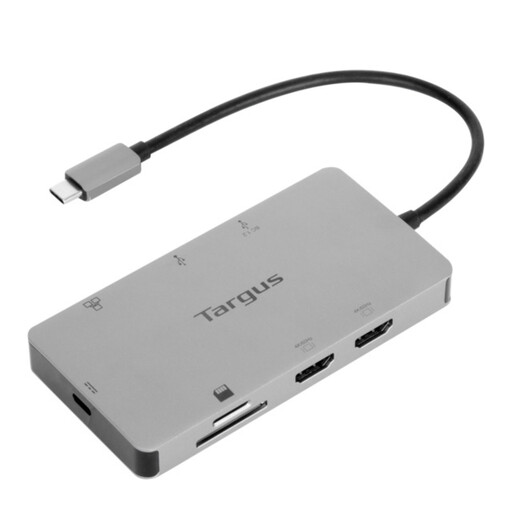 Image unavailable
Targus USB-C Universal Dual HDMI 4K Dock, 100W PD pass-through
For a desk where two external screens and peripheral connections need to run through one dock, this Targus model lists two HDMI outputs, dual 4K UHD at 60Hz, Gigabit Ethernet, USB-A ports and card readers.
Its 100W power-delivery pass-through uses an external adapter. Confirm that your laptop supports the intended two-display arrangement and check which power adapter is supplied and whether it meets the laptop’s charging needs.
Joybuy
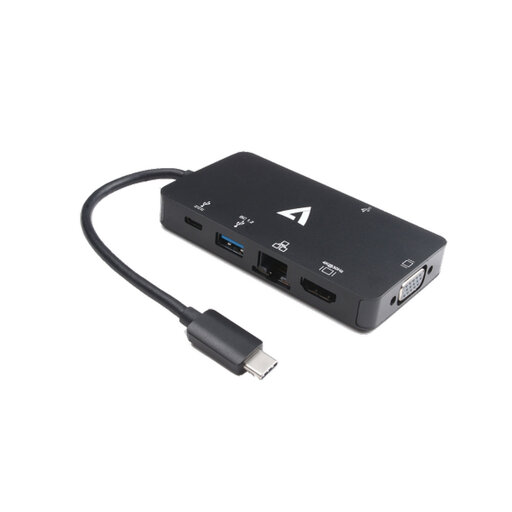 Image unavailable
V7 V7UC-U3CRJ45HDVG-BLK USB-C HDMI and VGA adapter
For one external screen alongside wired networking and USB peripherals, this adapter lists HDMI up to 4K at 30Hz, VGA up to 1920×1200, Gigabit Ethernet and two USB 3.0 ports.
It operates with a single display rather than two simultaneous external monitors and lists 100W USB-C power-delivery pass-through. Confirm the laptop’s USB-C video and charging compatibility and whether a suitable charger is supplied.
Joybuy
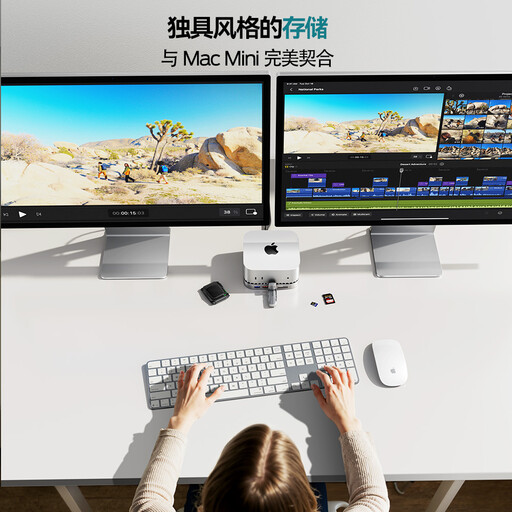 Image unavailable
MOVESPEED DK5A1 10-in-1 USB-C docking station
For a single external screen with additional desk connections, the DK5A1 lists one HDMI output at up to 4K at 60Hz, USB-C and USB-A data ports, SD/TF readers and a 3.5mm audio connection.
Check that the laptop’s USB-C connection supports the required video output. Its listed USB-C 5V 3A output should not be assumed to meet the laptop’s host-charging requirements.
Joybuy
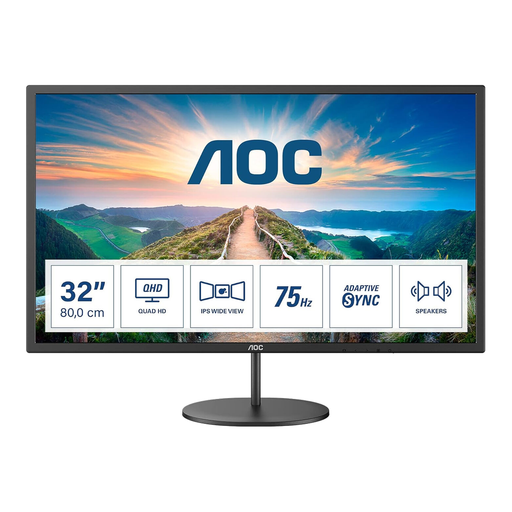 Image unavailable
AOC Q32V4 31.5-inch QHD IPS monitor
For adding a larger external workspace to a laptop desk, the Q32V4 lists a 31.5-inch IPS panel at 2560 × 1440, a 75Hz refresh rate, HDMI and DisplayPort inputs.
It also lists built-in speakers and VESA 100 × 100 compatibility. Check that the laptop and chosen cable support the resolution and refresh rate you intend to use.
Joybuy
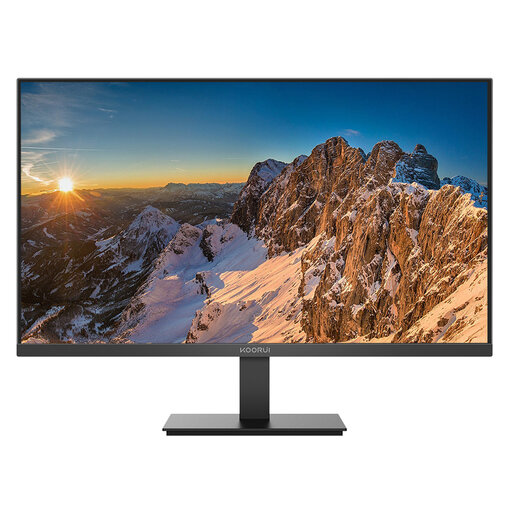 Image unavailable
KOORUI E2412F 24-inch FHD monitor
For a dedicated external screen at a laptop desk, the E2412F lists a 24-inch FHD IPS panel, 60Hz refresh rate, and HDMI and DisplayPort inputs.
Its listed tilt range is −5° to 15°. Match the required video cable and connection to the laptop before choosing it.
Joybuy
Common questions
Does a USB-C port mean I can connect a monitor?
No: the connector’s shape does not establish that the port carries native video. For the USB-C display-adapter route described by the Video Electronics Standards Association, check that the exact laptop port supports DisplayPort Alt Mode; another documented video-capable connection may offer a different route.
Can a dock give my laptop more screens than it supports natively?
A native-video dock does not by itself increase the laptop’s supported external-display count. Check the exact model and intended resolution and refresh rate; Apple Support notes that these factors determine how many external displays a MacBook Pro can use. DisplayLink is a separate software-based option with its own compatibility and workload requirements.
When should I consider a USB-A DisplayLink dock?
Consider one if a supported laptop needs extra displays for productivity work but its native video connections are unavailable or insufficient. Check the dock’s USB, operating-system, processor and software requirements first; Plugable does not recommend its UD-6950H for gaming, video playback or 2D/3D graphics tools.
Must my UK employer provide a home-working monitor or dock?
Not automatically. The Health and Safety Executive says display screen equipment requirements can apply to permanent, long-term or routinely hybrid home workers who use it daily for continuous periods of an hour or more. The individual workstation assessment determines what action is needed; where it indicates that DSE equipment must be provided, workers cannot be charged for it.
What should I check if a dock will charge my laptop?
Compare the dock’s stated host charging output and compatibility conditions with your laptop’s power requirements, and check whether a suitable power adapter is included. Output can vary by host: Dell UK lists up to 130W for Dell systems and 96W for non-Dell systems on its WD25TB4 dock.


