Choose a dock if you regularly reconnect several desk devices through one laptop connection, particularly displays, USB peripherals, wired networking and charging. A smaller hub suits fewer connections; if your laptop already has the ports you need, an approved spare charger or cables kept at each desk may address the inconvenience more simply. Before buying, check your exact laptop’s video and charging capabilities, intended monitor setup and any workplace restrictions.
Who needs to reconnect a laptop regularly?
The Health and Safety Executive includes people who routinely split their time between home and a workplace in its hybrid-working guidance.
People moving between two regular desks
If you take the same laptop between home and work, consider how many display, keyboard, mouse, power and network connections you make each time. A dock is most relevant when several of those devices stay at each desk.
Workers using external monitors
Monitor count can determine the choice of dock or hub. Check the laptop’s video connection and supported display configuration as well as the ports on the accessory; a second socket does not guarantee a second working screen.
Employees with managed laptops
Ask your IT team about permitted docks, USB accessories and networking before purchasing. The UK National Cyber Security Centre notes that organisations may restrict external interfaces and peripheral access.
What should you check before choosing?
Start with what you reconnect at each location, then check whether the laptop and any employer requirements allow the proposed setup.
| Priority | What to check | Your needs |
|---|
| Connections at each desk |
Count the displays, USB devices and wired network connections used at each location. Decide whether they need one laptop-side connection or can remain on separate cables. |
I reconnect several desk devices on most moves, so a dock could simplify the laptop-side setup. If I mainly move a charger or a few cables, I may not need extra ports. |
| Display compatibility |
Check the exact laptop port’s video protocol, then match the laptop, operating system, dock and monitors for the intended screen count, resolution and refresh rate. USB-C shape alone does not establish video support. |
Will my existing laptop run the monitors I use at each desk? A hub or dock with multiple display sockets is only useful if the complete setup supports them. |
| Charging |
Compare the laptop’s approved charging method and power requirement with the accessory’s stated delivery to that host. Check what power supply and cables come with it. |
Charging is my main repeated connection, so a spare approved charger might be enough. If I want charging through a dock, I need to confirm the output available to my laptop. |
| Portability |
Decide what stays at each desk and what travels. Check whether a hub has the connections you actually use; a cable set adds no laptop ports. |
I carry the laptop often and want fewer accessories in my bag, or I can leave compatible cables at both regular locations. |
| Workplace approval |
Ask IT whether the proposed USB or Thunderbolt accessory, Ethernet connection and any required software or firmware updates are permitted on the managed laptop. |
My work device is managed, so I need an option my employer allows before I rely on it at either desk. |
What can go wrong with a dock or hub?
-
Assuming every USB-C socket carries video
USB-C identifies the connector, not every function available through it. Microsoft Learn explains that DisplayPort video over USB-C uses an alternate mode, so an HDMI socket on a hub does not establish that the laptop can drive it.
Check the exact laptop model’s port documentation for its supported video or docking method before choosing display outputs.
-
Buying for the dock’s maximum screen claim
The laptop can limit a dock’s display arrangement. Kensington specifies one external display for USB-C Alt Mode laptops and certain M1/M2 base-chip MacBooks using its SD5760T.
Check the intended monitor count, resolution and refresh rate against the laptop, operating system and dock as one configuration.
-
Treating charging wattage as universal
Power delivery can depend on the host system. Dell UK lists 130W for Dell systems but 96W for non-Dell systems on its WD25TB4 dock.
Compare the output specified for your laptop with its approved charging requirement; keep its original charger available if the dock’s suitability is uncertain.
-
Connecting a personal dock without IT approval
Managed laptops may have controls on USB, Thunderbolt or other peripheral connections. The UK National Cyber Security Centre advises organisations to assess external-interface risks and notes that they may restrict peripheral access.
Ask IT about the proposed dock or hub, Ethernet adapter and any software or firmware requirements before purchase.
Relevant dock brands
These brand examples illustrate model-specific compatibility questions; they do not imply that every product from a brand has the same features.
Lenovo
Lenovo’s ThinkPad Universal USB-C Dock 40AY0090UK is an example to consider for a regular desk with several connections.
- Lenovo UK says its USB-C and Thunderbolt docks work with laptops supporting the relevant USB-C Alt Mode, DisplayLink or Thunderbolt protocol.
- Check the exact laptop and dock configuration for charging and displays; Lenovo UK notes that actual video output depends on the host system for its ThinkPad USB-C Dock Gen 2.
Dell
Dell’s WD25TB4 is a Thunderbolt 4 dock with system-dependent charging specifications.
- Dell UK lists power delivery of 130W for Dell systems and 96W for non-Dell systems on this model.
- Neither figure establishes the charging or display setup available with every individual laptop; check the host configuration.
Kensington
Kensington’s SD5760T is a Thunderbolt 4 dock marketed for dual-display desk setups.
- Kensington lists 96W Power Delivery for the SD5760T.
- Kensington specifies only one external display with this dock for USB-C Alt Mode laptops and certain M1/M2 base-chip MacBooks.
Joybuy options for desks and travel
These options cover docks and multiport adapters for reconnecting desk devices, plus a separate charger when power is the main inconvenience. Match any display or charging claims to your own laptop before choosing.
 No image available
Targus USB-C Universal Dual HDMI 4K Dock, 100W PD Pass-Thru
For a regular desk where you want to reconnect displays, USB devices and wired networking through a USB-C host connection.
The product description lists two HDMI 2.0 outputs, Gigabit Ethernet and up to 100W Power Delivery pass-through. Check your laptop’s USB-C video support, intended display arrangement and charging requirement, as well as whether the required external power adapter is included.
Joybuy
 No image available
V7 V7UC-U3CRJ45HDVG-BLK USB-C Adapter
For carrying connections for one external display, USB peripherals and wired networking between locations.
The product description lists HDMI up to 4K at 30Hz, VGA up to 1920 × 1200, Gigabit Ethernet, two USB 3.0 ports and up to 100W PD pass-through. It specifies single-display use, not simultaneous HDMI and VGA displays. Check USB-C Alt Mode support, laptop charging needs and the required power supply.
Joybuy
 No image available
MOVESPEED DK5A1 USB-C 10-in-1 Hub
For connecting a display and several data devices where a separate laptop charger is acceptable.
The product description lists HDMI 4K at 60Hz, USB-A and USB-C data ports, SD/TF readers and 3.5mm audio. Check the video protocol and display configuration supported by your laptop. Its stated USB-C 5V/3A power output does not establish laptop charging or PD pass-through.
Joybuy
 No image available
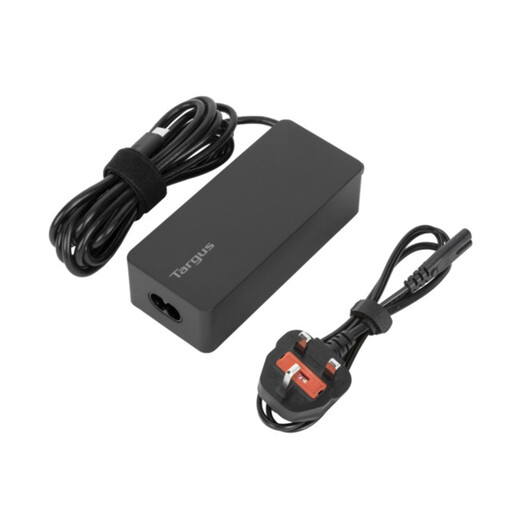
Targus 65W USB Type-C Charger
For leaving a charger at one regular location when the laptop already has suitable display and peripheral connections.
The product description specifies up to 65W Power Delivery, a 1.8m cable and UK and EU power cords. Check that your exact laptop accepts this charging method and wattage; a charger does not add display, USB or network ports.
Joybuy
 No image available
USB-C Multiport Adapter with 2 HDMI, DisplayPort and Ethernet
For bringing display, USB and wired-network connections together at a desk, subject to confirming the required screen arrangement.
The product information names HDMI, DisplayPort, USB, Ethernet, SD/TF and audio connections, but gives conflicting descriptions of simultaneous displays and single-display SST use. Confirm the supported display setup for your laptop, the PD output and the power-adapter contents before relying on either video or charging.
Joybuy
Common questions
What should I check on my laptop before buying a dock or hub?
Check the exact model’s supported USB-C video or docking method, charging capability and external-display limits. Microsoft Learn explains that DisplayPort video over USB-C uses an alternate mode; a USB-C connector alone does not establish that a display output will work.
Will a dual-monitor dock always run two external screens?
No. The laptop, host connection, operating system and dock must support the intended arrangement together. Kensington specifies one external display for USB-C Alt Mode laptops and certain M1/M2 base-chip MacBooks with its SD5760T, despite that model’s dual-display positioning.
When would a spare charger make more sense than a dock?
Consider an approved spare charger when power is the recurring inconvenience and the laptop already has enough compatible ports for each desk. If you also reconnect several displays or peripherals, compare a hub or dock against those additional connection needs.
Can I use a personally purchased dock with a managed work laptop?
Check with your employer’s IT team before buying or connecting it. The UK National Cyber Security Centre says organisations may restrict peripheral access, so permission and supported connection methods can matter even when the dock appears technically compatible.
Do I need a dock at both home and work?
Not necessarily. Consider what must reconnect at each desk: a dock at a device-heavy location and compatible cables or a charger at the other may suit different setups. Two docks are worth considering only if both locations need the connections and your laptop supports each arrangement.


