Single-webcam laptop users
If the webcam is your main addition, start with its USB connector and a matching data port. Extra monitor connections need not drive the choice unless you will use them.


For one USB webcam, choose a hub or dock with a spare downstream data port that matches the camera, and check that its host connection works with your laptop; HDMI is not the webcam connection. A powered USB-C dock is worth considering when charging and several desk devices must share one connection. Consider Thunderbolt 4 or a DisplayLink-based dock for particular monitor requirements only after checking laptop compatibility and any software requirements.
If the webcam is your main addition, start with its USB connector and a matching data port. Extra monitor connections need not drive the choice unless you will use them.
When the webcam shares a desk connection with charging, a display, Ethernet or other peripherals, count the ports you will use at the same time and check the laptop connection those features require.
Check the exact laptop-and-dock combination for extended or mirrored displays, power requirements and any accessory or DisplayLink permissions before choosing on the strength of a display label alone.
Start with the webcam’s USB connection, then decide how many other devices, displays and charging connections the dock must handle together. A Thunderbolt 4 dock adds little to a webcam-only requirement unless you also need its wider workstation connections; a DisplayLink-based dock calls for a separate check of software and monitor support.
| Concern | What to check | Who this matters to |
|---|---|---|
| Webcam connection | Match the webcam plug to a spare downstream USB-A or USB-C data port, rather than a power-input-only port. | If I mainly need one webcam for calls, I want a matching USB connection before adding display features. Around 29% of consumers put that basic connection first. |
| Desk connections | Count devices used simultaneously; check the dock’s charging arrangement and the laptop features needed for displays. | With a webcam, screen and other peripherals on one desk, I want to leave them connected rather than swap cables. Roughly 36% of consumers prioritise this broader desk setup. |
| Laptop and display fit | Check the host port and the exact dock’s operating-system notes, including whether the intended screens extend or mirror. | If I use a Mac or multiple monitors, I need the planned display arrangement to work alongside the webcam. Around 21% of consumers place compatibility first. |
| Shared-space setup | Check the camera connection, other devices used at once and the laptop’s charging requirements against the specific dock. | For a shared-room camera and a busier workstation, I need enough connections without assuming one charging rating suits every laptop. About 14% of consumers put this larger setup first. |
A matching connector does not establish that charging and displays will work. Anker specifies that its 575 dock requires a laptop USB-C port supporting Power Delivery and DisplayPort Alt Mode.
Check your laptop model’s port capabilities against the requirements of the exact dock, as well as finding a downstream data port for the webcam.
Anker states that its A210B supports different content on external screens in Windows Extended Mode, while macOS mirrors the content. That distinction concerns this model, not every USB-C hub.
If you need two different external displays, check the dock’s operating-system notes and your laptop’s display support before buying.
If a Mac reports insufficient power or disables USB devices, Apple advises testing the device directly and connecting a self-powered hub to its AC adapter.
For a fixed desk with a webcam and several peripherals, check the dock’s power arrangement and use its supplied power connection as instructed.
A loose USB connection or camera privacy setting can prevent a webcam from working even when the dock is connected. Microsoft includes connections, camera switches and app permissions in its Windows troubleshooting guidance.
Reseat the cable, try another USB port or connect the camera directly, then check operating-system and video-call app access.
Anker lists compact USB-C hubs and larger desktop docks. Its A210B and 575 illustrate why webcam buyers should compare data ports, charging and display requirements by model.
StarTech.com lists USB-C desktop docks aimed at setups with several peripherals and displays. The DK31C2DHSPDUE includes multiple downstream USB ports alongside Ethernet and display connections.
Dell’s WD25TB4 is a Thunderbolt 4 workstation dock with USB connections for a webcam as part of a larger desk arrangement.
These USB-C hubs and adapters are choices to examine for a webcam alongside other desk connections. Before choosing one, confirm that its downstream data port matches your webcam and that your laptop supports the functions you intend to use.
 No image available
For a webcam used with other desk peripherals, check whether its plug matches one of this dock’s listed USB data connections.
The name specifies two USB-A 3.0 ports, one USB-C 3.0 port, SD/TF readers and HDMI 4K60Hz. Confirm the laptop’s host-port capabilities before relying on its display connection.
 No image available
For a webcam sharing a desk connection with a display or network cable, check that its plug fits one of the adapter’s two USB 3.0 ports.
The named configuration includes 4K HDMI, VGA, Gigabit Ethernet and 100W Power Delivery. Check the laptop’s USB-C Alt Mode support for the display setup you plan to use.
 No image available
This multiport configuration is worth checking if the webcam will share a connection with several peripherals and displays.
The name also lists RJ45, PD, SD/TF and audio connections. Confirm the downstream USB connector types against the webcam plug, and check the laptop’s display capabilities.
 No image available
For a webcam and another USB device, check that the available data-port connectors match what you intend to plug in.
The named configuration includes USB 3.0 and USB 2.0, an HDTV connection, SD/TF readers and PD. Check laptop host compatibility if you also need the display or charging functions.
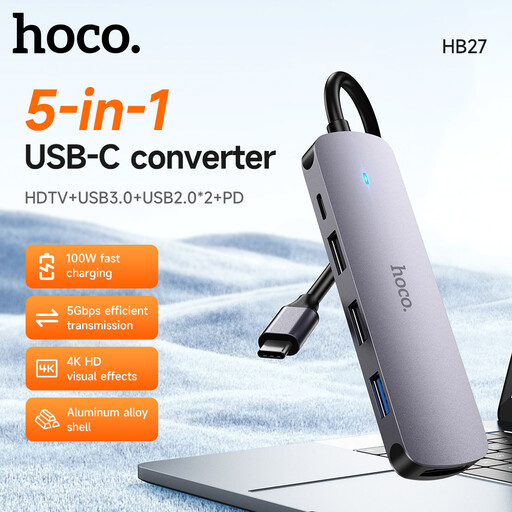 No image available
Consider this hub for a webcam only after checking the number and connector types of its downstream USB data ports.
Confirm your laptop’s host-port requirements too, particularly if the hub must do more than connect the webcam.
Connect a USB webcam to a matching downstream USB data port, using a compatible cable if needed. Logitech describes its MeetUp conference camera as connecting to a computer via USB; a dock’s HDMI output or USB-C power-input-only port is not a substitute for the camera’s data connection.
No: the USB-C connector alone does not establish support for every dock function. Check the laptop and exact dock requirements; Anker specifies Power Delivery and DisplayPort Alt Mode support at the laptop port for its 575 dock’s charging and display functions.
Check the USB cable and try another port or a direct laptop connection before replacing the dock. Microsoft also advises checking the camera switch or shutter and Windows camera-access permissions, including access for the app you use.
Power or accessory approval may be involved, so test the webcam directly on the Mac to help isolate the cause. Apple advises connecting a self-powered hub to its AC adapter; on Apple-silicon Mac laptops, a new or unknown USB accessory may also require approval for data access.
Yes, if the dock actually uses DisplayLink technology for its display functions. DisplayLink says its Manager app requires macOS Screen Recording permission and must be restarted after that permission is granted; check the specific dock and Mac before choosing it for additional monitors.