Multi-screen home worker
You want your existing monitors and desk peripherals connected, but need to check that the laptop can drive the intended screens. A dock’s advertised screen count does not override the laptop’s own display limit.


Start with the laptop’s documented video outputs, external-display limit, charging input and operating system, then match them to the monitors and peripherals on your desk. A compatible dock can consolidate one laptop’s connections; a KVM is for switching between computers, while a USB-A display dock may suit some older laptops if its software and separate-power requirements work for you. Direct connections can also make sense when there are few devices to share.
You want your existing monitors and desk peripherals connected, but need to check that the laptop can drive the intended screens. A dock’s advertised screen count does not override the laptop’s own display limit.
You want to use two computers at one desk and need to decide whether a KVM, separate dock connections or manual monitor-input switching fits your equipment.
Your laptop may lack a suitable USB-C video connection, so check whether a USB-A display dock, its required software and a separate power arrangement suit your setup.
Choose when: your laptop’s documented port supports the dock’s video connection and the laptop can handle the number of screens you intend to use.
Trade-off: a USB-C-shaped port alone does not confirm video support, charging compatibility or the display configuration you need.
Consider when: an older laptop lacks suitable native USB-C video and the specific dock supports its USB-A connection and operating system.
Trade-off: some models require DisplayLink software, and USB-A does not provide the same laptop-charging route as compatible USB-C.
Choose when: switching shared monitors and USB peripherals between two computers is the main task, and both computers can supply the required signals.
Trade-off: a KVM is not automatically a laptop charger or a replacement for missing video outputs; adapters or docks may still be needed.
Consider when: the setup is simple or a second computer uses the desk only occasionally, and the laptop has compatible monitor outputs.
Trade-off: you may need more cables, manual monitor-input changes or separate peripheral connections.
| Concern | What to check when buying | Who this matters to |
|---|---|---|
| Getting the intended displays working | Check the laptop’s video-capable port, supported number of simultaneous displays, and each monitor’s inputs and display mode against the dock. Dell notes that USB-C video requires supported DisplayPort Alt Mode or Thunderbolt; Apple says a hub does not raise a MacBook Air’s model-specific display limit. | If I need particular monitors to work together, I would check the laptop and dock configuration before choosing by output count alone. Around 36% of consumers prioritise display compatibility. |
| Switching one desk between two computers | Count the computers, screens and shared USB devices, then match the KVM’s inputs and outputs to both laptops and the monitors. Check whether webcams and other peripherals need a USB connection through the switch. | If I alternate between work and personal laptops, I would check how the switch handles my actual monitors and peripherals. Around 29% of consumers put two-computer switching first. |
| Connecting an older or video-limited laptop | Confirm explicit USB-A host support, operating-system compatibility and any required DisplayLink software. Check the dock’s stated display modes and whether the laptop needs a separate power connection. | If my laptop lacks suitable native USB-C video, I would look for a connection route it actually supports rather than relying on a plug-shape adapter. Around 21% of consumers prioritise access for a legacy or video-limited laptop. |
| Powering the laptop through the desk connection | Compare the laptop’s charging requirements with the exact dock’s stated power delivery, host connection and supplied power supply. A stated maximum does not establish what a particular laptop will accept. | If I want one connection to handle charging as well as desk devices, I would check the laptop’s charging input and the dock’s power arrangement. Around 14% of consumers put single-cable power first. |
Changing the connector shape does not add a video protocol to the laptop or make a native-video USB-C dock compatible with USB-A.
Check the dock’s stated host connection and the laptop’s documentation before choosing an adapter or dock.
A mismatched route can leave you needing a different connection method or extra equipment.
The laptop’s display limit, port capability, dock host mode and monitor arrangement all affect what works together.
Check the exact laptop and dock documentation against the screens and charging arrangement you plan to use.
A dock consolidates connections for a host; a suitable KVM switches the specified monitors and peripherals between computers.
Map both computers’ video and USB connections before choosing, including how the webcam will connect.
Without a switching route, moving between computers may mean reconnecting devices or buying a KVM later.
Some USB-A display docks require DisplayLink software, and USB-A does not provide the same laptop power-delivery route as compatible USB-C.
Check the exact model’s operating-system support, software requirements, display modes and charging arrangement. On a managed work laptop, confirm that required software installation is permitted.
The ThinkPad Universal Thunderbolt 4 Dock, part 40B00135UK, is a candidate for a compatible USB-C or Thunderbolt laptop that needs a consolidated desk connection.
The SD4781P EQ, SKU K33603EU, is a hybrid dock intended for compatible USB-C and USB-A laptop connections.
The P2ADDH462-KVM-SWITCH is for a desk shared between two computers with the specified monitor and peripheral connections.
The Universal Dock D6000S illustrates a dock with USB-C and USB-A host connection routes.
The UD-3900 illustrates a DisplayLink USB-A-capable option for an older laptop used for desktop work.
These choices focus on USB-C hubs and docks for connecting a compatible laptop to a monitor and desk peripherals. Check the laptop’s video support and display limit before choosing one for a multi-screen setup.
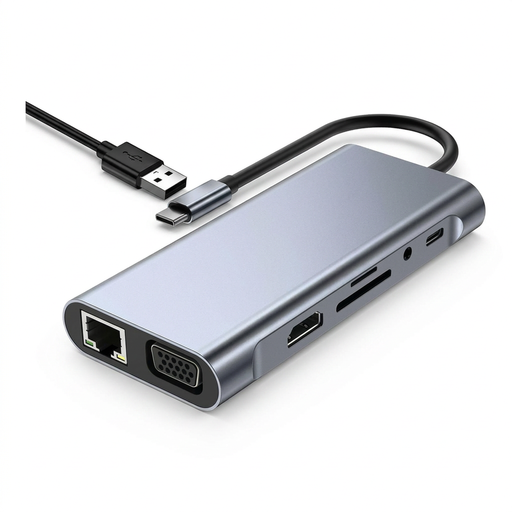 No image available
Consider it when you need to connect a compatible USB-C laptop to a display and several desk peripherals.
The listing specifies HDMI at 4K@30Hz, three USB 2.0 ports and a Type-C PD charging port. The product name also lists VGA, RJ45 Ethernet, SD/TF card readers and 3.5mm AUX.
 No image available
Consider it for a compatible USB-C laptop when you need listed HDMI connections alongside desk peripherals.
The product name lists HDMI outputs rated 4K120Hz and 4K60Hz, USB-A and USB-C data ports, RJ45, SD/TF and USB-C PD. Video output requires USB-C DisplayPort Alt Mode on the host.
 No image available
Consider it when a compatible USB-C laptop needs listed HDMI and USB-A connections for a desk setup.
The listing specifies USB-C Alt Mode, two HDMI 2.0 ports and up to 100W PD pass-through. It specifies an external 100W+ adapter as the power source; check that arrangement and the laptop’s display limit.
 No image available
Consider it for a compatible USB-C device when one listed HDMI connection and several USB connections meet your desk needs.
The listing describes one HDMI output, three USB 3.0 interfaces and SD/TF card slots. Its listed single HDMI output does not establish a multi-screen arrangement.
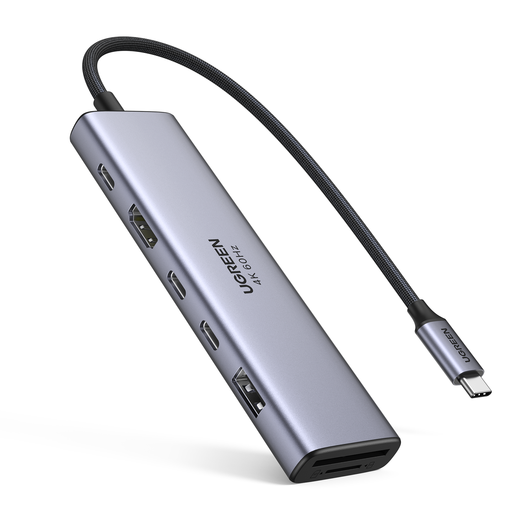 No image available
Consider it when a compatible USB-C laptop needs one listed HDMI connection plus ports for desk peripherals and wired networking.
The listing specifies one HDMI output, USB-A and USB-C data ports, SD/TF readers, Ethernet and PD pass-through. The listed video connection is one HDMI output, so check your screen requirements before choosing it for a multi-screen setup.
No: check the laptop’s documented video support and charging capability separately, then compare both with the dock. Dell notes that USB-C video requires a supported video mode, while Kensington distinguishes compatible USB-C power delivery from a USB-A data-and-video connection.
Do not assume it can. Apple says a supported hub can carry displays through one Thunderbolt port but does not increase the MacBook Air model’s maximum display count. The supported display arrangement depends on the specific MacBook Air model and configuration.
Check the exact dock’s host and operating-system support, required display software, supported display modes and charging arrangement. Kensington’s support information for the cited DisplayLink dock says a driver is required; on an employer-managed laptop, also check whether your organisation permits the required software installation.
The Health and Safety Executive says that where the display-screen-equipment rules apply and an assessment indicates action such as providing equipment is needed, the worker cannot be charged for that action. This does not mean every personally chosen dock must be supplied by an employer.