What to check before choosing
For a fixed home workstation, start with the laptop’s actual video and port capabilities, then decide whether you need simpler reconnection, support for older ports or switching between computers.
| Concern |
What to check when buying |
Who this matters to |
| Making the planned screens work |
Check the laptop’s port video specification and supported external-display count, then match the dock and monitors to the intended screen layout, resolution and refresh rate. |
I need my desk screens to work in the layout I plan to use. Around 36% of consumers put working displays first. |
| Simpler desk connections |
Count the display and USB connections you need, and check whether the laptop supports charging through the dock and whether the dock supplies adequate host power. |
I want to reconnect my usual desk equipment with less plugging and unplugging, and charge through the dock if the laptop supports it. About 29% of consumers prioritise that routine. |
| Compatibility with older ports |
Confirm the laptop’s USB version and operating system against the exact dock; check its software and permission requirements, intended applications and separate charging needs. |
My laptop lacks suitable native USB-C video, so I need a display route that works with its actual ports and software. Roughly 21% of consumers prioritise older-port compatibility. |
| Switching between two computers |
Count the computers, screens and shared USB devices, then check the video inputs, host connections, software and charging conditions of the monitor or KVM setup. |
I alternate between two computers and want to reuse desk screens or controls without repeatedly reconnecting everything. Around 14% of consumers put two-computer switching first. |
Joybuy products for desk connections
These products cover USB-C docking and hub connections for a compatible one-laptop desk, plus a direct HDMI cable for a compatible laptop and monitor.
 No image available
Targus USB-C Universal Dual HDMI 4K Docking Station, 100W Power Delivery Pass-Thru
For a desk needing two HDMI-connected displays and USB peripherals, provided the laptop supports the dock’s host connection.
The listing specifies two HDMI 2.0 outputs, USB-C Alt. Mode host connection and up to 100W PD pass-through. It specifies an external 100W+ adapter for the dock.
Joybuy
 No image available
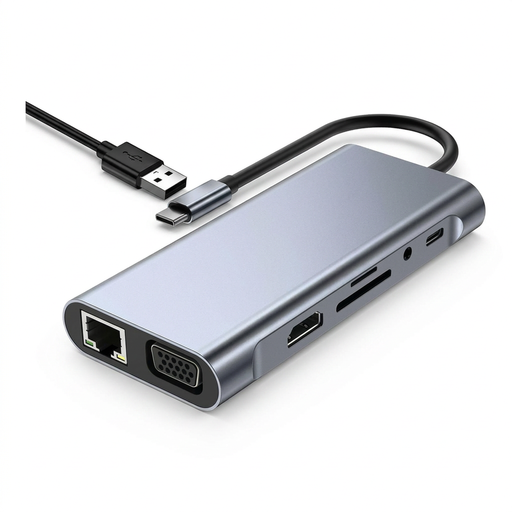
USB-C Hub Docking Station TW11A, 11-in-1
For a compatible Type-C laptop setup needing display connections and desk peripherals.
The listing describes HDMI up to 4K at 30 Hz, VGA up to 1080p at 60 Hz, USB 3.0 and USB 2.0 ports, card readers and network connectivity.
The description recommends powering the hub through its Type-C PD port when using displays.
Joybuy
 No image available
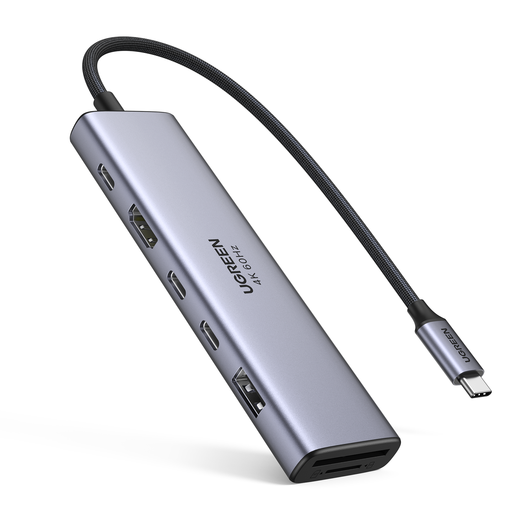
UGREEN 7-in-1 USB-C Multi-Function Docking Station
For connecting a compatible USB-C laptop to a display and desk peripherals, with wired networking also listed.
The product name specifies HDMI, two USB-C 3.2 ports, one USB-A 3.2 port, SD/TF and PD. The description lists a Gigabit Ethernet port.
Joybuy
 No image available
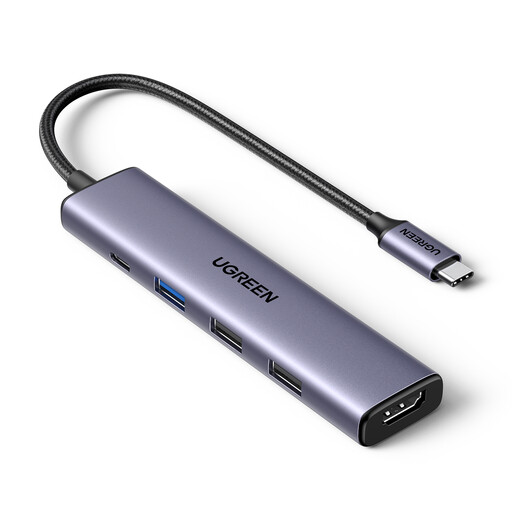
UGREEN Revodok 5-in-1 USB-C Hub
For a compatible USB-C device needing an external display, several USB peripherals and power pass-through.
The listing specifies HDMI up to 4K at 30 Hz, three USB-A 3.0 data ports and 100W PD pass-through.
Joybuy
 No image available
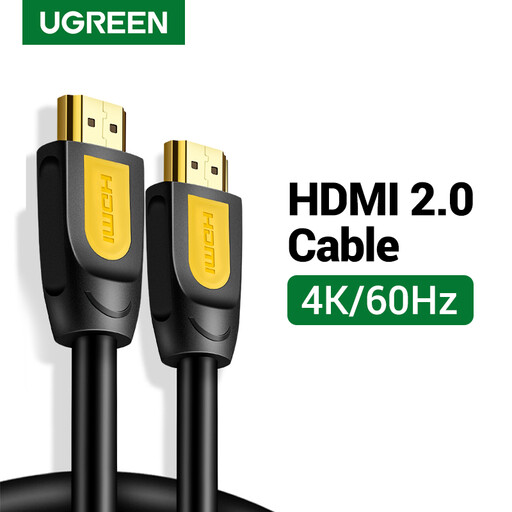
UGREEN HDMI Cable, Male to Male, 2 m, 4K 60Hz
For a direct screen connection when the laptop’s HDMI output and monitor’s HDMI input are compatible.
The product name specifies a 2 m male-to-male HDMI cable and 4K at 60 Hz. It is a cable, not a dock, so it does not consolidate desk peripherals.
Joybuy
Laptop dock and switching FAQs
Does any USB-C socket work with a dual-monitor dock?
No: the connector alone does not confirm video support or a dual-display configuration. Check the laptop’s port specification and external-display limit, then compare them with the dock’s supported modes and your monitors’ intended resolution and refresh rate. CalDigit conditions dual-monitor use of the TS4 on the computer’s display support.
Can an adapter let a USB-A laptop use a USB-C video dock?
Do not assume that a plug adapter adds native USB-C video support. A dock that explicitly supports a USB 3.0 host and DisplayLink, such as Plugable’s UD-6950Z, uses a different route; check its operating-system support, software requirements and separate laptop charging.
What should I check before using DisplayLink on a Mac?
Check the exact dock’s macOS support and install the required software. DisplayLink says its Manager needs Screen Recording permission on macOS and documents that some protected video may not play while DisplayLink screens are connected.
Will changing my monitor input also switch my keyboard and mouse?
Not automatically: selecting a video input and switching USB devices are separate functions. For a monitor with a supported built-in KVM, Dell’s instructions require video and USB upstream connections from the computers, with the shared controls connected to the monitor.
What should I check about power and extra cables?
Check whether the exact dock includes its power adapter and host cable, whether it charges your laptop, and whether your planned screens or USB devices need additional cables. Match the dock’s stated host-power conditions to the laptop rather than assuming that a dock’s display connections also provide the charging arrangement you want.


