For a hybrid-work laptop desk, choose a compact USB-C hub if you carry it between locations and normally connect one display; a powered USB-C or Thunderbolt dock suits a regular desk with several peripherals, provided it meets the laptop’s charging needs. Consider a DisplayLink-enabled dock when native display support cannot meet your monitor plan and you can accommodate its software requirements. Check the exact laptop’s video-capable port, supported display arrangement and charging requirements before relying on a dock’s connector list.
Who needs which setup?
Regular hybrid-desk users
If you repeatedly connect monitors, wired Ethernet and peripherals at home or in an office, focus on a repeatable desk connection and charging that suits your laptop. A small accessory is less important if it will usually stay at the desk.
Commute-and-connect workers
If the accessory travels with your laptop, a compact hub may cover modest port expansion. Check its documented display, Ethernet and charging conditions against the equipment at each location.
Multi-display compatibility checkers
If you plan to use two or more external displays, check your exact laptop model before counting a dock’s video sockets. Apple Support notes that a Mac’s supported display count depends on its technical specifications; host-port and software requirements also matter for the chosen dock.
What matters when choosing?
Establish what the laptop can output first. Then choose between equipment that stays connected at a regular desk and an adapter you need to carry.
Compact USB-C hub
Choose when: You move between desks and usually need one external display, Ethernet and a few USB connections.
Allow for: Pass-through charging may require your own charger, and the hub’s stated power input may exceed what reaches the laptop.
USB-C or Thunderbolt desk dock
Choose when: Displays, networking and peripherals remain at a regular desk and the dock matches your laptop’s port and charging capabilities.
Allow for: A dock cannot by itself increase the laptop’s native external-display limit.
DisplayLink-enabled dock
Consider when: The required display arrangement exceeds your laptop’s native output and a compatible DisplayLink setup meets your workflow.
Allow for: DisplayLink software is required; DisplayLink Support says its macOS manager also needs Screen Recording permission.
| Concern | What to check | Who this matters to |
|---|
| Displays and compatibility |
Check the exact laptop’s video-capable port and supported external-display count at your intended resolution and refresh rate. For additional screens, establish whether the dock uses native video or DisplayLink. |
If I need two extended monitors, I want to know my laptop can run that arrangement before choosing a dock. Around 36% of consumers put display and host compatibility first. |
| Regular desk connections |
Compare the laptop’s charging needs with the dock’s stated power delivered to the host, and check for the Ethernet and peripheral ports your desk uses. |
When I reconnect at my usual desk, I want the displays, wired network and devices ready without separate adapters. Roughly 36% of consumers prioritise that repeatable powered connection. |
| Portability |
Check the adapter’s size, required charger and documented output for the monitor you normally use away from your main desk. |
Moving between work locations, I would rather carry a compact accessory than desk connections I will not use. About 28% of consumers make portable expansion their main priority. |
Mistakes to avoid
-
Assuming every USB-C port carries video
The connector’s shape does not establish video capability or how many external displays the laptop supports.
Find the exact laptop model and check its maker’s port and external-display specifications against the dock’s host requirements.
-
Counting video sockets as independent screens
Microsoft Support explains that a display splitter can duplicate one signal rather than create two extended displays. A dock with several outputs must still be assessed against the laptop and the intended display mode.
Check whether your arrangement uses native USB-C or Thunderbolt video, or requires a compatible DisplayLink dock and software.
-
Reading pass-through wattage as laptop charging output
A hub may reserve some incoming power for itself, while a dock’s stated charging figure may depend on a specified external adapter.
Compare the documented power delivered to the laptop with its charging needs, then check the required charger, cable and box contents.
A compatible charger, cable or power supply may need to be obtained separately.
-
Choosing DisplayLink without checking the workflow
DisplayLink is a software-dependent route rather than the laptop’s native video output. DisplayLink Support says macOS requires Screen Recording permission for DisplayLink Manager.
Confirm that the specific dock uses DisplayLink, supports your operating system and accommodates the applications you intend to use.
Brands to consider
Anker
Its UK range includes compact USB-C hubs as well as larger docks, making individual models worth comparing for a travelling or fixed-desk setup.
- Anker UK lists HDMI, Ethernet and USB expansion on compact hub models.
- Anker says its 555 hub reserves 15W from up to 100W pass-through power. Check the charger and cable requirements of the exact model.
Targus
Its UK dock range includes single-display USB-C Alt Mode models and docks with more display connections.
- Targus UK lists different video-output and power-delivery configurations across its dock models.
- Output must be checked by model: Targus specifies one HDMI display up to 4K at 30Hz for its single-video DP Alt Mode dock.
StarTech.com
Its UK range distinguishes native-video docks from DisplayLink-based products for different laptop and desk requirements.
- StarTech.com lists a DisplayLink hybrid model for dual external displays on certain base M-series MacBooks.
- Its driverless dual-monitor USB-C model is specified for Windows, not macOS or ChromeOS; the cited DisplayLink hybrid model requires software installation on Windows and macOS.
Lenovo
Its travel and desk docks are relevant to ThinkPad setups, with compatibility checks needed when connecting other laptops.
- Lenovo UK lists dual 4K at 60Hz and Gigabit Ethernet for its USB-C Dual Display Travel Dock.
- Lenovo specifies an additional 135W USB-C adapter for that dock’s up-to-100W power delivery. Lenovo Support cautions that some dock features may not be available on non-Lenovo systems.
Joybuy products for laptop desks
These USB-C hubs, adapters and docks offer different ways to connect a laptop at a work desk. Choose by the displays and peripherals you need, then confirm host-port compatibility, charging and any required accessories for the exact model.
 No image available
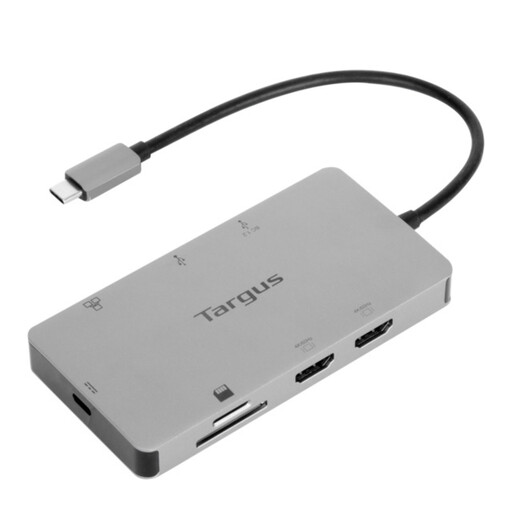
Targus USB-C Universal Dual HDMI 4K Dock, 100W PD Pass-Thru (Retail Packaging)
Consider this dock for a regular desk where two HDMI connections matter. Its name specifies dual HDMI 4K and 100W power-delivery pass-through; confirm that your laptop supports the intended two-display arrangement and check the power delivered to the laptop, required adapter and box contents.
View on Joybuy
 No image available
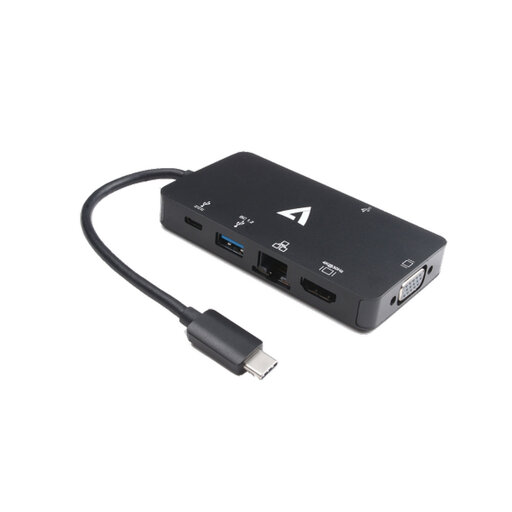
V7 V7UC-U3CRJ45HDVG-BLK USB-C Adapter
Consider this adapter when you carry a laptop between locations and need one external display alongside wired networking and USB devices. Its name lists 4K HDMI, VGA, Gigabit Ethernet, two USB 3.0 ports and 100W PD pass-through. Check the display mode you need and how much charging power reaches your laptop with a compatible charger.
View on Joybuy
 No image available
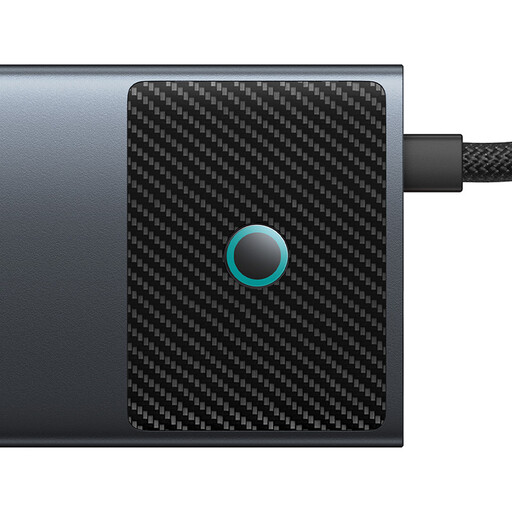
Baseus Metal Gleam Series II 10-in-1 USB Hub, Cosmic Black
Consider this hub if your desk needs video connectors, wired networking and several data ports. Its name lists two HDMI outputs with individual maxima of 4K at 120Hz and 4K at 60Hz, plus RJ45, USB-A, USB-C and SD/TF connections. Check whether your laptop and the hub support the intended simultaneous display arrangement; its PD input is not a stated laptop charging output.
View on Joybuy
 No image available
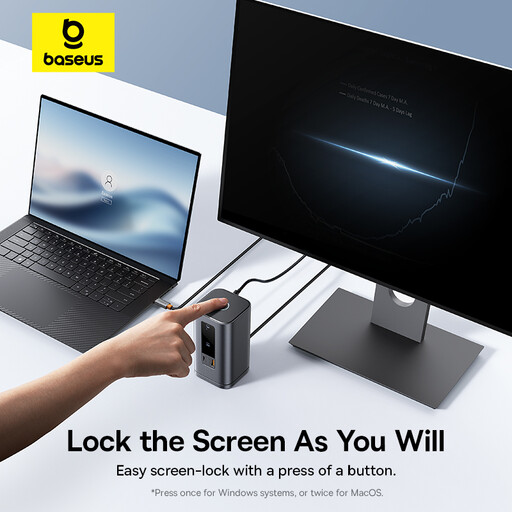
Baseus Wisdom Series 11-in-1 (WIN) Workstation, Space Gray
Consider this workstation-style dock for a regular laptop desk, particularly if several connections are needed. Before planning multiple monitors around it, confirm the exact series and variant, the supported simultaneous display modes and your laptop’s host-port capabilities. Also check the charging output and required power adapter.
View on Joybuy
 No image available
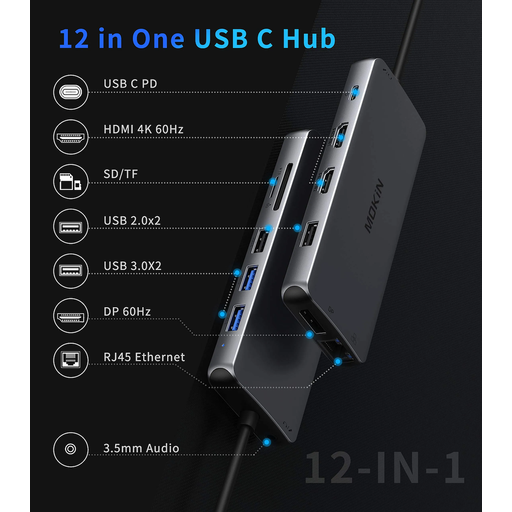
USB-C Adapter with 2 HDMI, DP, USB 3.0, USB 2.0, RJ45, PD, SD/TF and Audio
Consider this adapter if your desk calls for several connector types. Its name specifies two HDMI ports, one DisplayPort, two USB 3.0 ports, two USB 2.0 ports, RJ45, PD, SD/TF and audio. Confirm the supported simultaneous display arrangement, resolution and refresh rate, along with the laptop’s video-capable USB-C port and the adapter’s charging output.
View on Joybuy
Common questions
Can any USB-C laptop use a dock with an external monitor?
No: a USB-C connector alone does not establish video support. Check the exact laptop’s port specification and the dock’s host requirements; Apple Support also advises checking the Mac model’s technical specifications for its supported external displays.
Will two video sockets give me two extended screens?
Not necessarily: the laptop must support the intended display arrangement. Microsoft Support notes that a splitter duplicates a signal rather than creating two independent extended displays. If native output is insufficient, check whether a compatible DisplayLink dock and its software meet your requirements.
Does 100W pass-through mean my laptop receives 100W?
No: compare the stated power delivered to the laptop with its charging requirements and check the required charger and cable. Anker UK says its 555 hub reserves 15W from up to 100W pass-through power; Lenovo UK specifies an additional 135W adapter for its USB-C Dual Display Travel Dock’s up-to-100W power delivery.
Does a DisplayLink dock need setup on a Mac?
Yes, if you use its DisplayLink display functions. DisplayLink Support says its macOS manager requires Screen Recording permission; check that the particular dock uses DisplayLink and that its software supports your intended workflow.


