What should you check before buying?
Start with the screen arrangement you need, then check the laptop connection and the space available at your desk.
| Priority |
What to check |
Your needs |
| Screen and input position |
Check whether the screen can sit at a usable height while the keyboard and mouse remain comfortably placed. The Health and Safety Executive recommends separate input devices when a laptop screen is elevated for prolonged use. |
I mainly need to raise my laptop screen, and my desk may not have room for another monitor. |
| Screen space |
Decide whether one external screen is enough or whether you need two independent displays. For two, check the laptop’s supported display count at your intended resolution and refresh rate; Microsoft and Apple describe limits that depend on the computer. |
One larger work area may be enough for my documents and calls. If I need different tasks visible on separate screens, I want to know both displays can extend my desktop. |
| Video connection |
Match the laptop’s video output to the monitor input and cable. For a USB-C dock, confirm the required video mode or Thunderbolt support; Lenovo states that its USB-C and Thunderbolt docks require compatible host protocols. |
I want to connect a screen without assuming that every USB-C socket carries video. |
| Charging and peripherals |
Check the dock’s documented host charging output against the laptop’s requirements, then check the ports needed for your devices. Dell lists up to 130W for its WD25TB4, but the applicable output must be checked for the laptop. |
Repeatedly reconnecting a charger, display and peripherals makes a compatible dock useful to me; extra ports alone would not solve a charging mismatch. |
| Workspace and mobility |
Check desk dimensions before choosing a large screen or an arm. For a portable display, check its connection and power requirements against the laptop you will carry. |
My setup needs to fit either a permanent desk or the places where I regularly work away from it. |
| Software requirements |
If considering a DisplayLink dock, check operating-system and driver requirements before purchase. Anker specifies a DisplayLink driver for its triple-display dock. |
I need to know whether required software can be installed on the laptop I use for work. |
Joybuy options for monitors and docking
These options cover a desk dock, fixed monitors and a portable screen. Choose the type of setup first, then check its connection and physical fit against your laptop and workspace.
 No image available
Targus USB-C Universal Dual HDMI 4K Docking Station, 100W PD Pass-Thru
Consider this dock if you regularly reconnect a laptop to displays and desk peripherals. Its title specifies dual HDMI 4K outputs and 100W Power Delivery pass-through; check that your laptop supports the intended displays and charging arrangement, and confirm the required power adapter and package contents.
View on Joybuy
 No image available
AOC Q32V4 31.5-inch 2K IPS Monitor
This is a fixed-desk option when one separate screen meets your workspace needs. Check that a 31.5-inch display fits your desk and that your laptop and cable support the resolution you intend to use.
View on Joybuy
 No image available
ASUS ZenScreen MB166CR FHD
A portable second screen is worth considering when you work in more than one location rather than at a permanent multi-monitor desk. Check the MB166CR’s video and power connection requirements against the laptop and cable you will use.
View on Joybuy
 No image available
CRUA 32-inch 1500R Curved QHD Monitor, 165Hz
This 2560 × 1440 monitor is another fixed-desk route; its title also specifies HDMI, DisplayPort and a VESA 100 × 100 mm mounting pattern. Check desk space and the laptop’s output at your intended resolution and refresh rate. The listing notes that HDMI may limit the refresh rate.
View on Joybuy
 No image available
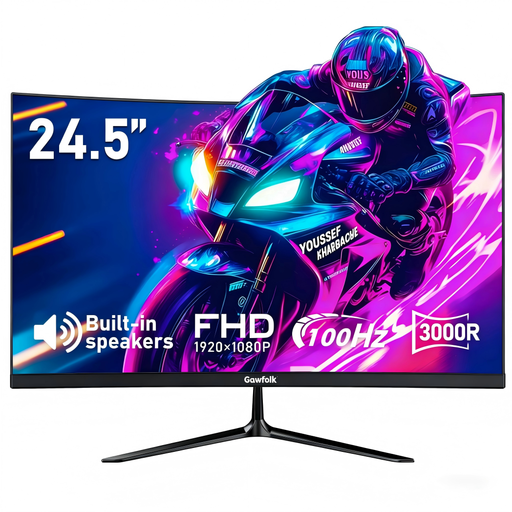
Gawfolk 24.5-inch Full HD Curved Monitor, 100Hz
This separate screen has an HDMI input and a stated VESA 75 × 75 mm mounting pattern. Check its desk or mount fit and the refresh rate available through your laptop’s chosen connection. If response time matters to you, confirm which specification applies: the title says 1ms MPRT, while the detailed listing says 2ms.
View on Joybuy
Common questions
Does every home worker need to buy a monitor or dock?
No: the Health and Safety Executive’s display screen equipment guidance does not prescribe either product for every home worker. In Great Britain, it says the rules can apply to permanent or long-term home workers and people who routinely split work between home and a workplace; where workers use display screen equipment daily for continuous periods of an hour or more, employers must assess applicable workstations. Discuss the workstation with your employer where an assessment is required rather than treating a purchase as a substitute.
Can any USB-C port run a monitor and charge a laptop through a dock?
No. Check the exact laptop port’s video capability and charging support against the dock and cable. Lenovo states that its USB-C and Thunderbolt docks require a laptop port supporting the relevant USB-C Alt Mode or Thunderbolt protocol.
Will two video outputs on a dock give me two extended monitors?
Not necessarily. Microsoft notes that a computer which works with one external monitor may have a display adapter that cannot support another; Apple says MacBook Pro display limits depend on the model, resolution and refresh rate. Confirm the laptop’s independent-display support before choosing a dual-display dock.
Should I buy a laptop stand instead of a monitor?
Choose a stand if raising the laptop’s existing screen addresses your main problem and you do not need more screen space. For prolonged use, the Health and Safety Executive advises pairing an elevated laptop with a separate keyboard and mouse. An external monitor addresses the different need for a separate display.
What should I check if a dock does not detect a monitor?
Check the laptop’s supported display count and video connection first, then check the cable and dock requirements. Microsoft notes that support for one external monitor does not establish support for a second; if the dock uses DisplayLink, also check its operating-system and driver requirements.


